
Send it to your watch
From the designer to your wrist, step by step: how the app finds your watch, checks your design for Wear OS 6, and what to do when it says not ready yet.
Pujie needs to be on your watch, and be your watch face. If it isn’t yet, start with Put Pujie on your watch.
1. Tap Send to watch
Section titled “1. Tap Send to watch”In the designer, tap the send button at the top right:


2. The app finds your watch
Section titled “2. The app finds your watch”First it checks that it can reach the Pujie app on your watch:
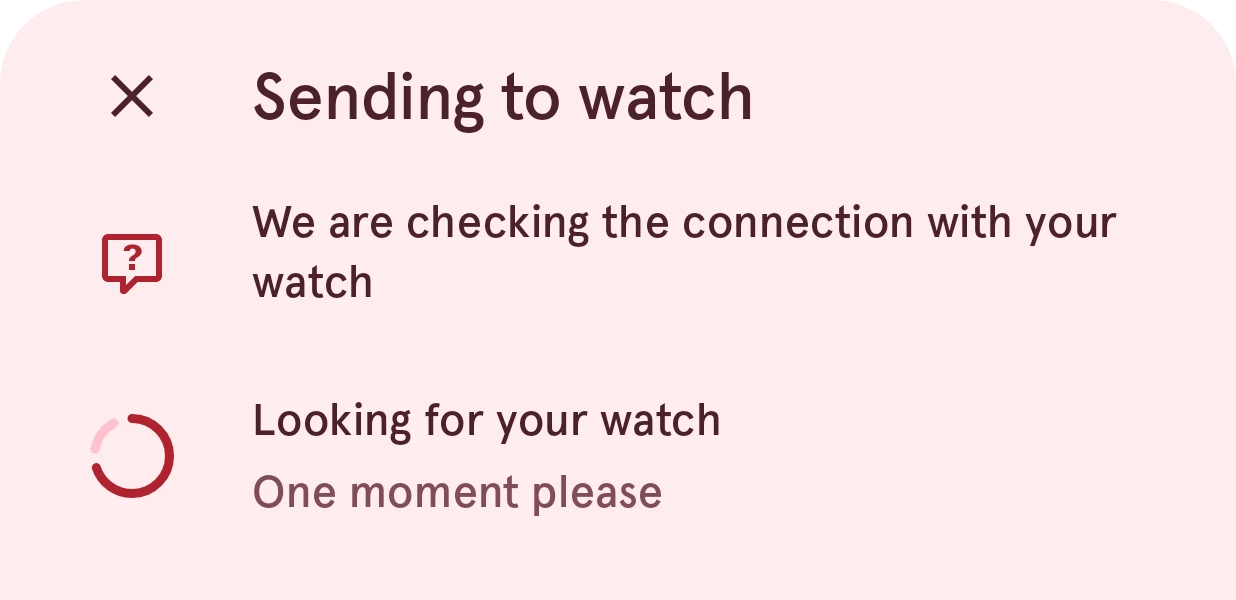
When it can’t, it works out why (Bluetooth off, no watch connected, Pujie not installed, or not your watch face) and tells you what to do. See Problems sending to your watch.
3. The app prepares your watch face
Section titled “3. The app prepares your watch face”Next it turns your design into a Wear OS 6 watch face, and has it checked with Google’s watch face validator:
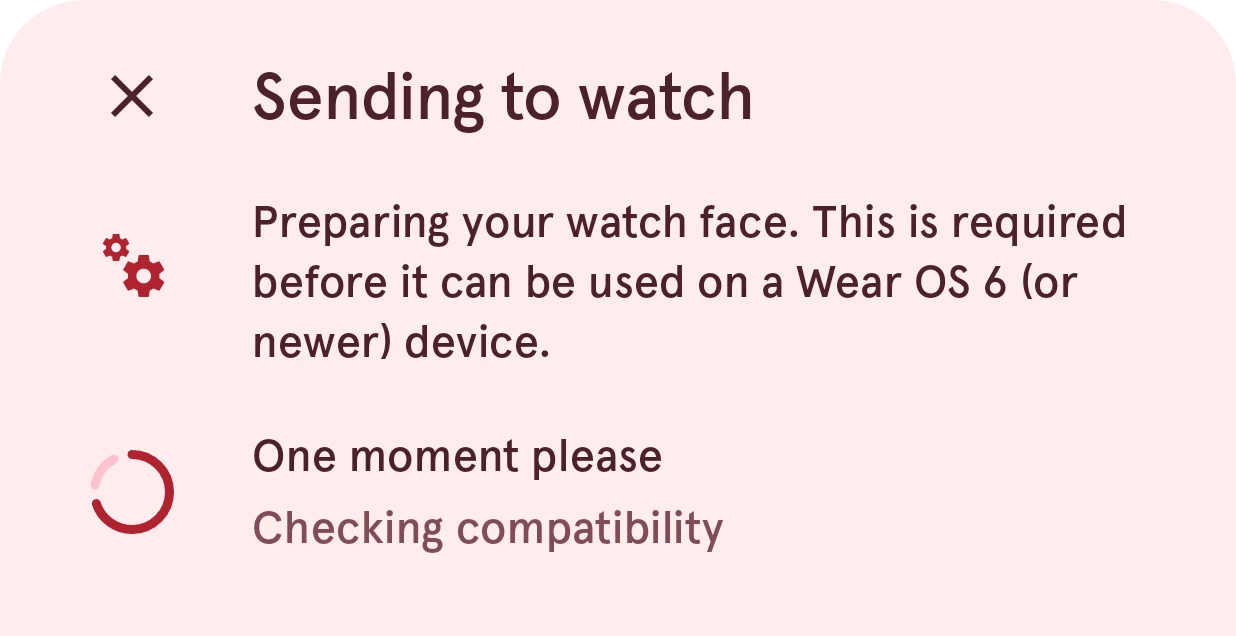
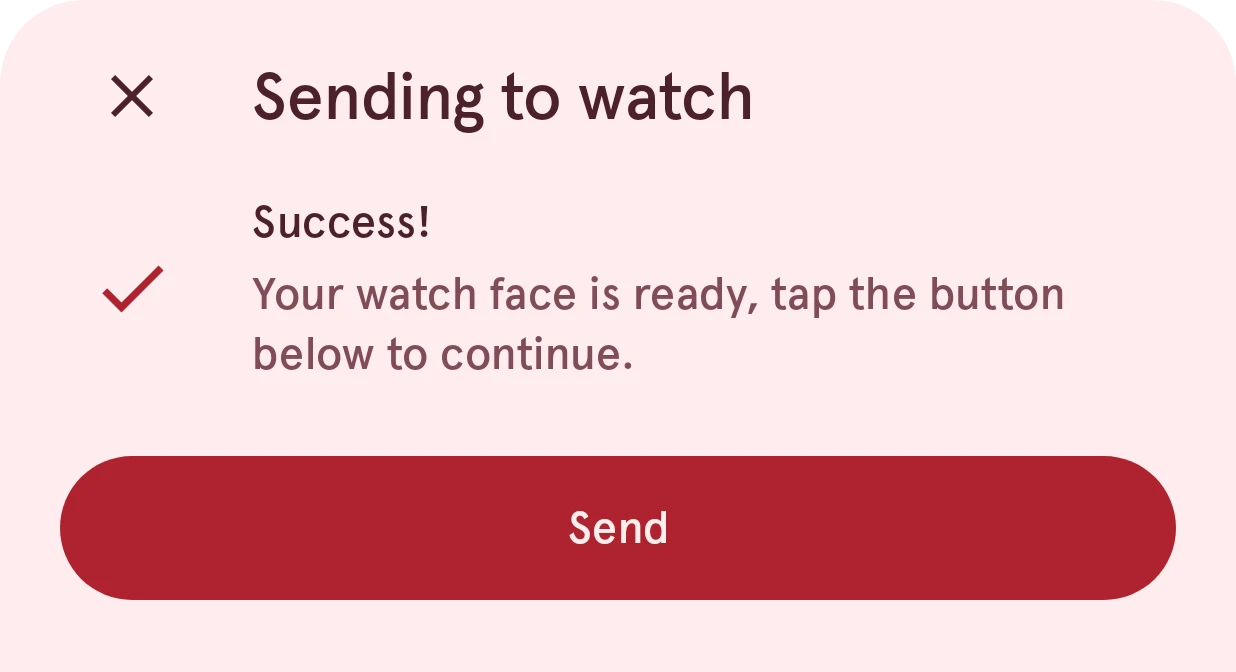
This takes a moment. When it’s done, tap Send:
4. Look at your watch
Section titled “4. Look at your watch”Your watch shows a loading screen for a moment, and then your new watch face.
When it says “Not ready yet”
Section titled “When it says “Not ready yet””Part of your design uses something a Wear OS 6 watch face can’t show:
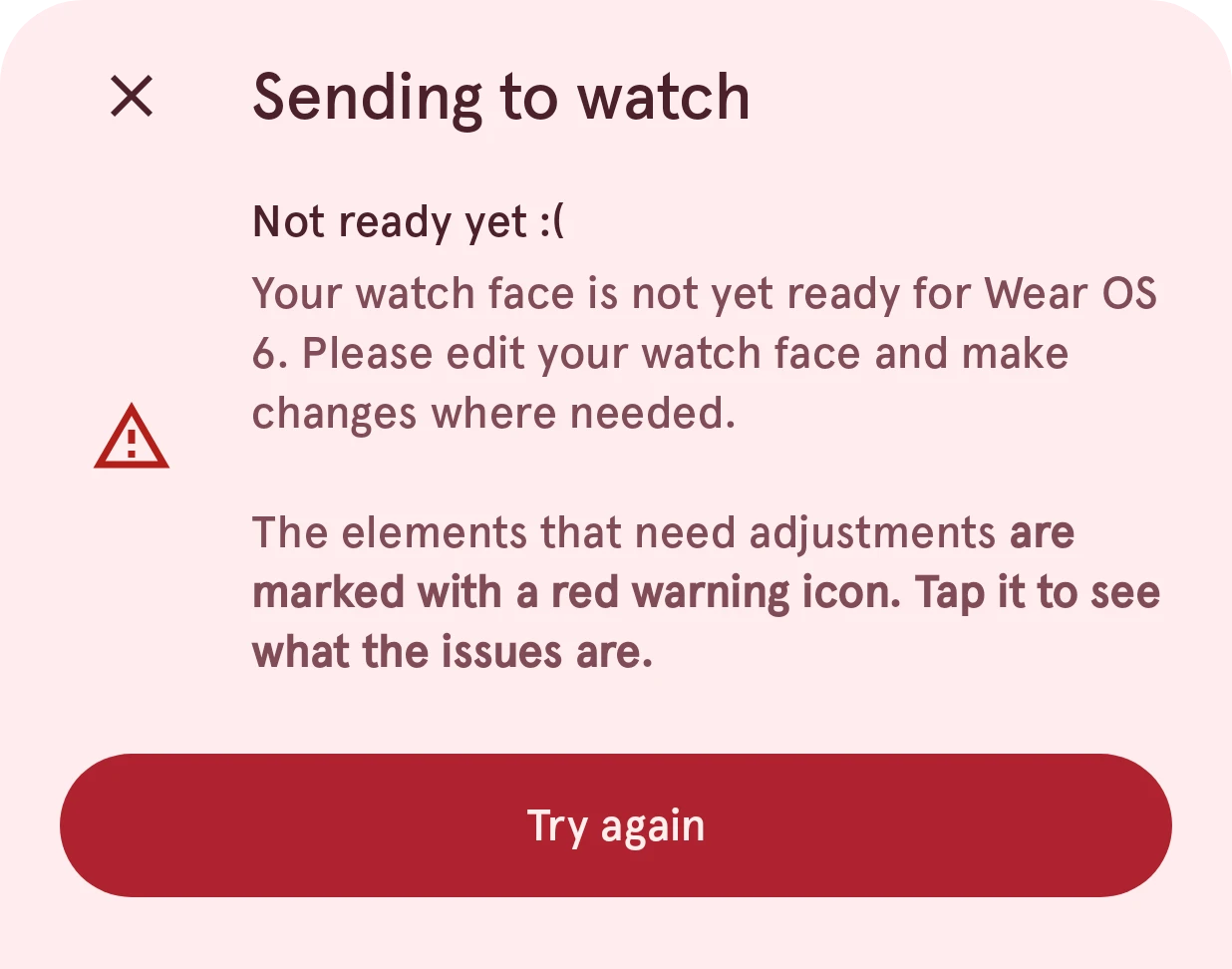
Go back to the designer: the elements to change have a red warning icon. Tap it to see what to fix, then send again. See why watch faces are validated.