
Expression editor
Write the expressions that drive automated layers, with live results and the data tags to use.
An expression is a short formula that works out a value from the time and data. [m] * 6 turns a
layer 6 degrees for every minute, which is a minute hand. [bat_w] < 20 is true while the watch battery
is below 20%, so a layer with that visibility only shows when the battery runs low.
The expression editor opens from the automate menu, from the automate buttons on the style pages, and for the global object. Its title names what you’re automating (“Automate Rotation”).
The editor
Section titled “The editor”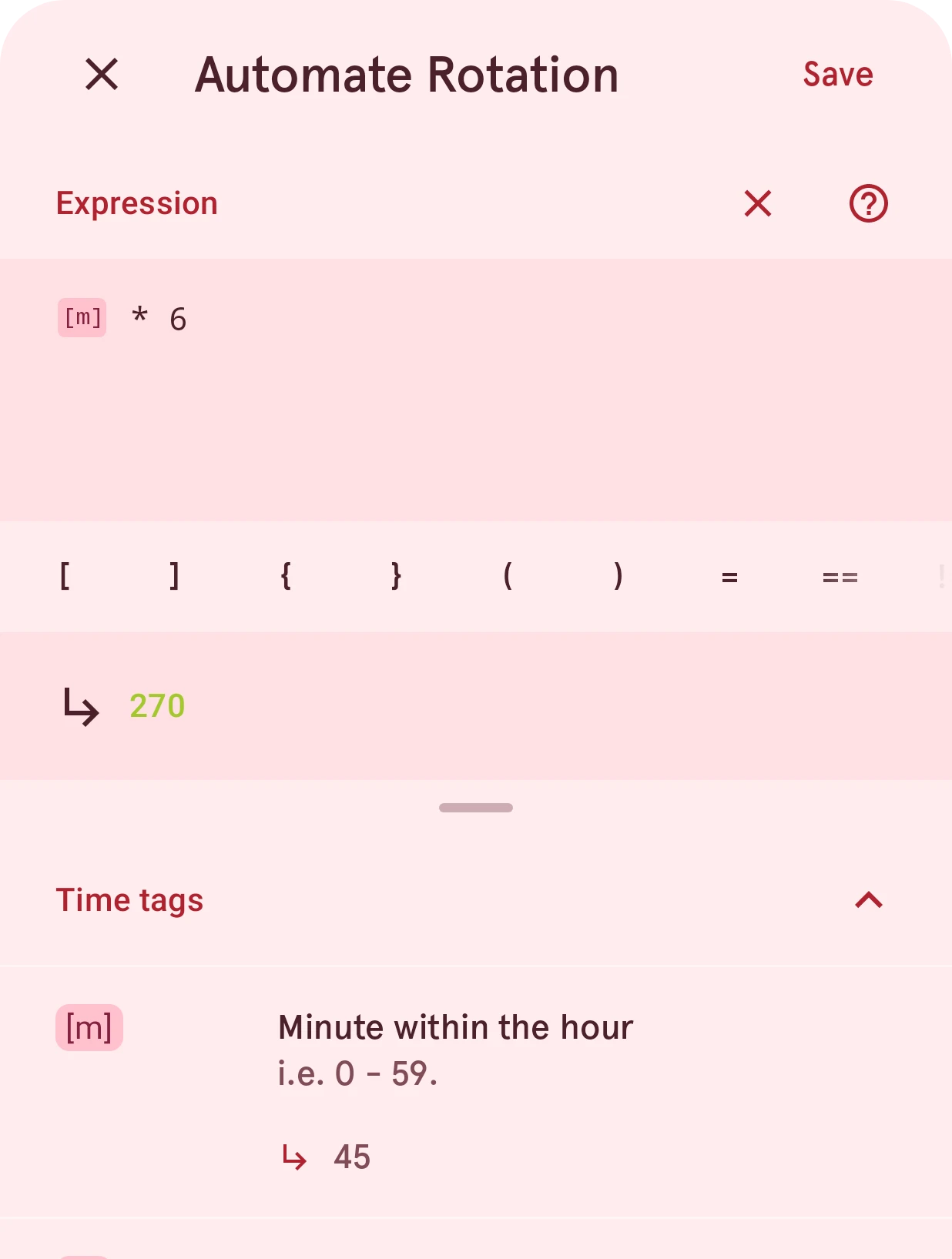
Close
Closes the editor. If you changed the expression, it asks first whether to throw the changes away.
Save
Keeps the expression. An expression that doesn’t work can’t be saved: the result row says what’s wrong.
Expression
Where you type the expression. Data tags show as chips, and the keyboard doesn’t suggest words, so it doesn’t correct your code.
Clear
Empties the field, after asking. Saving an empty expression removes the automation.
Help
Opens the automation docs.
Quick insert
Operators, brackets and snippets you’d otherwise have to find on the keyboard. Tap one to insert it at the cursor. The row only offers what a Wear OS 6 watch face can use.
Result value
The expression’s result, worked out as you type with the current time and data (or the Simulator’s values). When the expression doesn’t work, this row says why instead.
Tags
All the data tags, by category, each with its current value. Tap a tag to insert it. Tap a data object’s value to see its members and example snippets.
What the result must be
Section titled “What the result must be”Every property expects one kind of result, and the editor checks it as you type:
| Property | Result | Example |
|---|---|---|
| Rotation | A number of degrees, clockwise around the layer’s rotation center | [s] * 6 |
| Move horizontally and vertically | A distance; right and down are positive | [s] / 60 - 0.5 |
| Scale, and the horizontal and vertical scale | A factor, where 1 is the size you drew | [steps] / [step_goal] |
| Visibility | True to show the layer, false to hide it | [h] >= 22 |
| A color | A color | [color].rgb(255, [m] * 4, 0) |
| A text | A text | [m] > 30 ? "late" : "early" |
When the type is wrong, the result row says what it expected. To get a text from a number, join it to a
text: [m] + " min".
Writing an expression
Section titled “Writing an expression”An expression is a small piece of JavaScript. On a Wear OS 6 watch face it’s converted to the watch’s own format, which understands only the part of the language listed here. This list is exact: anything not on it keeps the face from being sent to a Wear OS 6 watch. If you have an AI write expressions for you, give it this section.
Values
Section titled “Values”- Numbers:
12,12.5,-3. All numbers are decimals, so7 / 2is3.5. - Texts in double or single quotes:
"Low",'Low'. A text can’t contain a line break. - True and false:
true,false. - Data tags:
[bat_w],[steps],[h]. Each one is a number or a text; the tags list shows which. - Global values:
[global].progress, set in the global object.
Operators
Section titled “Operators”- Arithmetic:
+,-,*,/,%(remainder), and a leading-to negate. - Joining texts:
+joins when either side is a text:[m] + " min","Steps: " + [steps]. - Comparing:
==,!=,<,<=,>,>=.===and!==work too, and mean the same as==and!=. - Logic:
&&(and),||(or),!(not). - Choosing:
condition ? a : bgivesawhen the condition holds, otherwiseb. Choices can be nested. - Grouping: parentheses,
([s] + 30) % 60.
-, *, /, % and the comparisons need two numbers or two texts: [steps] == "5" doesn’t work.
Several lines
Section titled “Several lines”An expression can take several lines, to give a value a name when it’s used more than once:
var goal = [step_goal] / 2const done = [steps] / goalreturn Math.min(1, done)- Declare values with
varorconst(notlet). Change one with=,+=,-=,*=,/=or%=. - The result line starts with
returnas soon as there’s more than one line. - A value can hold an object, read with a dot:
var size = { small: 10, big: 20 }, thensize.big. A list can only be read at a fixed position:var steps = [10, 20], thensteps[0]. - A semicolon at the end of a line is optional.
- Comments:
/* … */anywhere, and//anywhere but at the end of the last line (it would hide the end of the expression).
All of these take numbers and give a number:
Math.min(a, b)andMath.max(a, b): exactly two values each. Nest them for more.Math.round,Math.floor,Math.ceil,Math.trunc,Math.abs,Math.sign.Math.sqrt,Math.cbrt,Math.pow(x, y),Math.exp,Math.expm1,Math.log,Math.log2,Math.log10.Math.sin,Math.cos,Math.tan,Math.asin,Math.acos,Math.atan,Math.atan2(y, x), in radians.Math.random(): a new number from 0 to 1.- Constants:
Math.PI,Math.E,Math.LN2,Math.LN10,Math.LOG2E,Math.LOG10E,Math.SQRT1_2,Math.SQRT2.
x.toFixed(2)turns a number into a text with that many decimals;x.toFixed()with none. The count must be a plain number.t.length: the number of characters.t.substring(start, end)andt.substr(start, length): part of a text. Leave out the second value for the rest of the text.t.charAt(i): one character.t.startsWith("a")andt.endsWith("a"): true or false.t.repeat(3): the text three times. The count must be a plain number.parseInt(t)reads a whole number from a text (it rounds);parseFloat(t)reads a decimal one.x.toString()turns a value into a text.
A joined text ("a" + x, or x.toString()) can be the result, but the text functions above can’t work
on it, and neither can a comparison or a choice’s condition. To turn a number into a text you can work on,
use toFixed(): write [steps].toFixed(0).length, not [steps].toString().length.
Helpers
Section titled “Helpers”[frmt].lzero(x, 2)writesxwith at least two digits, adding leading zeros:[m]at 5 gives05. The digit count must be a plain number.[frmt].frmt_ms(ms)writes a duration in milliseconds asmm:ss:mmm. Pick the parts and the separator with[frmt].frmt_ms(ms, { hh: true, mm: true, ss: true, sep: "." }); a part you leave out isn’t shown.[frmt].frmt_number(x, "#,###")writesxwith a number pattern:"#,###"adds thousands separators (12345gives12,345),"0.00"always shows two decimals and"0.###E0"writes scientific notation. The pattern must be plain text in quotes, not built from other values. The separators follow the watch’s language: a Dutch watch shows12.345and3,14.[color].rgb(r, g, b)makes a color from red, green and blue, each from 0 to 255.[color].argb(a, r, g, b)makes a color that can be see-through: the alphaacomes first, from 0 (invisible) to 255 (solid).[color].argb(128, 255, 0, 0)is red at half opacity.
An expression that uses something not listed still works in the designer’s preview, but the face can’t be sent to a Wear OS 6 watch until it’s rewritten: the Not yet compatible list on the layer’s row says which expression to fix.
To keep a value within limits, combine the two: Math.min(100, Math.max(0, [steps] / 100)).
The global object
Section titled “The global object”The global object holds values and calculations the layers of an element share, so you write them once.
Open it from the button at the end of the
readout above the canvas. Each
line sets one value on [global]:
[global].progress = Math.min(1, [steps] / [step_goal])[global].low = [bat_w] < 20Any layer’s expression can then use [global].progress or [global].low. The global object runs
before the layers’ expressions, so its values are always up to date when they’re used. In the tags list,
[global] is under Global tags.
When something’s wrong
Section titled “When something’s wrong”The result row explains what doesn’t work: a typo in the expression, an unknown tag, or a result of the wrong kind. You can’t save an expression that doesn’t work, so the face never shows a broken automation. An automated layer whose expression stops working (say, after a tag it uses is removed) gets a warning icon in the layer list.
To check how an expression behaves at another time or with other data, set the values in the Simulator (in the More menu of the app bar) and watch the result row.