
Automate …
The editor where an automated property gets its expression: a short formula that works out the value from the time and data. It opens from the automate menu.
Opened from
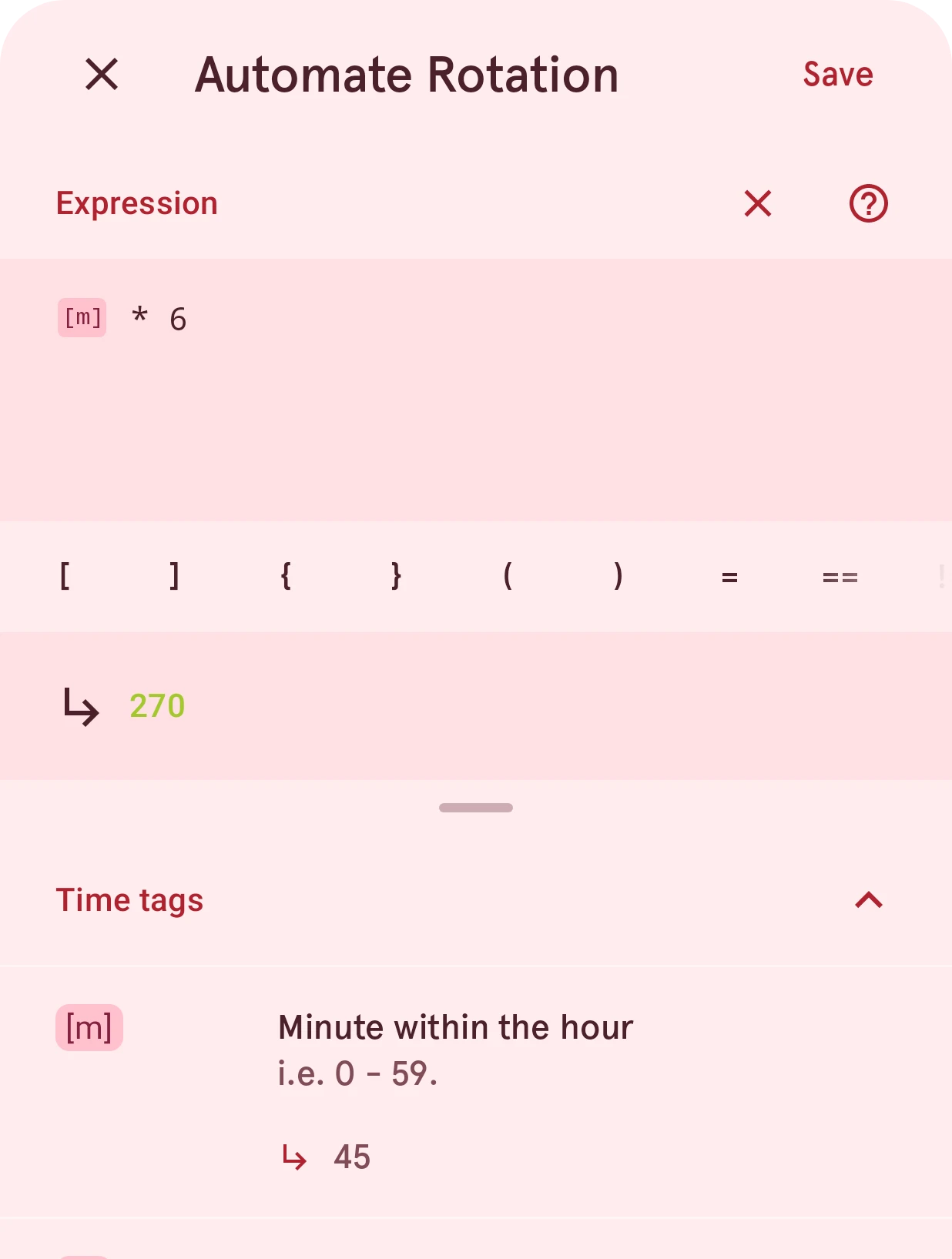
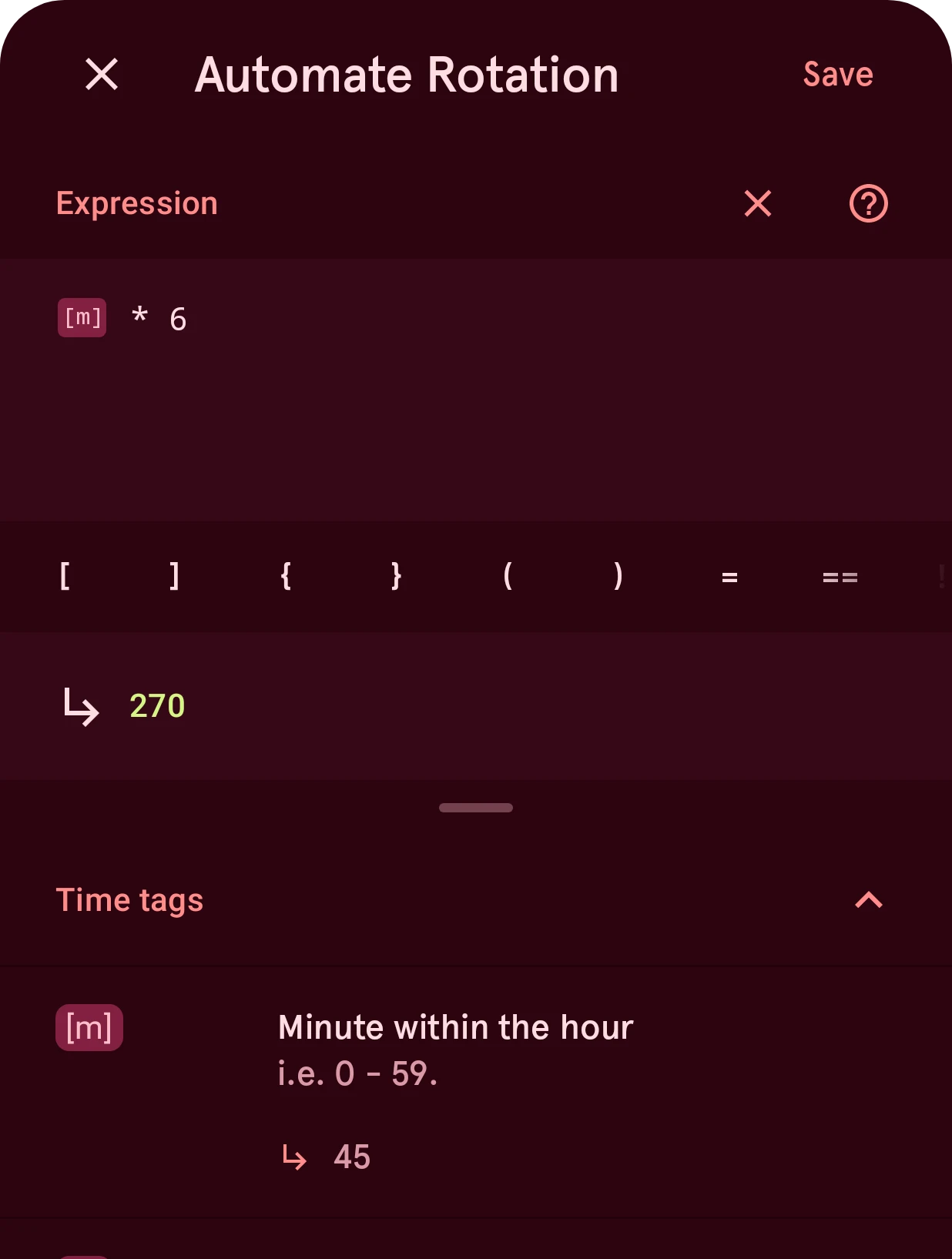
The automation editor is where an automated property gets its expression: a short formula that works out the value from the time and data. Its title names the property (“Automate Rotation”). It opens from the automate menu and from the automate buttons on the style pages. The expression editor page explains how to write an expression and what result each property needs.
Close
Closes the editor. If you changed the expression, it asks first whether to throw the changes away.
Save
Keeps the expression. An expression that doesn’t work can’t be saved.
Expression
Where you type the expression. Data tags show as chips.
Clear
Empties the field, after asking. Clearing the expression and saving removes the automation.
Help
Opens the expression editor docs.
Quick insert
Operators, brackets and snippets. Tap one to insert it at the cursor.
Result value
The expression’s result with the current time and data, worked out as you type. When the expression doesn’t work, this row says why.
Tags
The data tags you can use, by category, each with its current value. Tap a tag to insert it.