
Tap actions
The six default tap actions your watch faces can share, and where the other tap actions are set.
A tap action is what happens when you tap part of a watch face: opening an app on your watch or phone, controlling music, changing the volume, and so on. You set tap actions per element in the designer. That includes an indicator group: its Tap actions card has a Tap action A to D, one for each position. The settings on this page are the six default tap actions, which all your watch faces share.
Default tap actions
The default tap actions are six numbered slots. In the designer, you can point an element’s tap action at one of them (on the Default actions tab of the tap action picker) instead of choosing an action directly. The element then runs whatever that slot is set to.
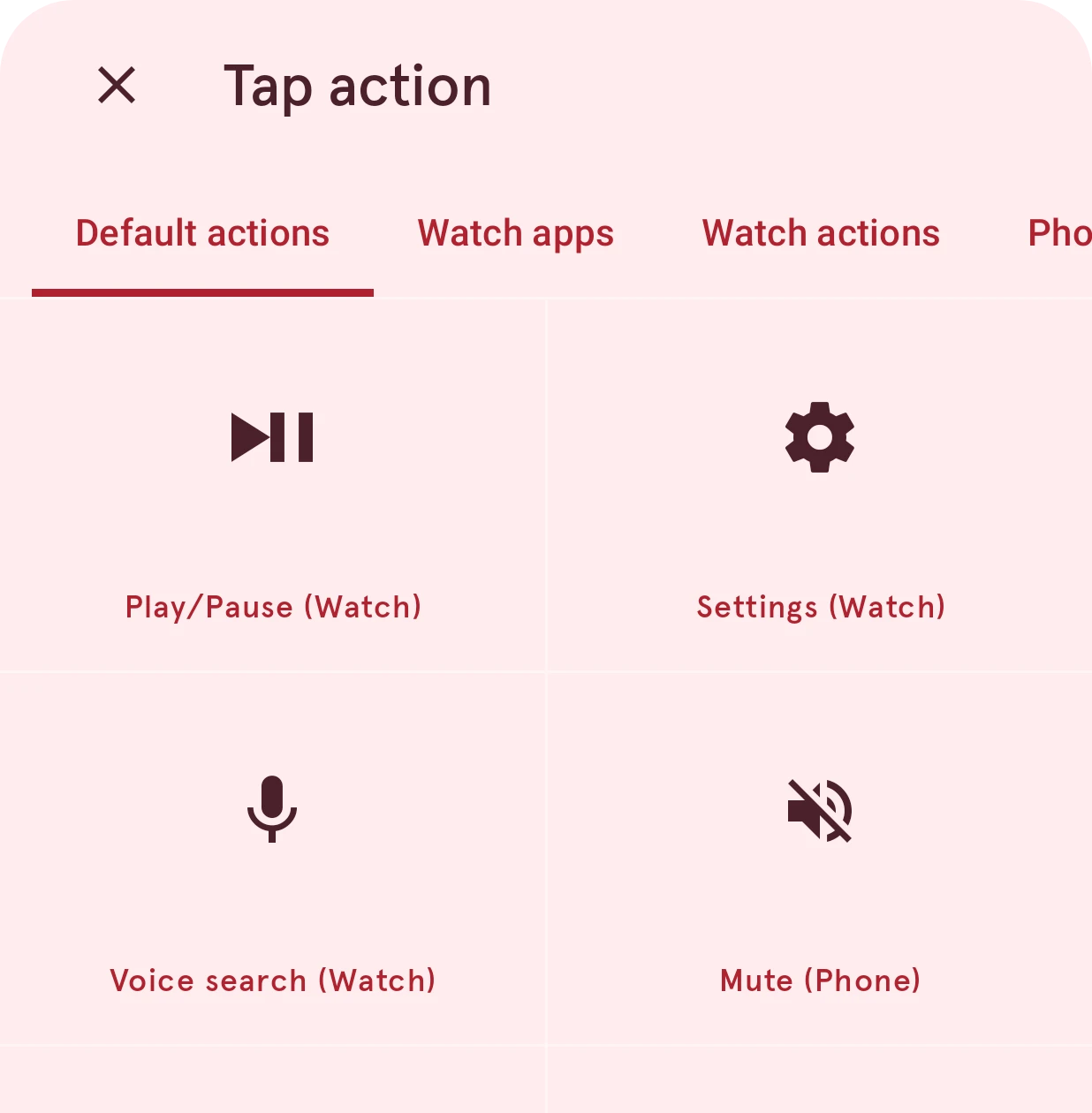
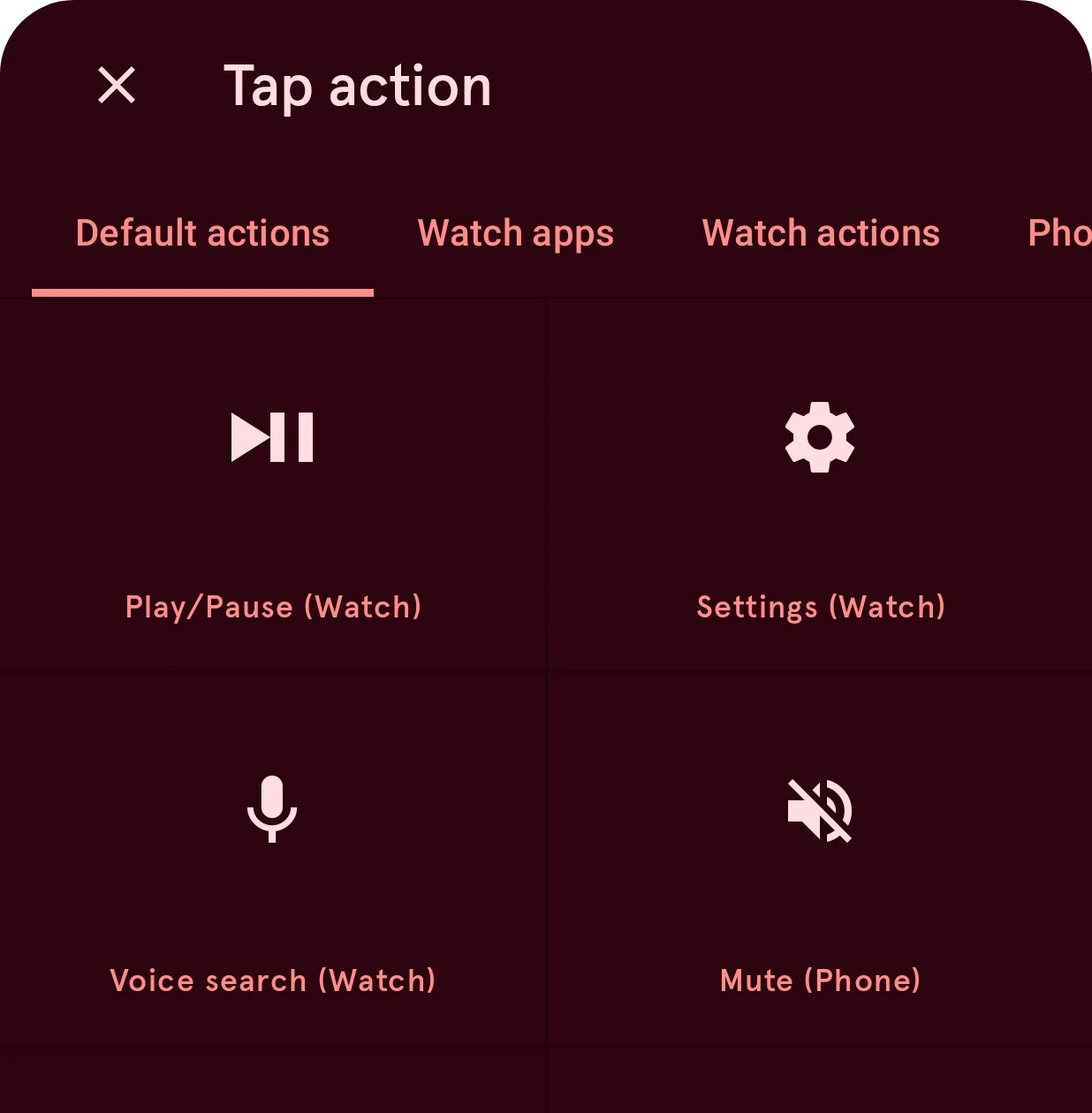
A slot is looked up when you tap, so a change here works right away in every watch face that uses it, without sending them again. The same goes for watch faces from the Library: a face that uses a slot runs your action, not the one its designer picked. That’s useful when you design for others, because a music button can then open each person’s own music app.
The watch asks the phone app which action belongs to a slot, so your phone has to be connected. If the action is meant for the watch, the phone sends it back.
Default tap action 1
ActionShows the action it is set to.
Tap to choose the action for slot 1. In the designer, an element uses it when its tap action is set to Default tap action 1.
Default tap action 2
ActionShows the action it is set to.
Slot 2. A good place for an action several of your watch faces share, like opening your music player.
Default tap action 3
ActionShows the action it is set to.
Slot 3. Changing it changes every element that points to it, in all your watch faces at once.
Default tap action 4
ActionShows the action it is set to.
Slot 4. Elements in watch faces from the Library can point to it too, and then run your choice.
Default tap action 5
ActionShows the action it is set to.
Slot 5. Like the other slots, it needs your phone to be connected when you tap.
Default tap action 6
ActionShows the action it is set to.
Slot 6, the last one. If you run out of slots, give the element its own tap action in the designer.