
Pick your complication data
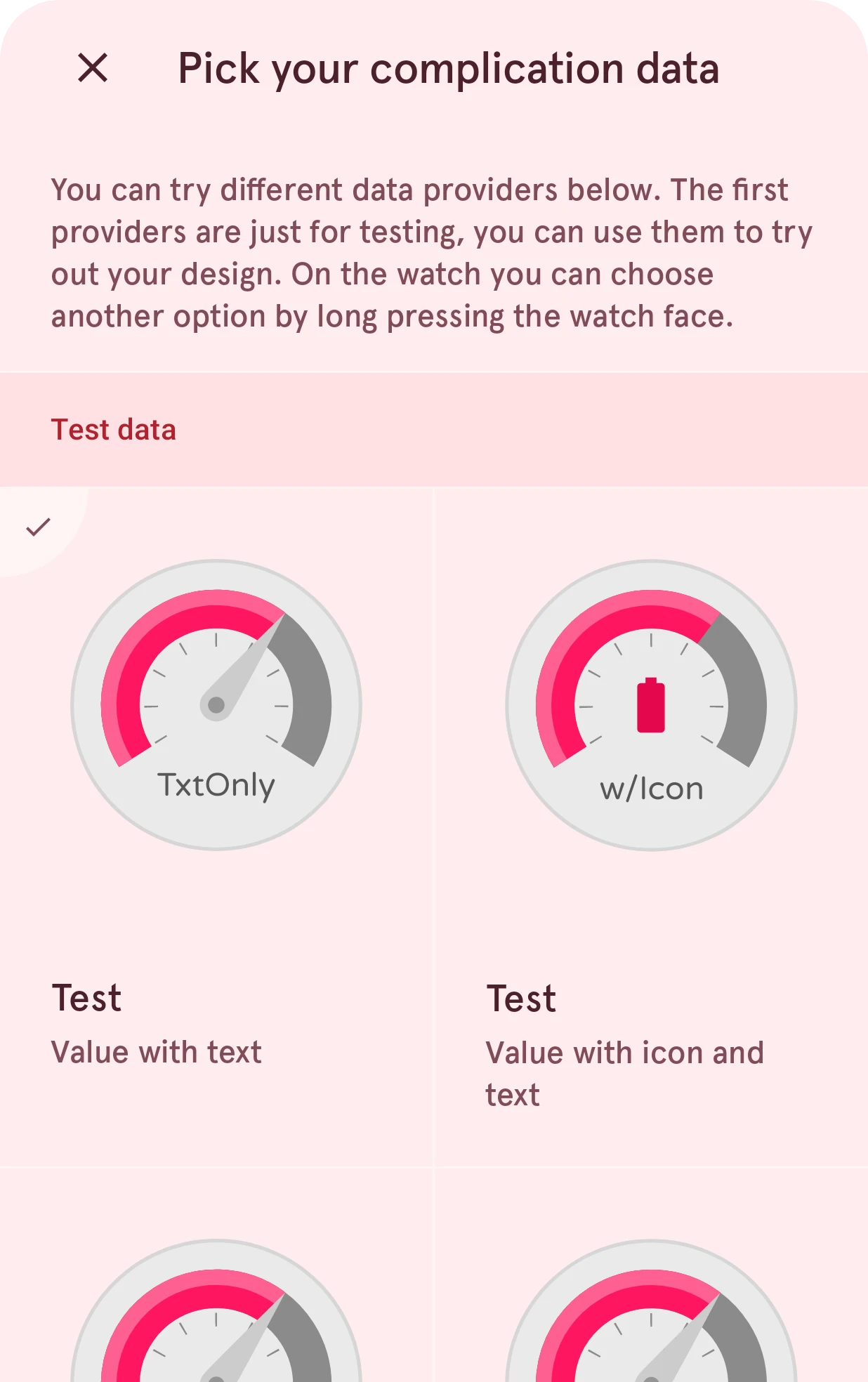
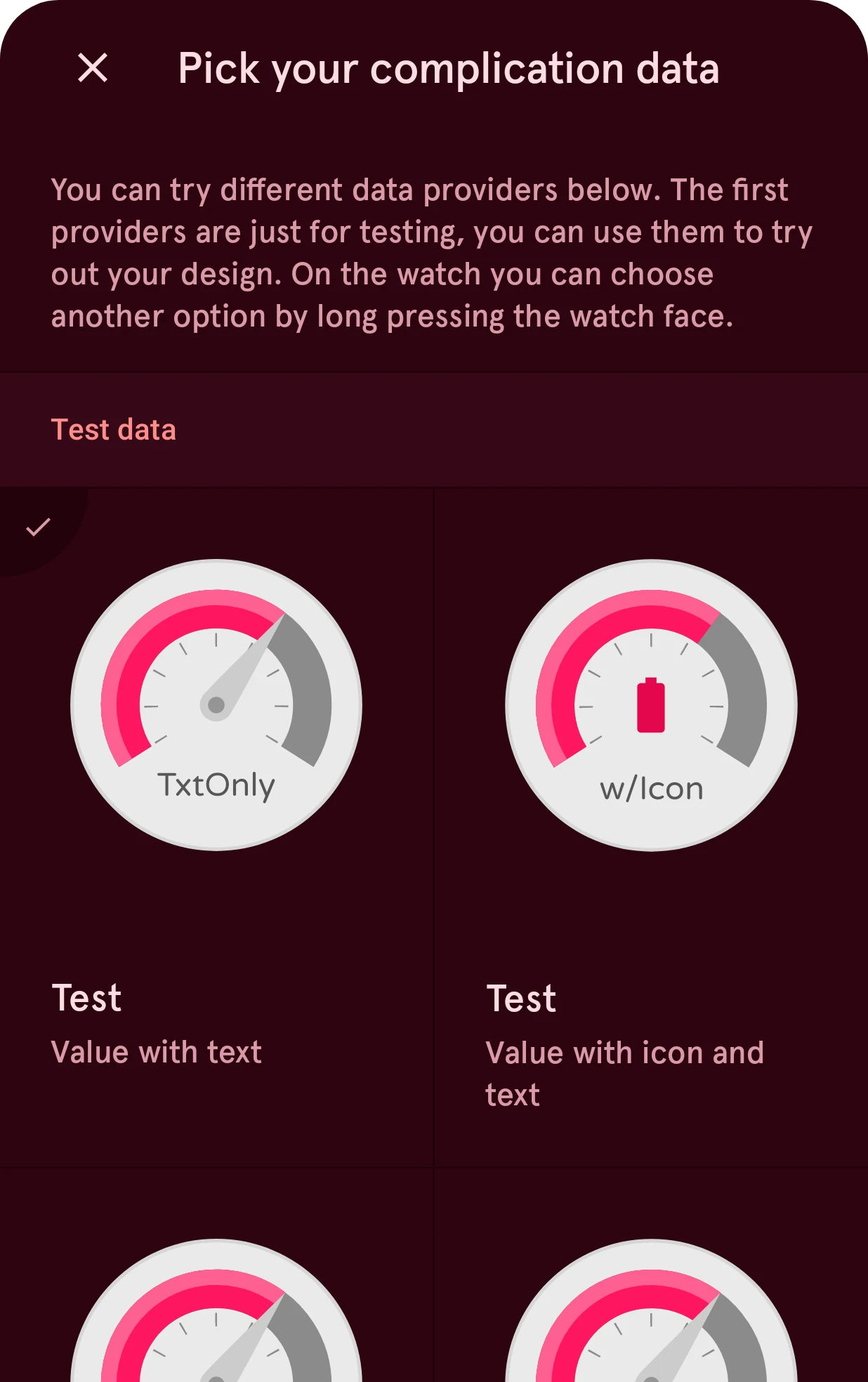
Pick the data a complication shows while you design it: test data or real sources. In the watch face designer, it is also the source the watch starts with.
Opened from
- Complication data, in the app bar
Picks the data the complication shows while you design it. From the watch element designer that’s all it does. From a complication’s row in the watch face designer, the source you pick is also the one the complication starts with on the watch, until the wearer picks another one there. So pick a real source there, not a test one. See Complications.
Close
Closes the sheet and keeps the current data.
Pick your complication data
A reminder that the test sources are there to try out your design, and that the wearer chooses the real source on the watch.
Data type
One tab for each type the complication supports, in the order set in Supported data types. Tap a tab or swipe to see that type’s sources. A complication with one type shows no tabs.
Category
The sources are grouped. Test data comes first: made-up values that show what each field of the type looks like, such as text only, or text with an icon. Further down are sources like the ones on a watch (battery, date, fitness and more), depending on the type.
Data source
One data source, previewed in your design. Tap it to use it in the designer; the check mark shows the current one.