
Add shape
Generate stars, rings, squircles, hearts and more, each with its own settings.
Opened from
- Shape, in the add menu
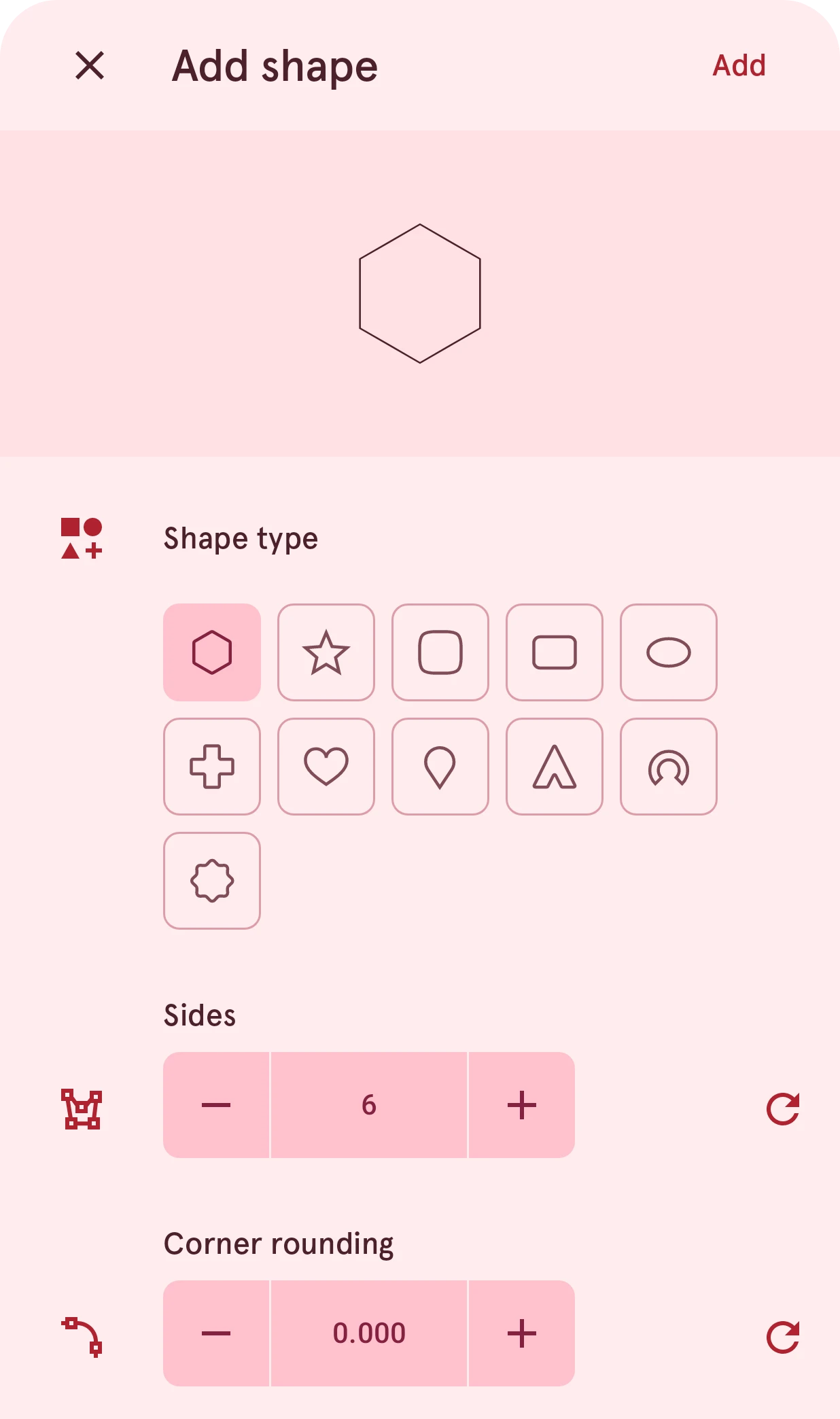
Generates a shape from a few settings. The result is a normal shape layer: once it’s added, you can edit its points, style it and automate it like any other shape.
Close
Closes the sheet without adding anything.
Add
Adds the shape as a new layer, named after its type (“Star 1”).
Preview
The shape as it will be added, redrawn as you change it.
Shape type
Tap a type to switch. Each type keeps its own settings, so you can switch back and forth without losing what you set.
Settings
The settings of the selected type, listed below.
The shape types
Section titled “The shape types”In the order of the chips:
| Type | Settings |
|---|---|
| Polygon | Sides (3 to 24) and Corner rounding |
| Star | Points (3 to 24), Inner radius (how deep the points are cut) and Corner rounding |
| Squircle | Corner rounding and Smoothing: at 0 the corners are plain circles, at 1 they flow into the sides |
| Rounded rectangle | Width and Height, and a radius for each corner (Top left, Top right, Bottom right, Bottom left). The width and height, and the four corners, can be linked so they change together |
| Oval | Width and Height |
| Plus | Horizontal arm and Vertical arm (linkable) and Corner rounding |
| Heart | Cleft (the dip at the top) and Point length |
| Teardrop | Point length |
| Chevron | Width, Height, Thickness and Corner rounding |
| Arc | Start angle, Sweep angle (how far it goes around) and Inner radius, for a ring segment |
| Pill star | Points, Inner radius and Corner rounding: a scalloped, gear-like outline |
For a rounded rectangle with the same radius on every corner, there’s also the quicker Rounded rectangle sheet.