
Dynamic elements
Elements that show live data, such as the battery level, your steps or the weather, and move with it.
A dynamic element is a drawing with live data in it. It can show the battery level, your steps, your heart rate, the weather, the time in another style, the sunrise, and much more. It can also move with that data: a needle that turns with the battery level, a bar that grows with your steps, a cloud icon that only shows when it’s cloudy.
Where a complication shows whatever data the wearer picks, a dynamic element shows exactly the data you put in it.
What you can make
Section titled “What you can make”A few dynamic elements from the Library and from Pujie users. Tap one from the Library to open it there.
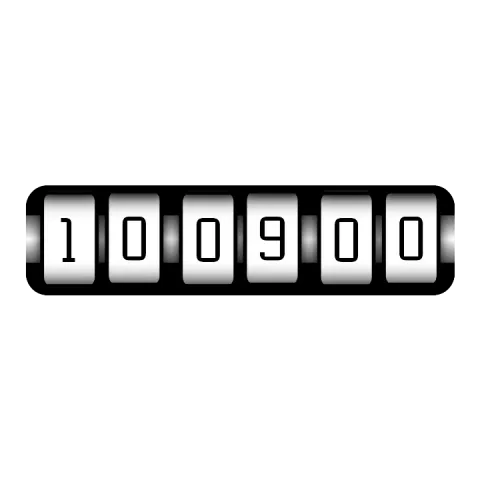 Rolling TimeThe time on rolling number wheels: each wheel moves up with its digit.
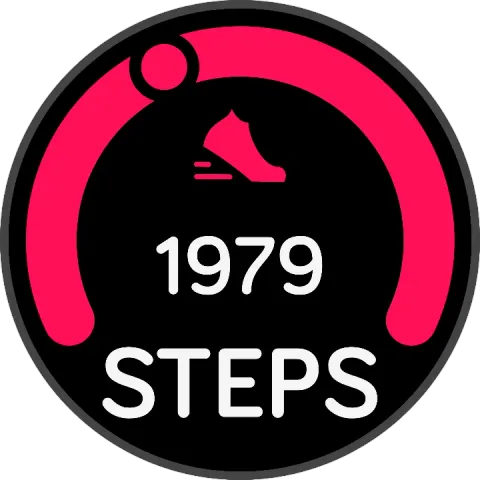 Apple StepsA dot runs along the arc as your steps get closer to your goal.
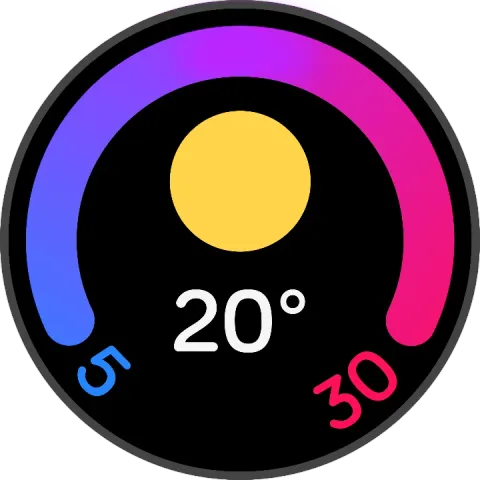 Google WeatherToday's low, high and current temperature, with an icon for the weather.
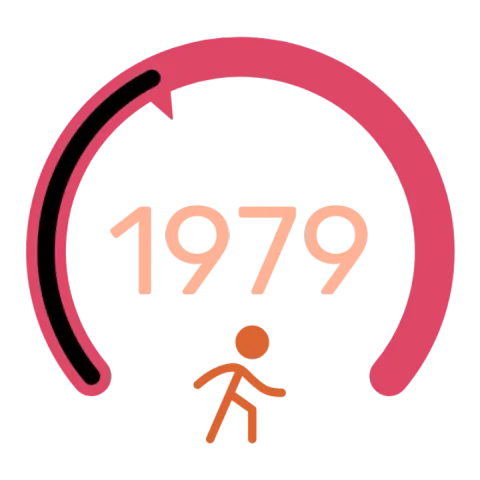 Steps ringA ring that fills with your steps, with a pointer at the end.
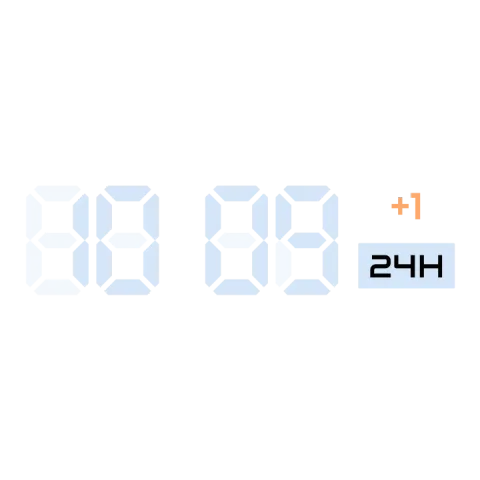 LCD clockA digital clock with the unlit segments of an LCD showing behind the digits.
Making one, step by step
Section titled “Making one, step by step”Here’s how an element like Apple Steps is built. It’s a good first project: one text, one moving shape and a few shapes that stay put.
- Add it. Tap the add button above the element list and pick Dynamic element. Pick New item to start from scratch, or From the watch face library to start from one of the examples above and change it.
- Draw the parts that don’t move. In the watch element designer, draw the background plate and the arc, and add the shoe icon and the word STEPS. These are plain layers, as in a static element.
- Add the live text. Add a text layer and put the tag
[steps]in it. On the watch it shows your step count; the text editor lists every tag. - Make something move. Draw the dot at the start of the arc and
automate its rotation with
[steps]/[step_goal]*230: the share of your goal you’ve walked, times the 230 degrees of the arc. At 0 steps the dot doesn’t turn; at your goal it has gone all the way around. - Try it out. Open the simulator and change the step count. The dot runs along the arc:
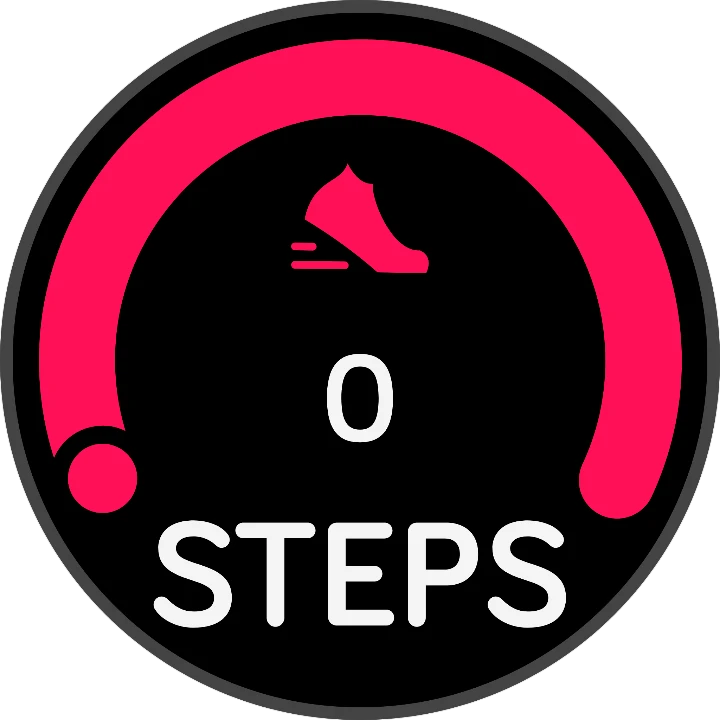
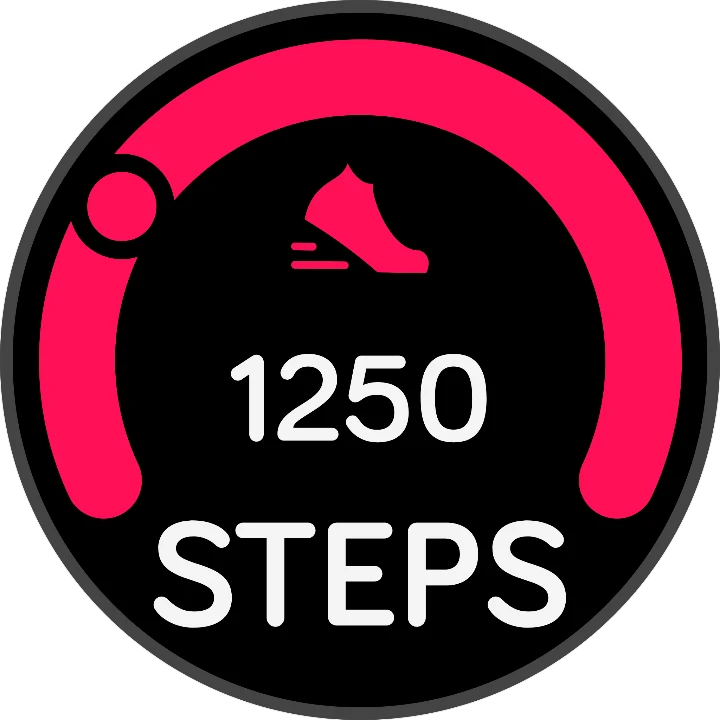
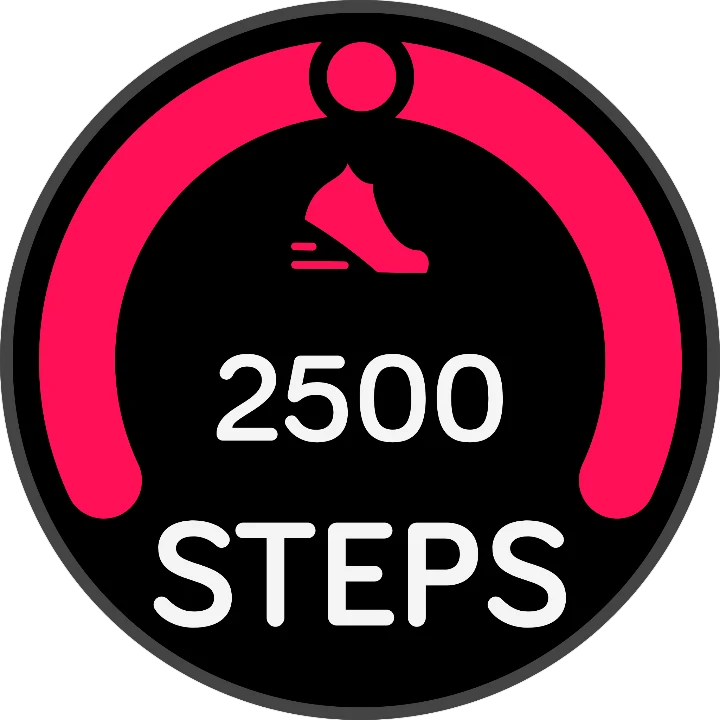
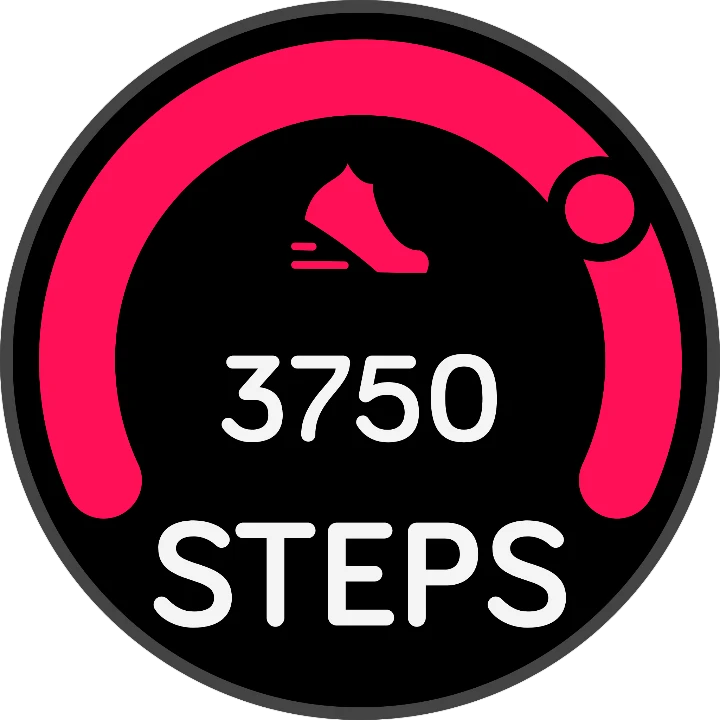
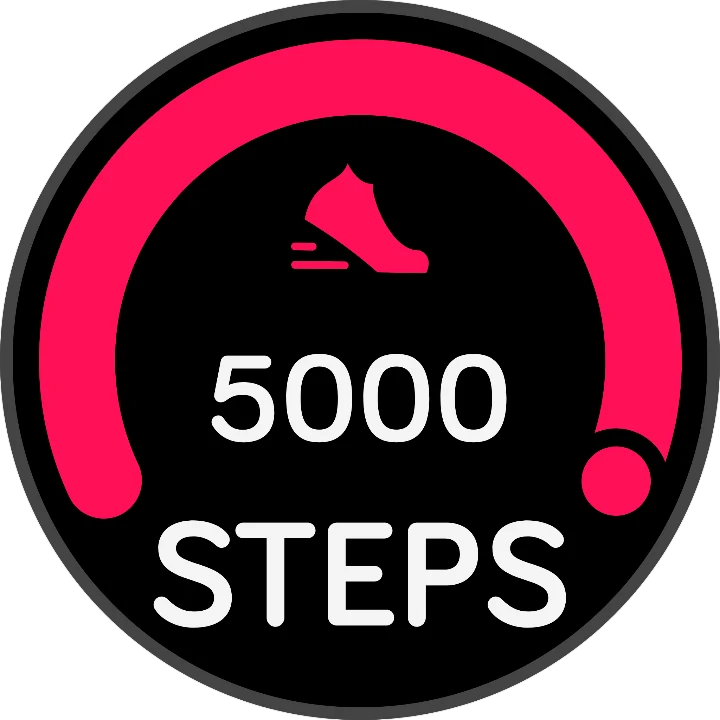
In the watch element designer it looks like this, with each part its own layer:
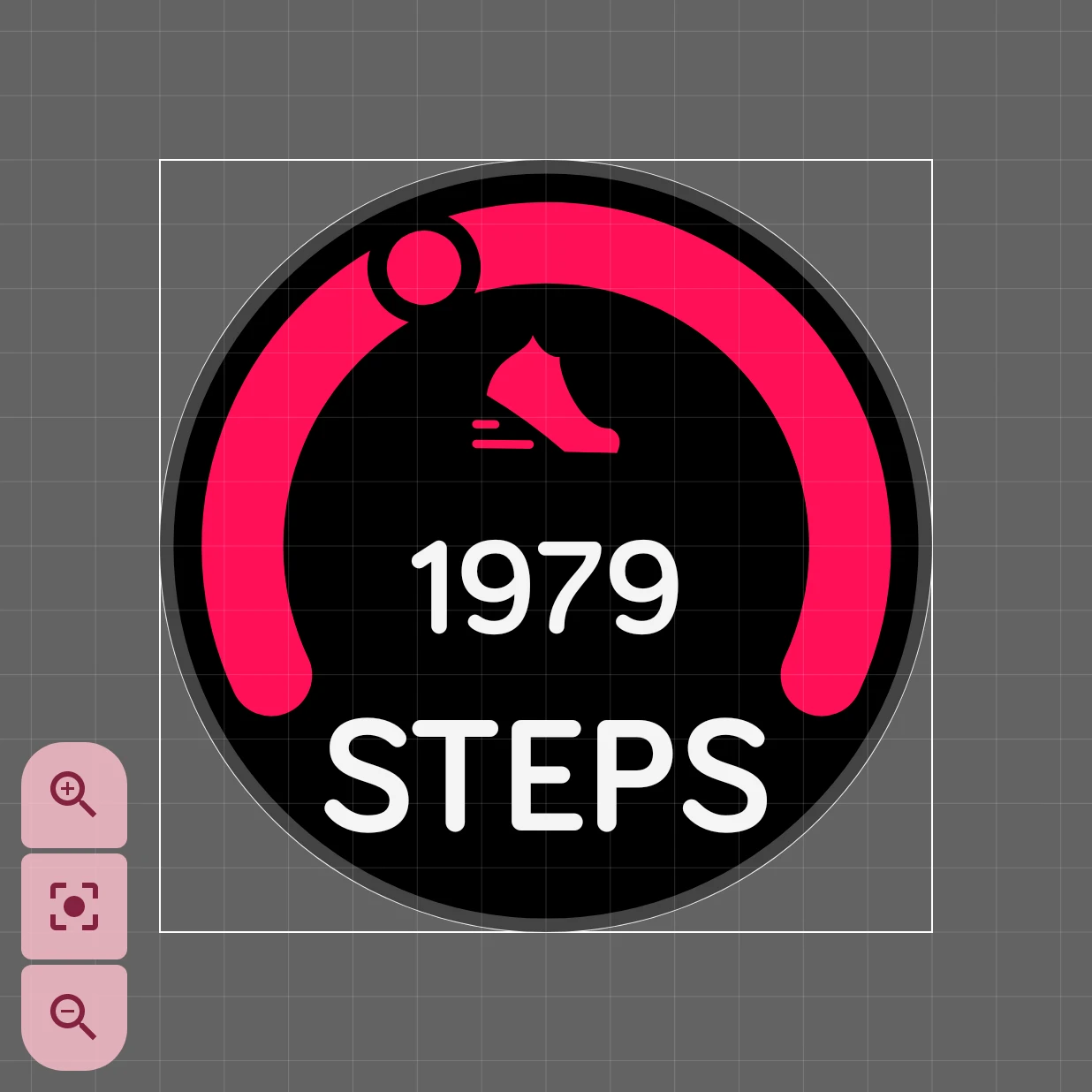
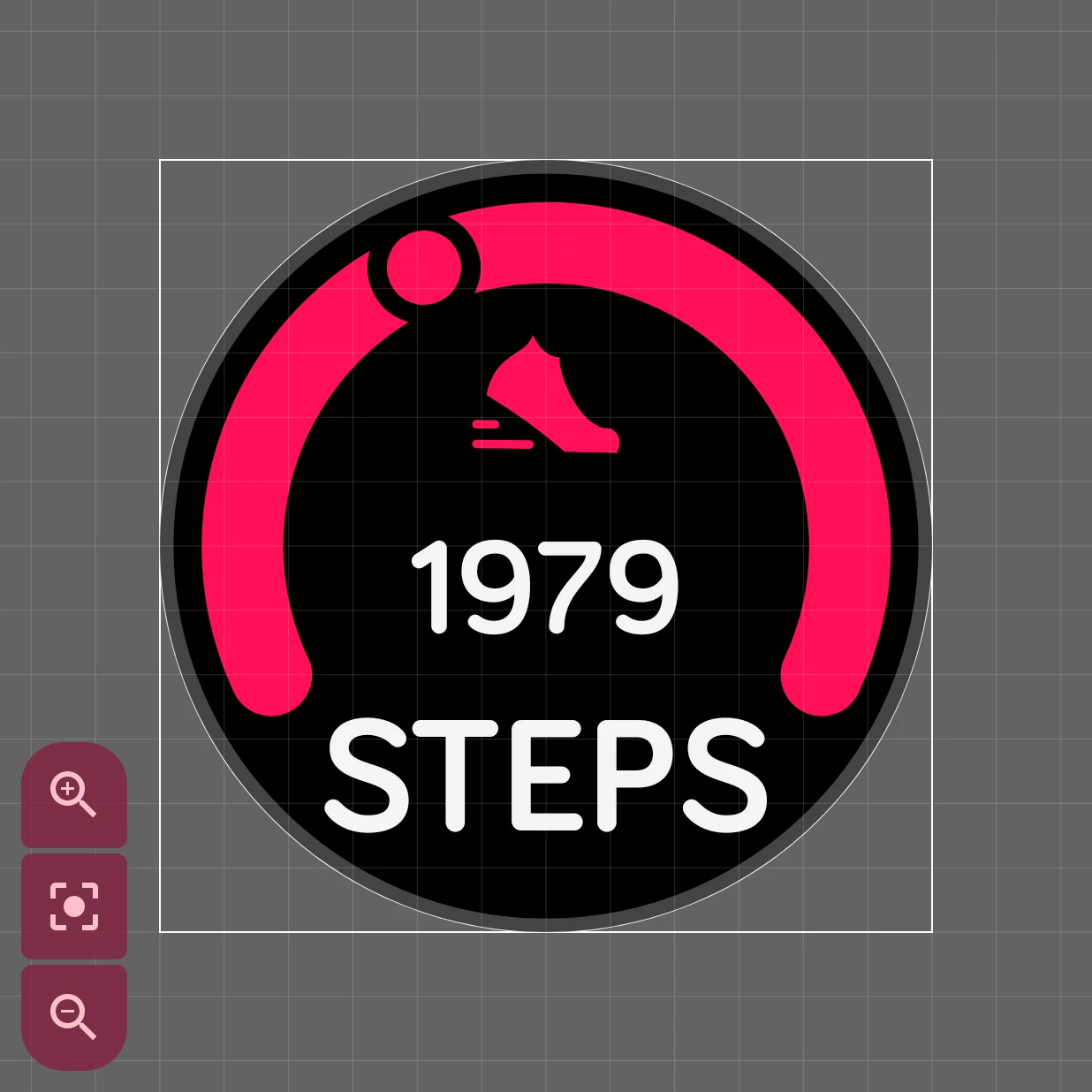
Putting data in it
Section titled “Putting data in it”Two tools do the work, both in the watch element designer:
- Data tags in text. A text layer can contain tags, words in square brackets that the watch replaces
with live values.
[bat_w]%shows the watch’s battery level, like 85%. The text editor lists them all, and the data tags reference explains each one. - Automation. A layer’s position, size, rotation and whether it’s shown can follow a value, and so can some of its style settings, such as a color. Turn a needle with the seconds, or hide a layer when the battery is full. See Automation.
Use the simulator to try your element with other values: a low battery, a rainy day, the middle of the night.
How the examples work
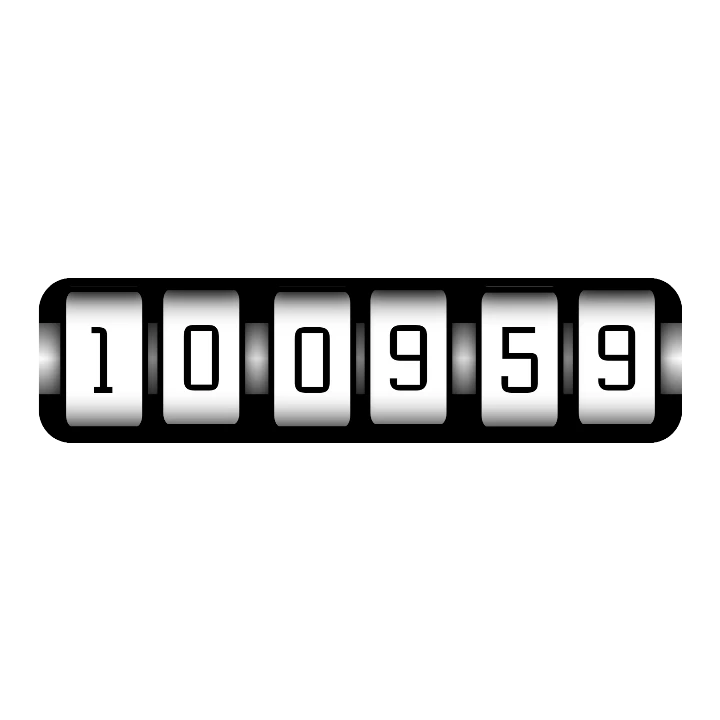
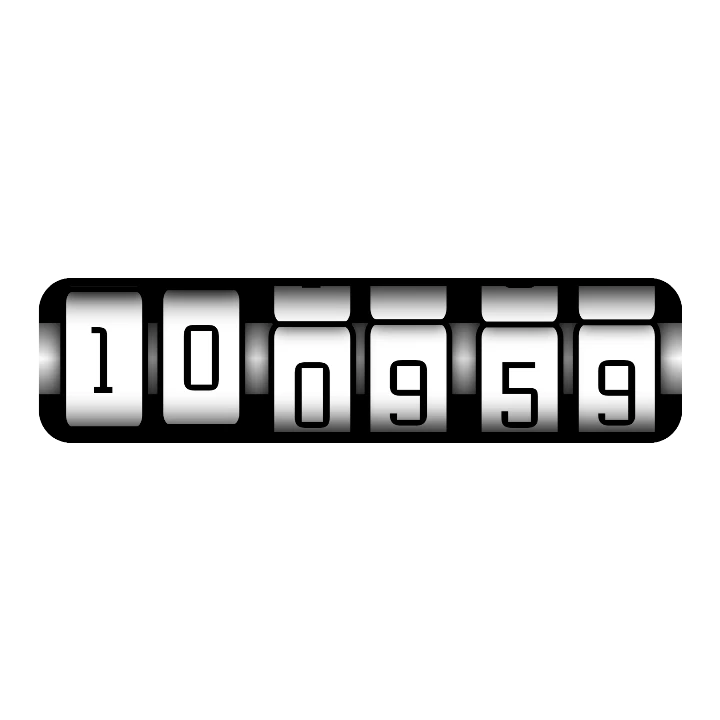
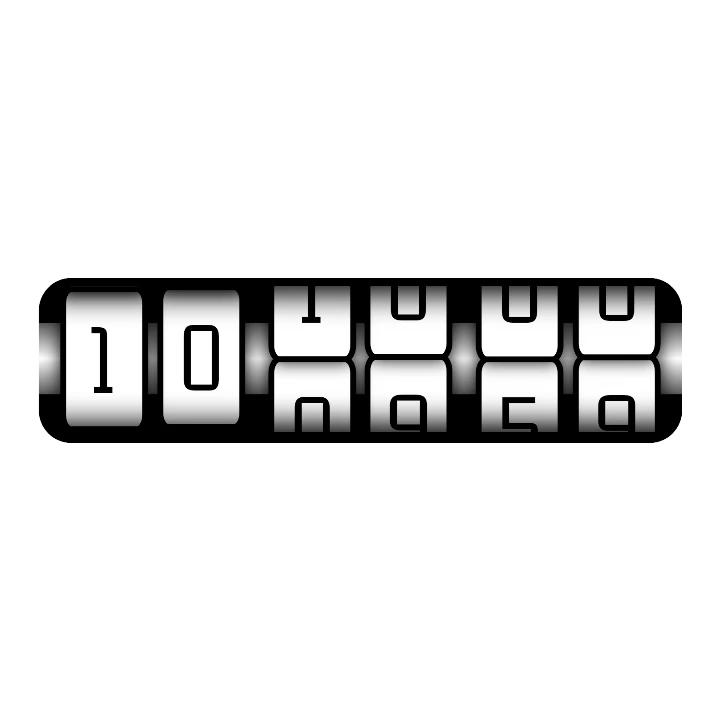
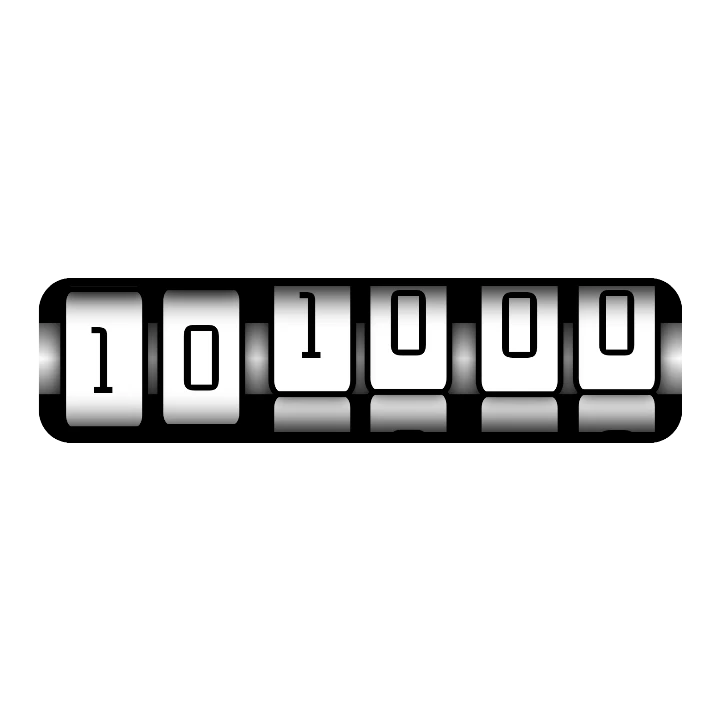
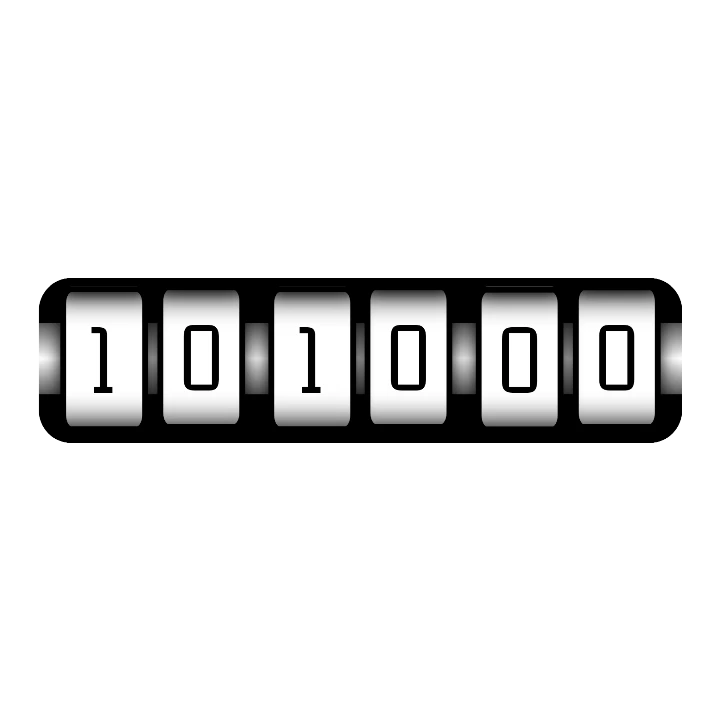
Section titled “How the examples work”- Rolling Time: each wheel is two digits on top of each other, behind a mask the size of one. Their
texts are automated to the current digit and the next one (
[su]and[su]+1for the last digit of the seconds). In the last second before the digit changes, the wheel moves up, so the next digit rolls into view. At 10:09:59 three wheels roll at once:
- Google Weather draws an icon for every kind of weather (clouds, rain, heavy rain, snow, a storm,
mist) and automates each icon’s visibility to show only the one that matches
[weather]. A clear sky shows the sun by day and the moon at night, from the hour. The three numbers are the texts[temp],[temp_min]and[temp_max]. - The LCD clock puts an unlit
88behind[h]and[m], in a dim color, so the time looks like a real LCD. The colon’s opacity follows the time, so it fades in and out every second. The small labels show the time zone offset and AM, PM or 24h. - The steps ring keeps its numbers in the global object: how far the ring goes around and how far you are towards your goal. The colored arc’s angle and the pointer’s rotation both use them, so changing the ring’s size is one edit.
- A battery gauge: a needle that turns with
[bat_w], or a bar that shrinks, turning red below 20%. - A moon phase: one moon picture per phase, each shown only in its own phase.
- Day and night: a sun during the day and a moon at night, with
[wthr_is_day]. - A step streak: a flag or a trophy that only shows once
[steps]reaches[step_goal]. - A world clock: the time somewhere else, with the city name next to it.
- A word clock: the time in words, like “ten past ten”, with each word lighting up.
- A heart rate pulse: a heart that grows a little with each beat, faster as your heart rate goes up.
Start from a similar element in the Library when you can: opening how someone else built something is the quickest way to learn.
Settings
Section titled “Settings”Tap action
What happens when you tap the element on the watch, such as opening the battery settings for a battery element.
Opens the tap action picker.
Not available on the ambient face.
Below this are the position and animation cards every element has.
Good to know
Section titled “Good to know”- Keep it simple. The watch redraws a dynamic element whenever its data changes. A simple drawing saves battery; put the parts that never change in a static element behind it.
- Wear OS 6 has limits. Not everything automation can do in the app works on a Wear OS 6 watch. When something can’t go to the watch, the element gets a warning sign in the list; tap it to see why. See Not yet compatible.