
My items
Your own watch faces and elements, and what local, private, pending and public mean.
My items holds everything you made or saved: the watch faces and elements on your phone and the ones you keep in the Library. It works without an account and without an internet connection, since what’s on your phone is always there. When an item is both on your phone and in the Library, it’s listed once.
The first card starts something new: a new watch face, or a new element of the type you picked.
Local, private, pending, public
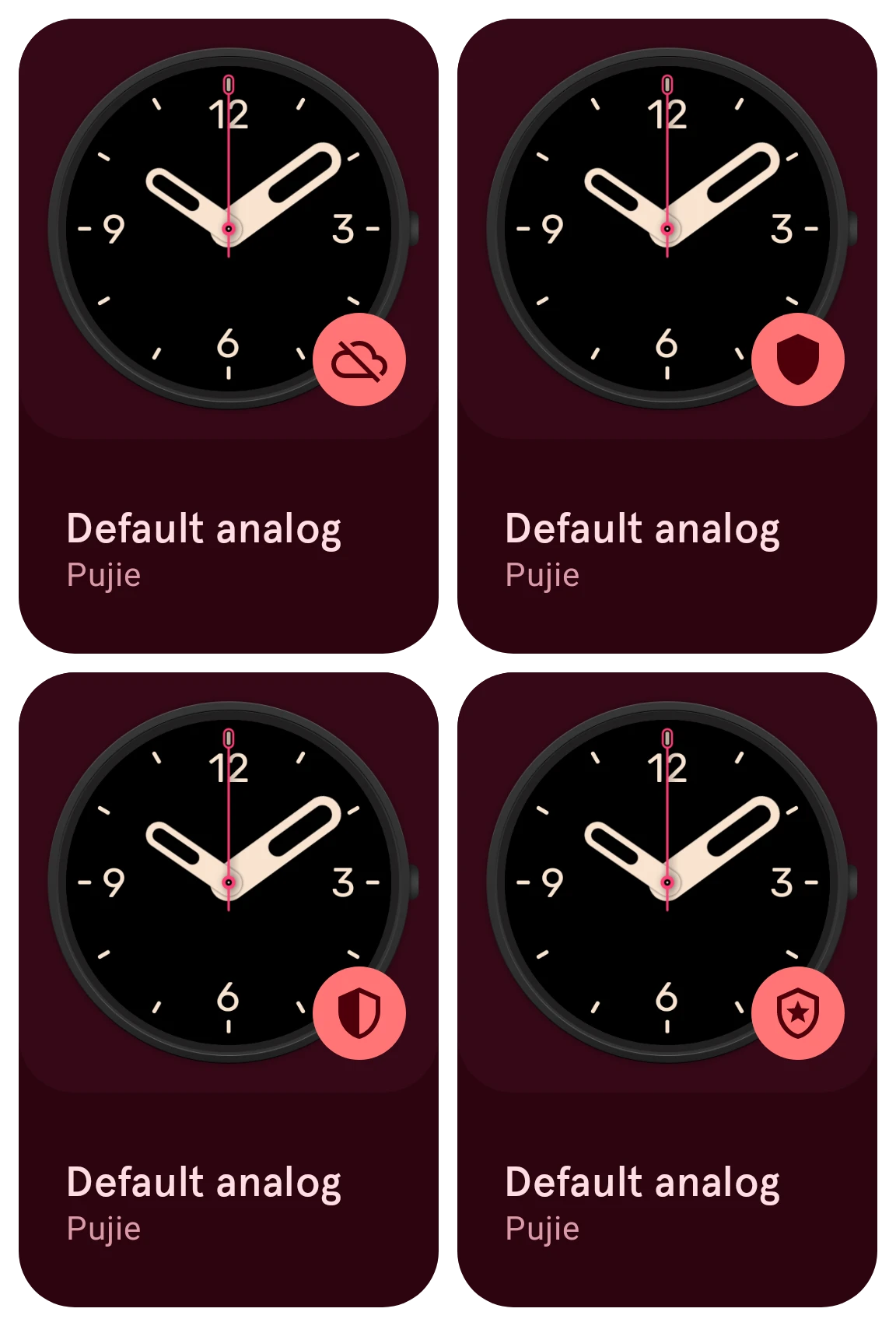
Section titled “Local, private, pending, public”Each item has a status, shown by the icon on its card and on its details:
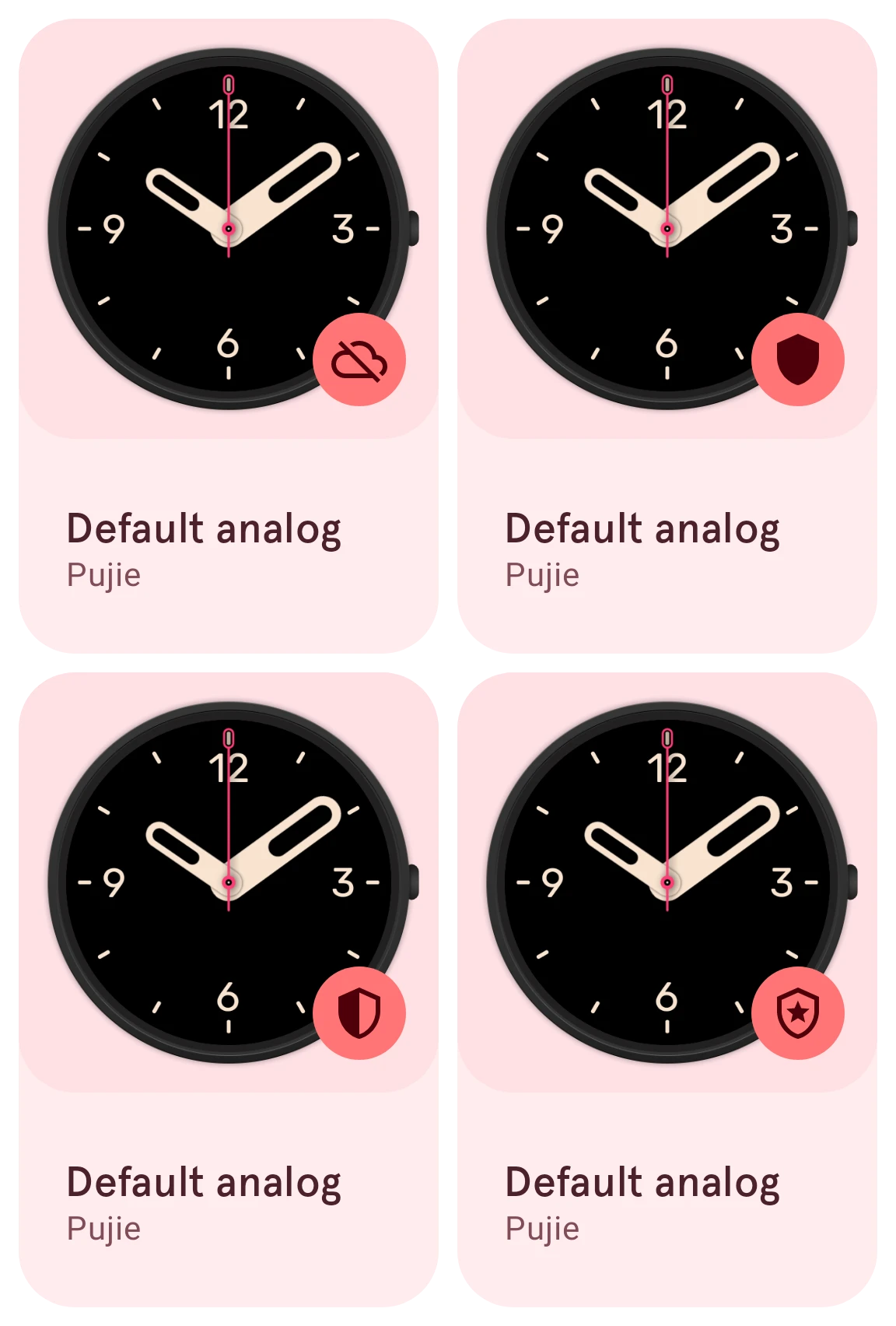
Local
A cloud with a line through it: only on this phone.Private
A filled shield: in the Library, only for you.Pending
A half-filled shield: waiting for review.Public
A shield with a star: public, for everyone.
Tap the icon to change the status (see Uploading and publishing).
| Status | Where it is | Who sees it |
|---|---|---|
| Local | Only on this phone | Only you, on this phone |
| Private | In the Library (and on your phones) | Only you |
| Pending | In the Library, waiting for review | Only you, until it’s approved |
| Public | In the Library | Everyone |
- A new design is local. Uploading it puts it in the Library as private: safe, on all your phones, but still only yours.
- Make public shares it with everyone. A new item goes public straight away.
- Pending is for an item we took out of the public Library before (the item’s details say why): when you make it public again, we look at it first.
- You can always take an item back: make it private, or make it local, which removes it from the Library and keeps it on your phone.
The filter button on My items has a Status row, to see only your local items, say, or only the public ones.
Other icons on the cards
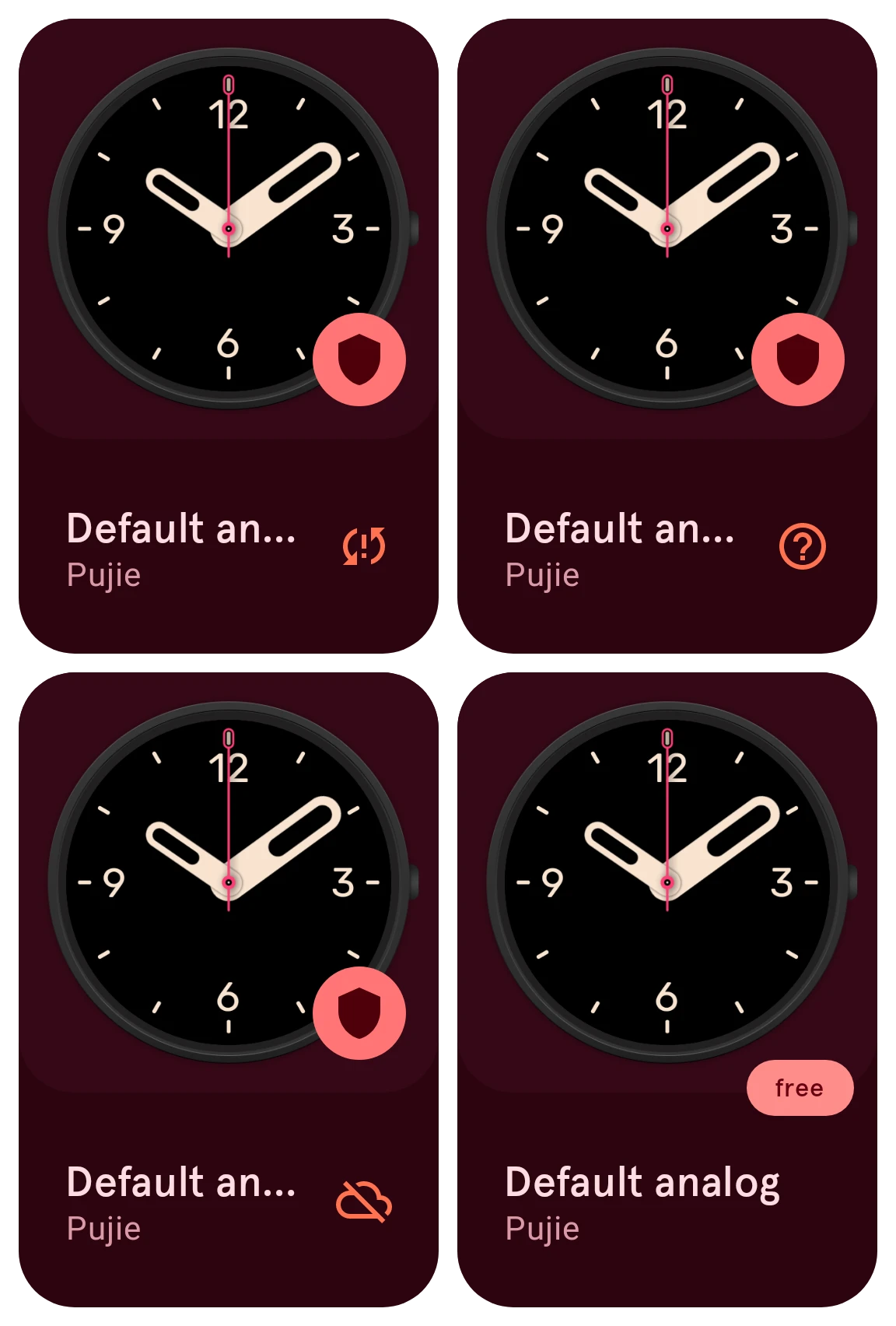
Section titled “Other icons on the cards”Next to the name, a card can show an icon when your item needs you; tap the card and its details say what to do.
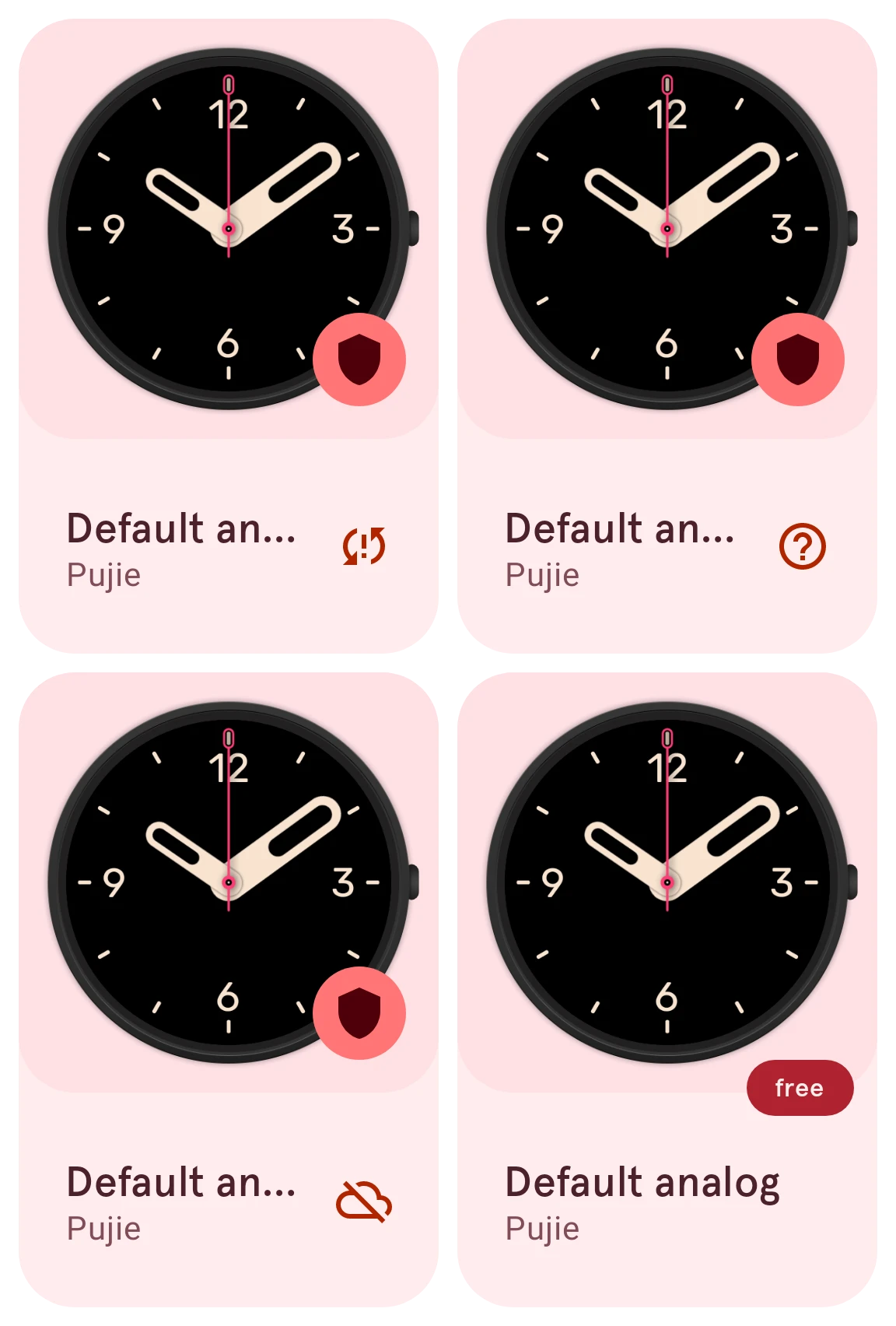
Update available
Your phone has changes the Library doesn’t have yet: upload them, or undo them. See Two versions.
Attention required
The item has no Wear OS 6 version in the Library yet: open it in the designer, make your changes and save, then upload.
Data missing from the Library
The Library has lost this item’s data. Its details offer Move to trash, so it stops showing up broken.
free
On the free version: an item you can use without Premium. It takes the place of the card’s button.
Saved slots
Section titled “Saved slots”On the free version you edit watch faces and keep your designs in a few saved slots, shown in a band on My items: Your saved designs.
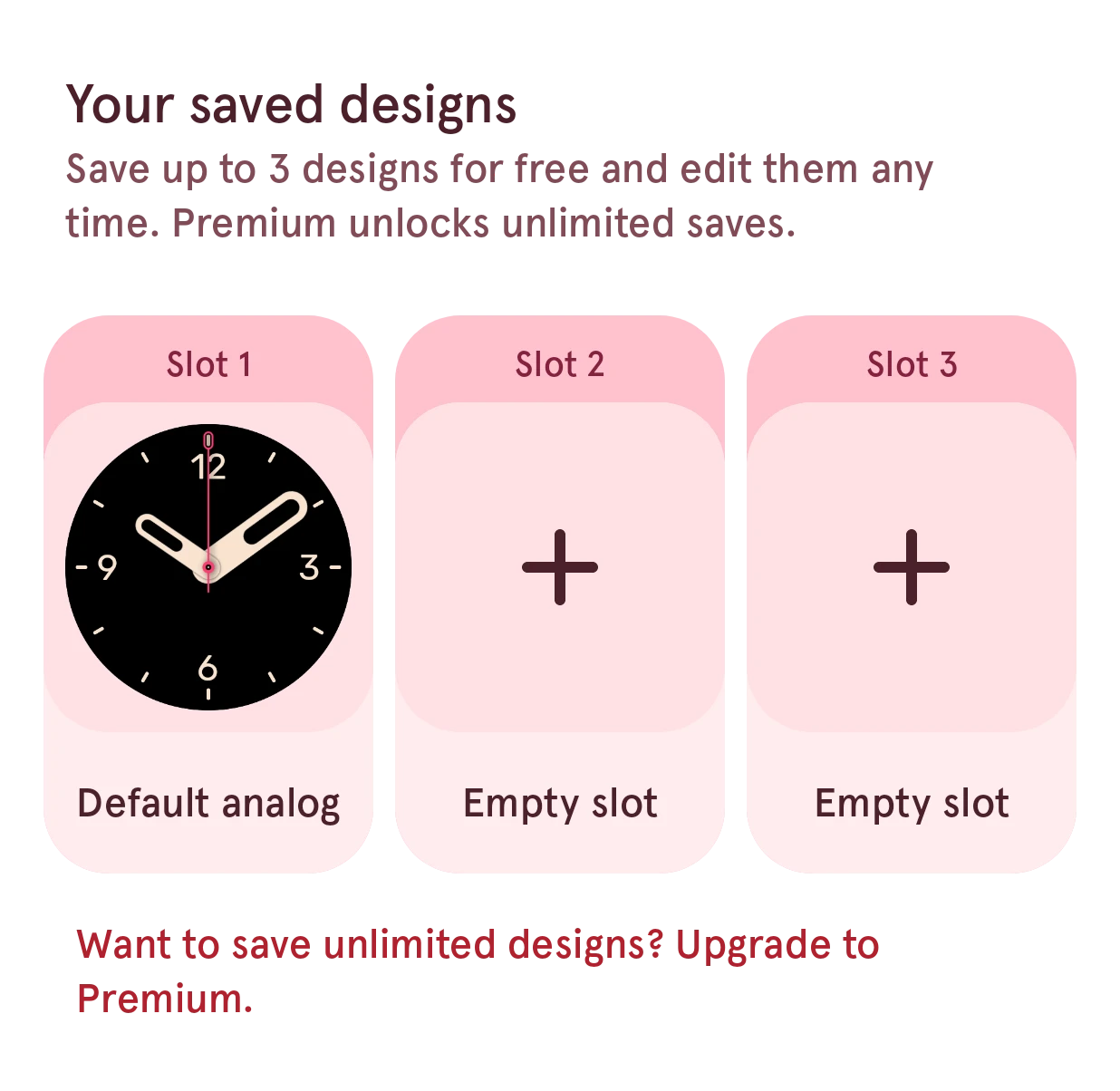
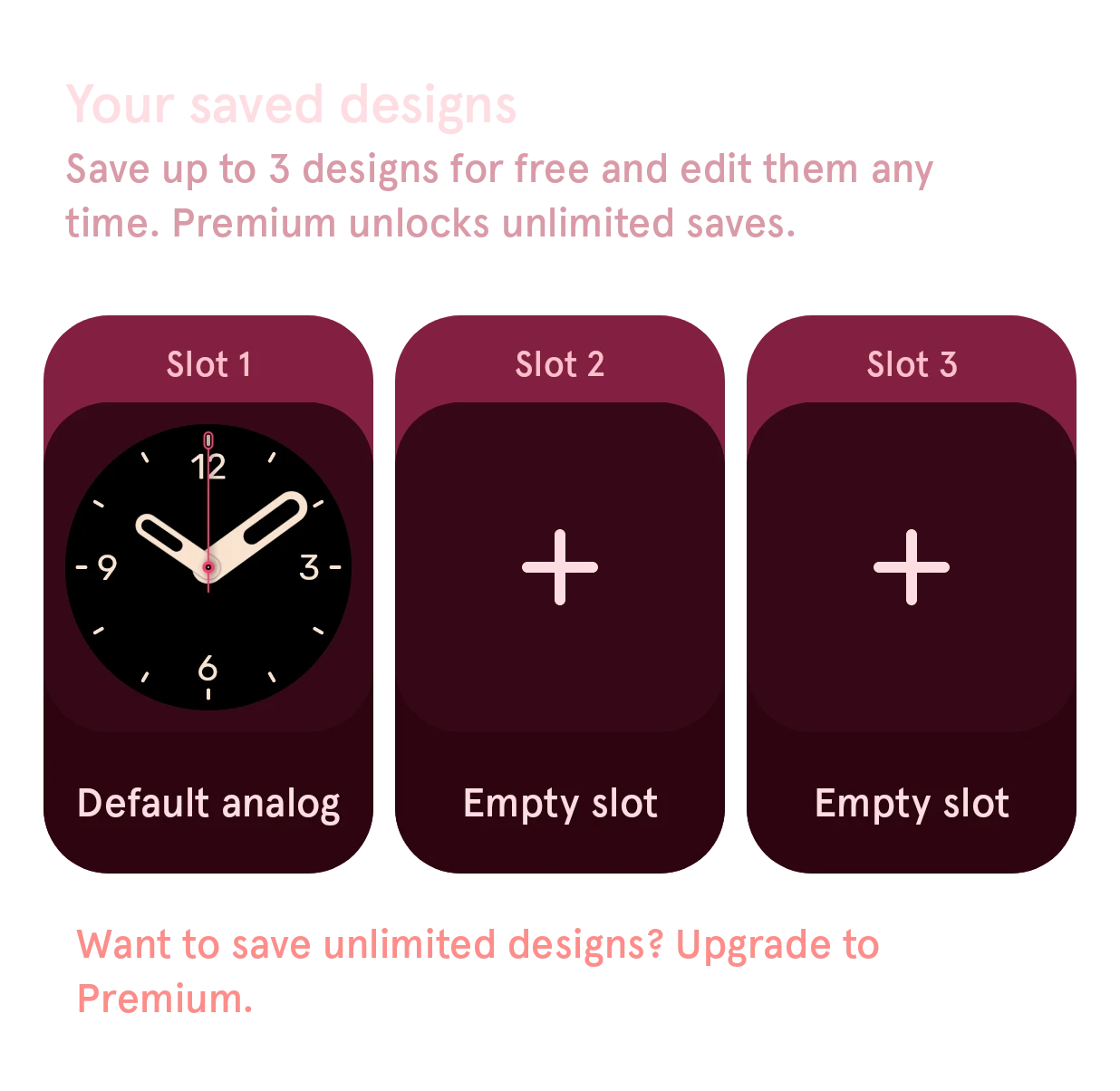
Each slot holds one design, which you can edit again any time. The Name your design dialog puts a watch face in a slot. When every slot is taken, your other designs are grayed out until you free a slot. Premium removes the limit: every design is kept in My items, as many as you like. Needs Premium
Elements of your own, and editing them, are Premium. Needs Premium
Searching your items
Section titled “Searching your items”The search field on My items searches only your own items, on your phone, and suggests their names as you type.

