
Tap action
Choose what happens when an element is tapped on the watch: open an app, control music, and more.
A tap action is what happens when you tap an element on the watch. The sheet opens from the Tap action row of a static element, a dynamic element or a tap target, and from the Tap action A to D rows of an indicator group. Tap actions work on the interactive face only.
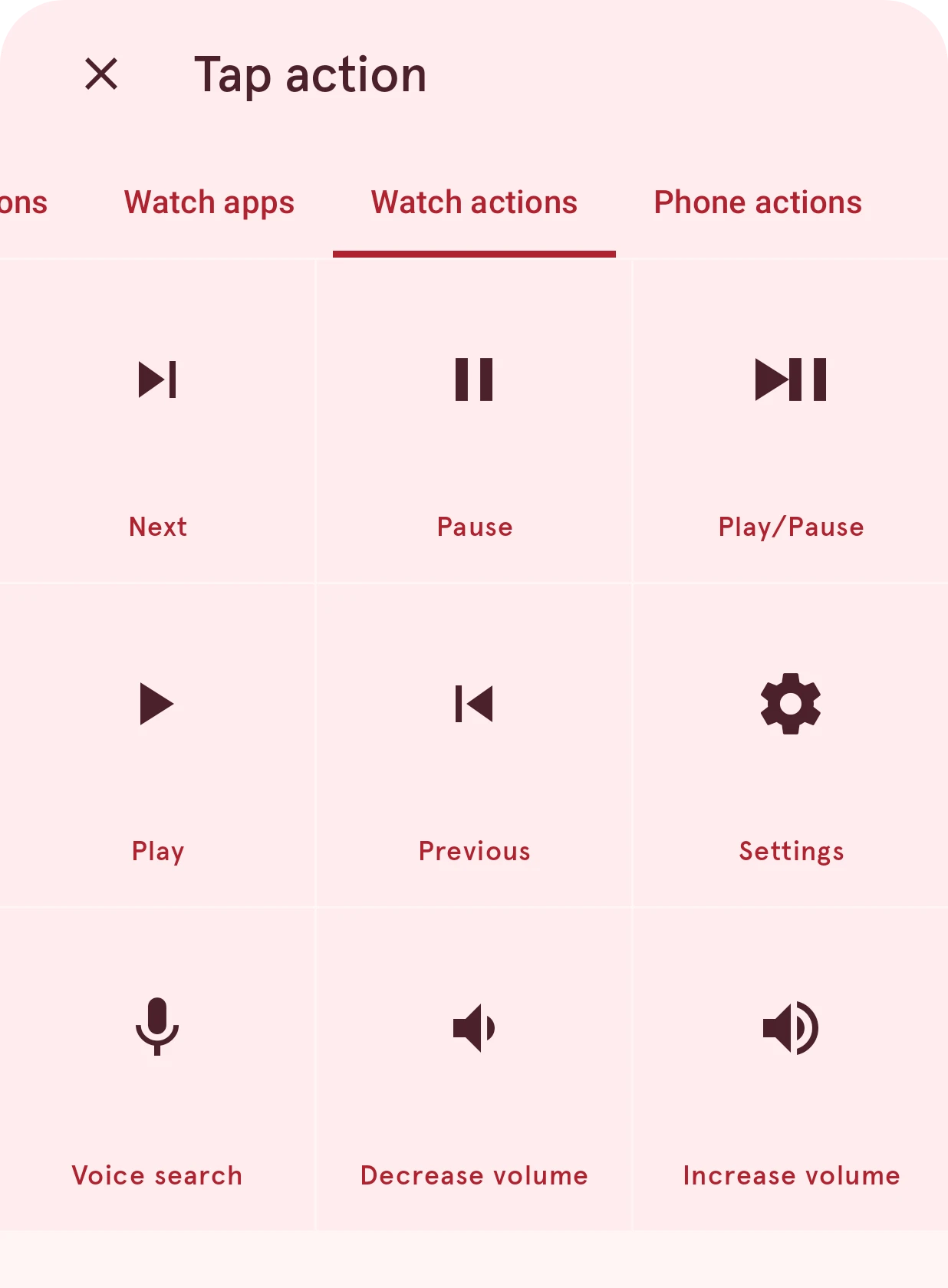
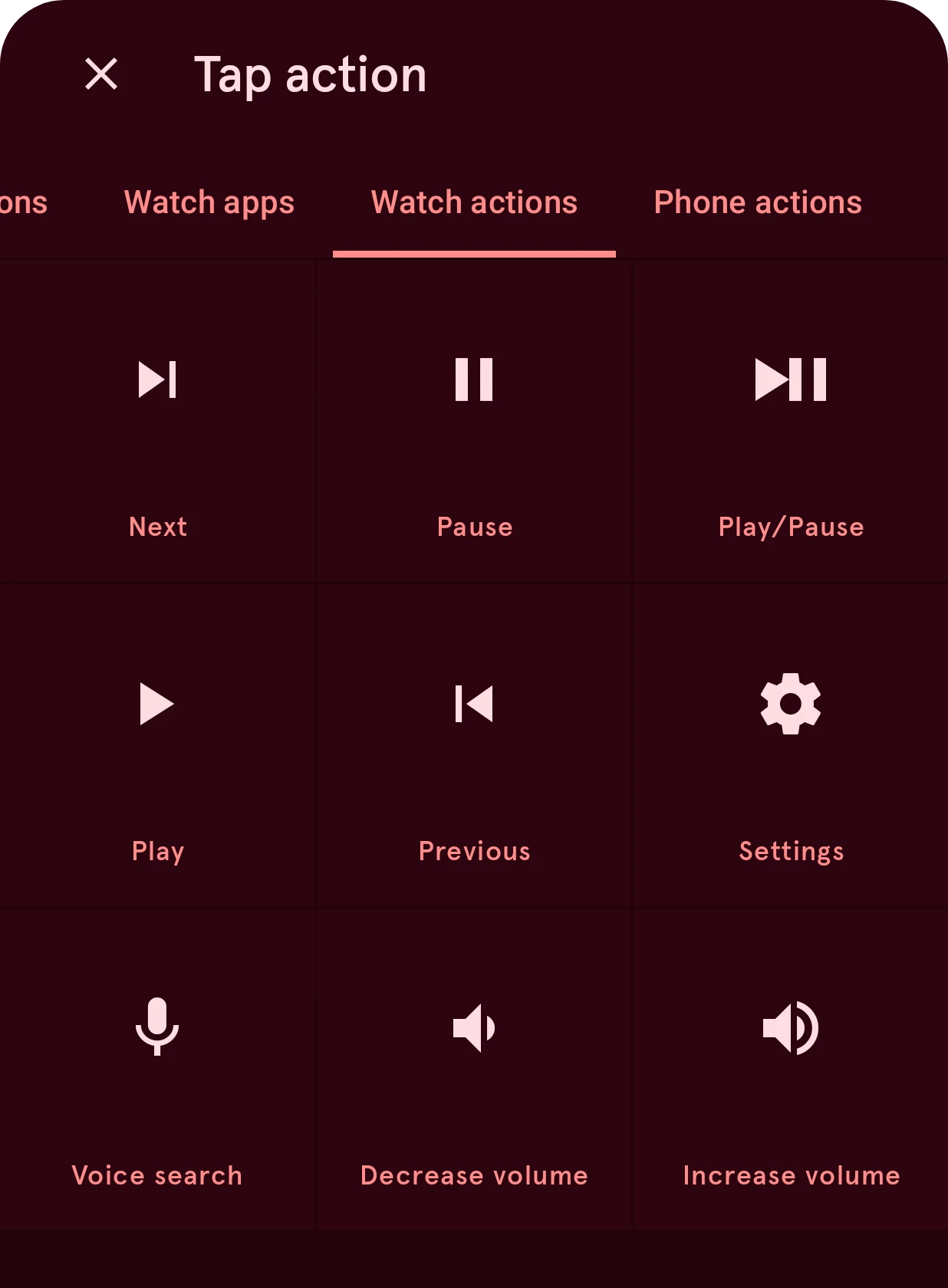
Close
Closes the sheet and keeps the tap action as it was.
Category
The actions are sorted into tabs. Swipe or tap a tab to see its actions.
Tap action
Tap an action to pick it; the sheet closes.
The tabs:
- Default actions: the actions you set once for all your watch faces, in the app’s tap action settings. Use one of these when the same tap should do the same thing on every face.
- Watch apps: the apps on your watch. The list comes from the watch, so it fills in a moment after the tab opens; search to find one quickly.
- Watch actions: music controls, volume, the watch’s settings, voice search.
- Phone actions: things your phone does on a tap on the watch.
- Tasker: your Tasker tasks, if you use Tasker.
- Phone apps and Phone shortcuts: open an app or a shortcut on your phone.
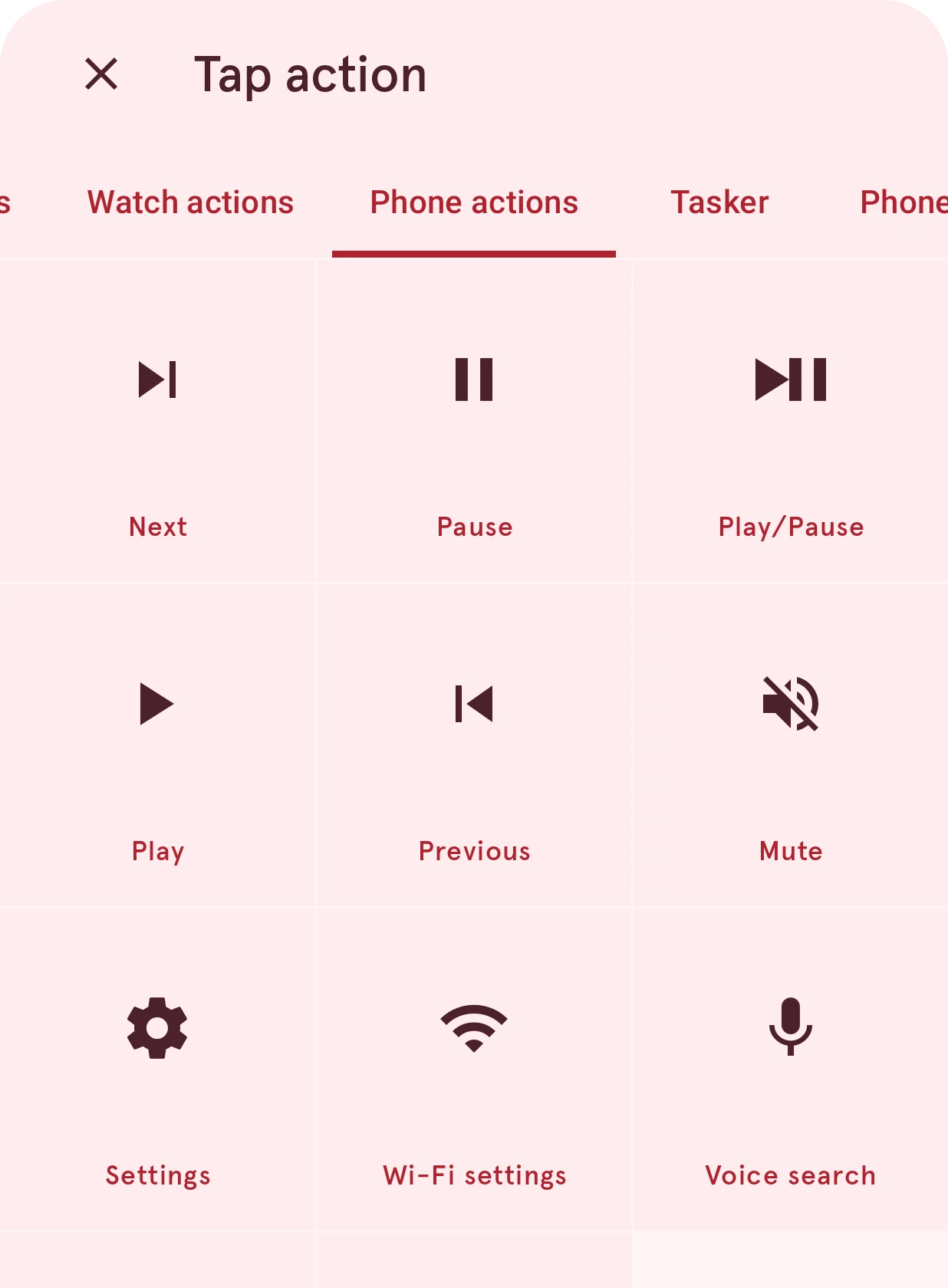
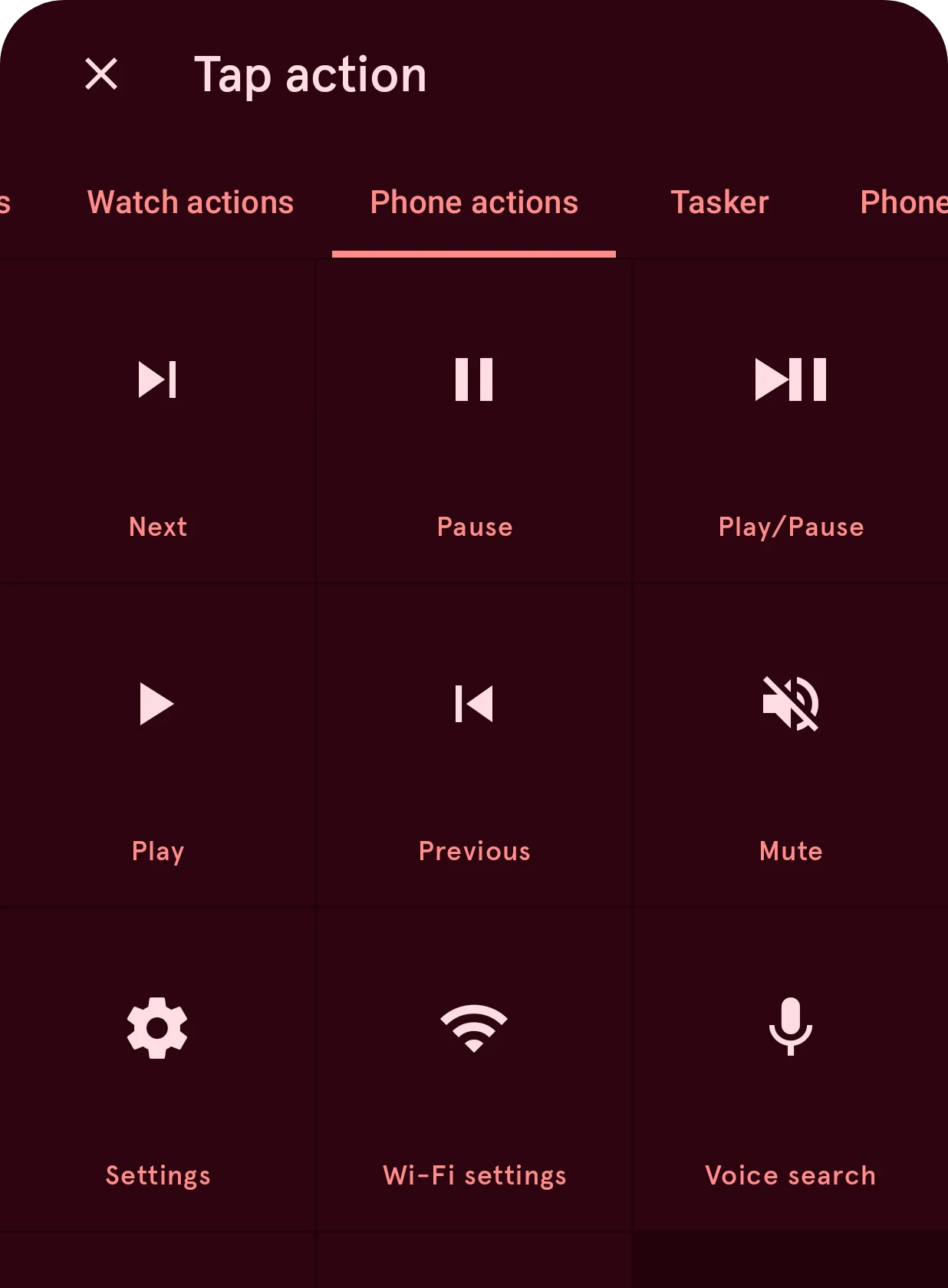
For a tap target, an action with an icon asks you to pick the icon next.
The row shows the current action, with a clear button to remove it. A dynamic element whose automation already handles taps shows a note instead: it can’t have a tap action of its own as well.