Changing a number
How the number rows work everywhere in the app: tap, hold, type a value, reset or automate.
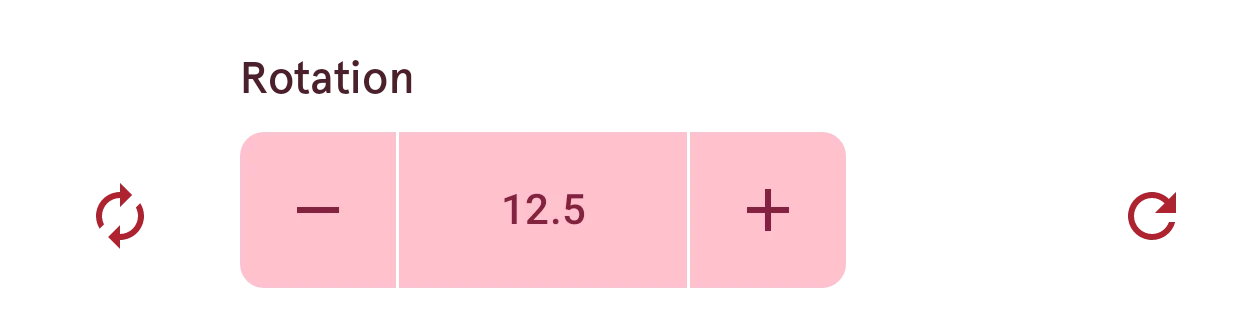
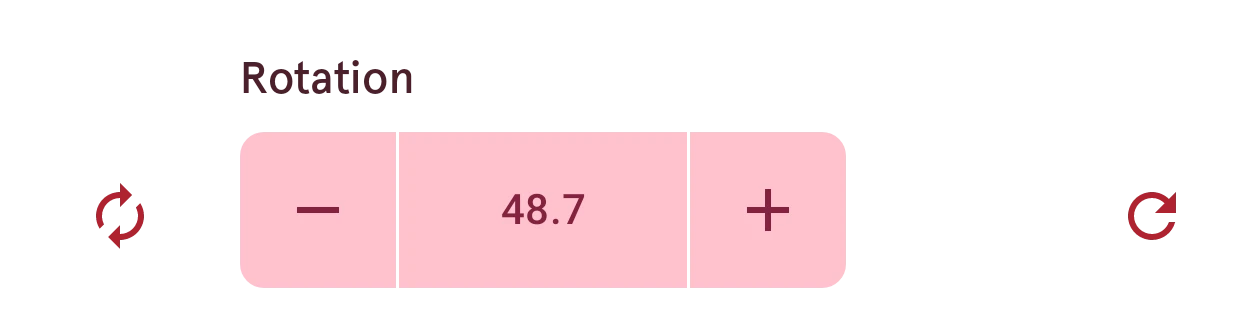
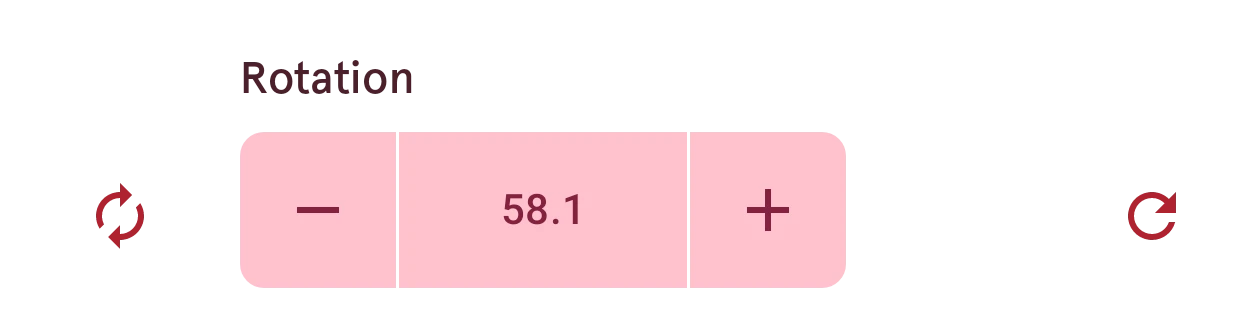
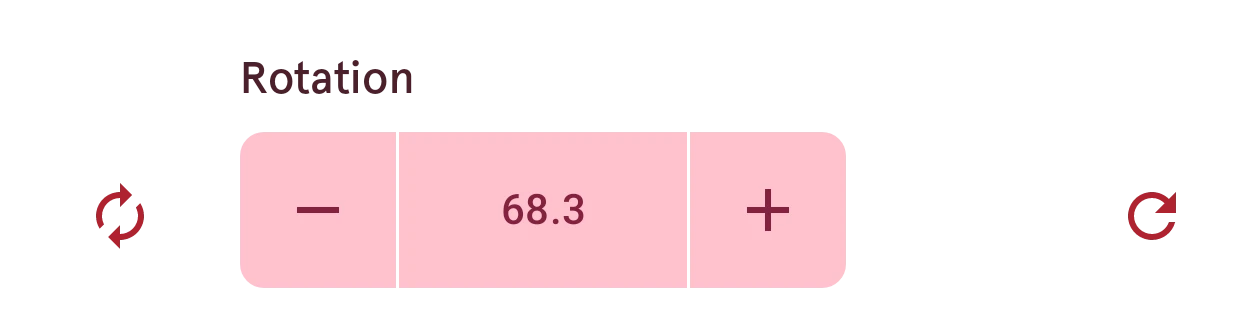
Every number in the app (a size, a rotation, a position, a corner radius) is set with the same control: a minus button, the value, and a plus button. It works the same in the watch face designer, the watch element designer and every sheet.
Decrease
Tap for one step down. Hold to keep going, faster the longer you hold.
Value
Tap the value to type the number you want. See Typing a value.
Increase
Tap for one step up. Hold to keep going, faster the longer you hold.
Reset
The first tap puts back the value the row had when you opened it, so you can undo your fiddling. Tap again for the default value.
Tap and hold
Section titled “Tap and hold”A tap moves the value one step. How big a step is depends on the setting: a tenth of a degree for a rotation, a thousandth for a size or a position. The docs list each setting’s step under its row.
Hold the button and the value starts to run after half a second, about thirty times a second. It speeds up the longer you hold: five steps at a time at first, then six, then seven, and so on. Here a rotation goes from 0.1 to 68.3 in about a second and a half, as fast as in the app. Let go when you’re close, then tap to land on the exact value.
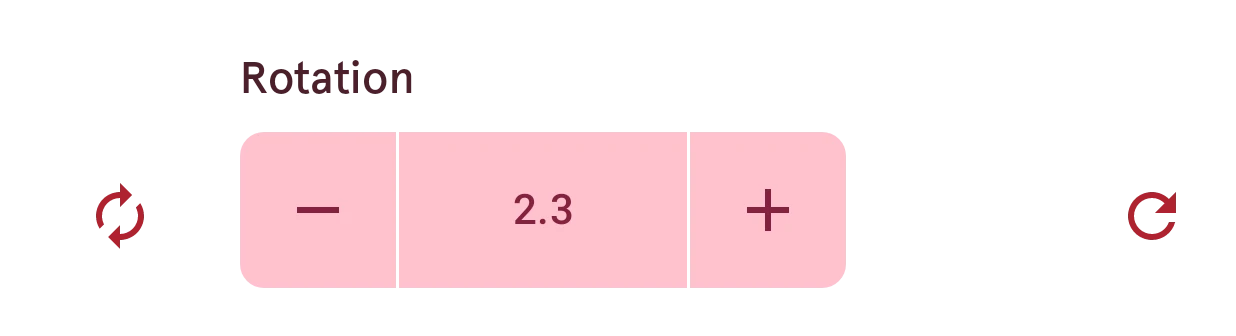
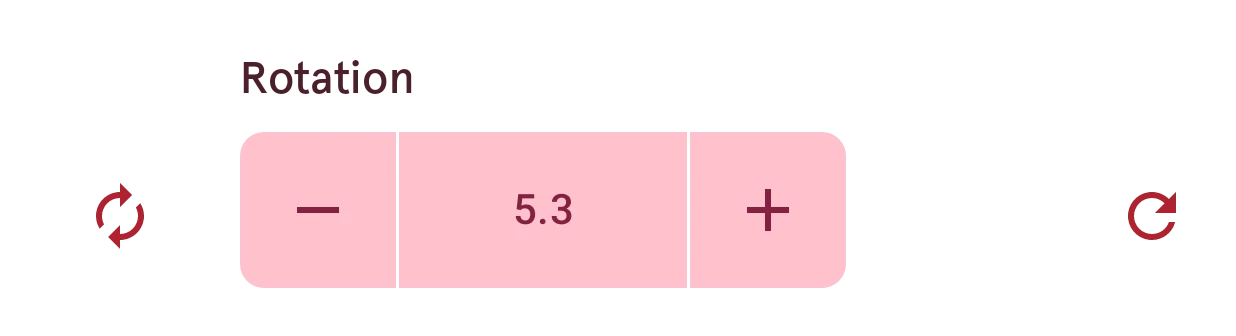
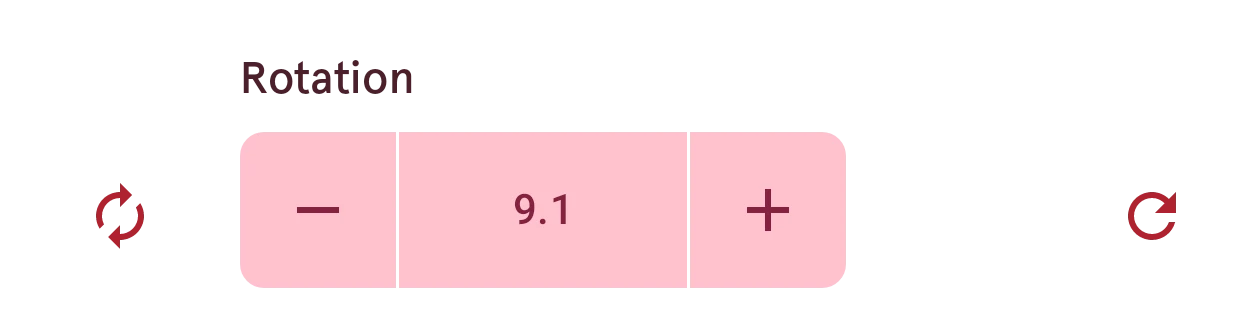
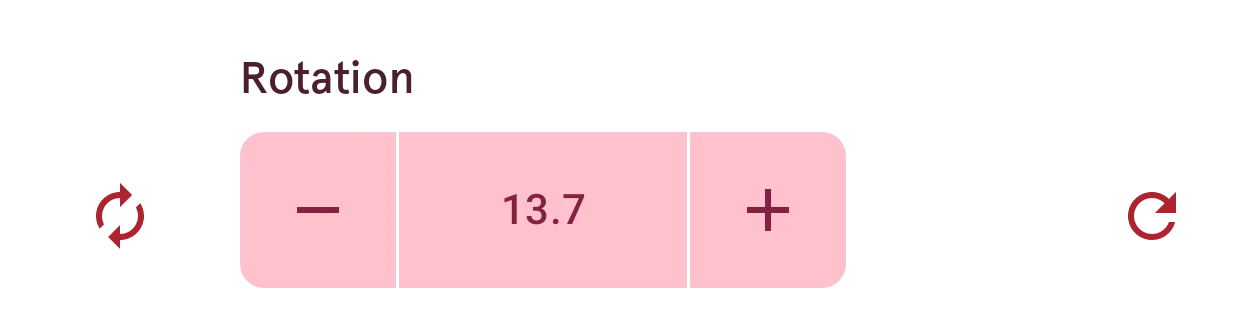
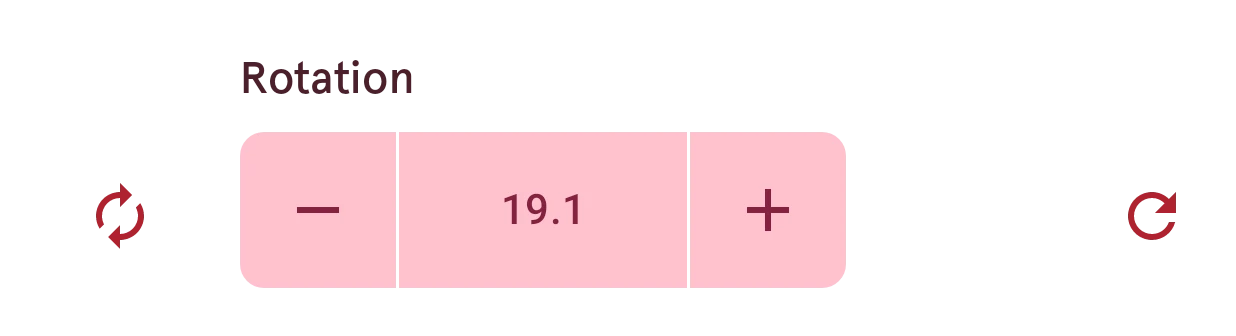
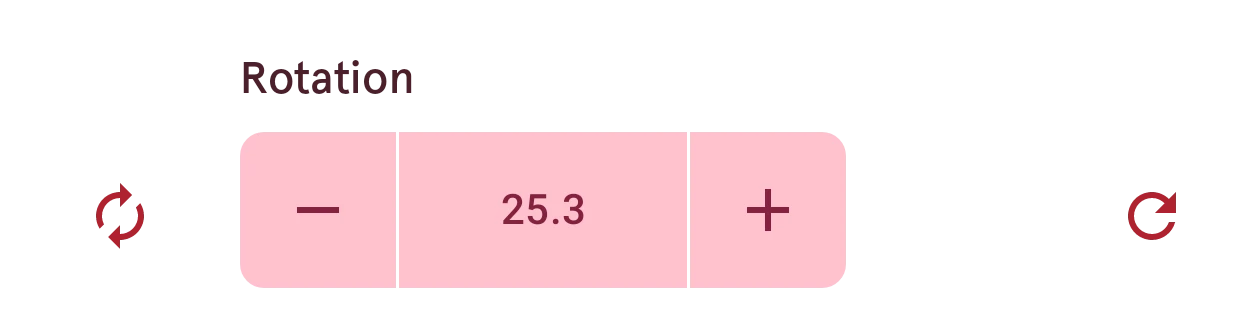
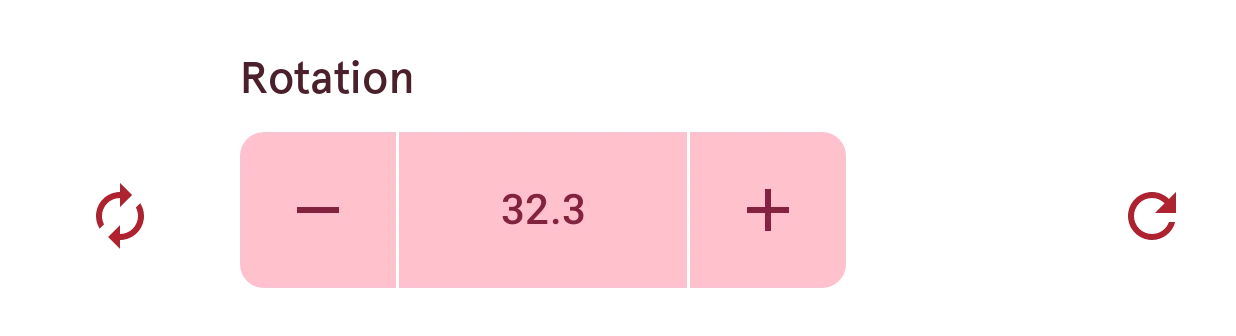
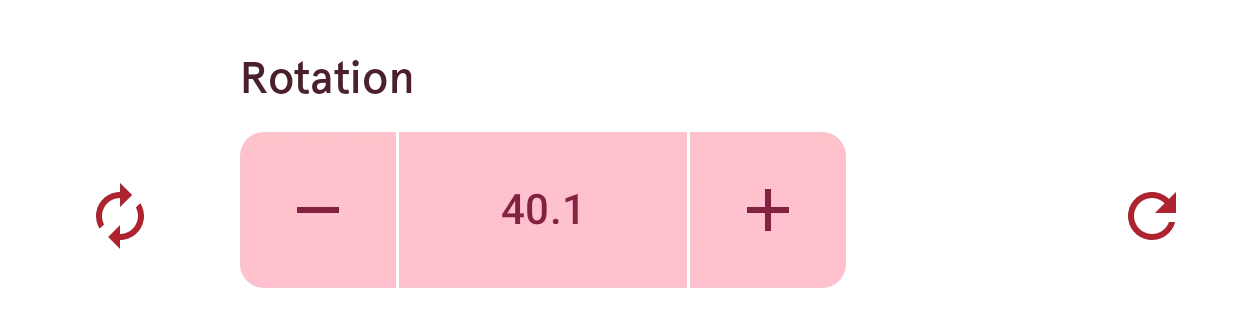
The value can’t go past its limits: at the end of its range the buttons simply stop. In the designers, a whole hold counts as one change, so one undo takes it all back.
Typing a value
Section titled “Typing a value”For an exact number, tap the value in the middle:
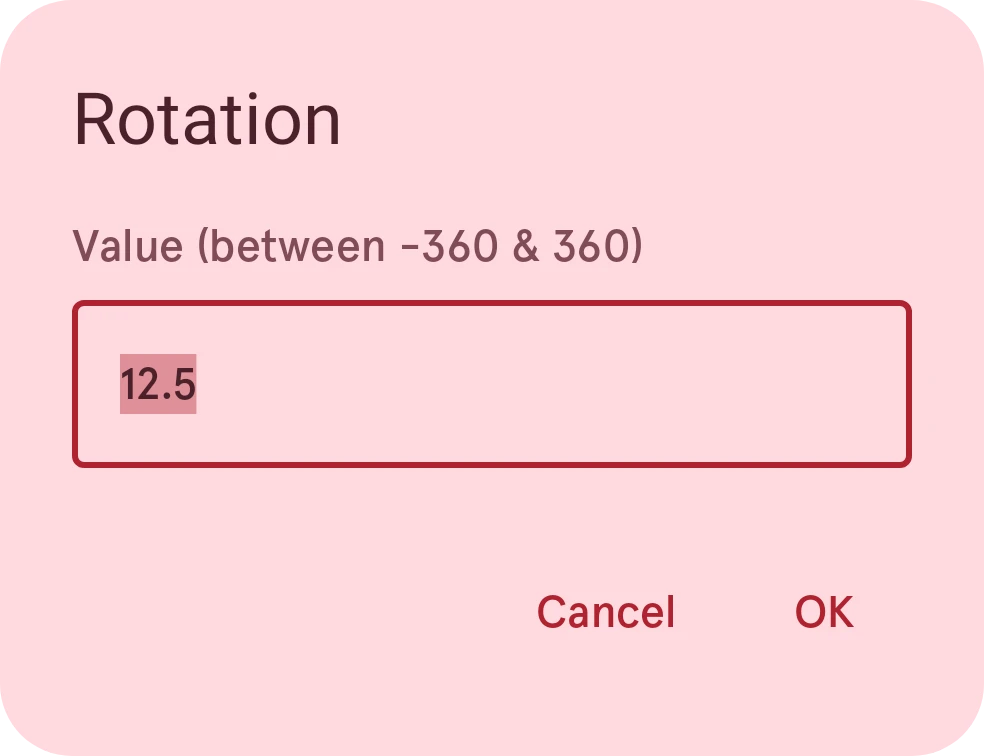
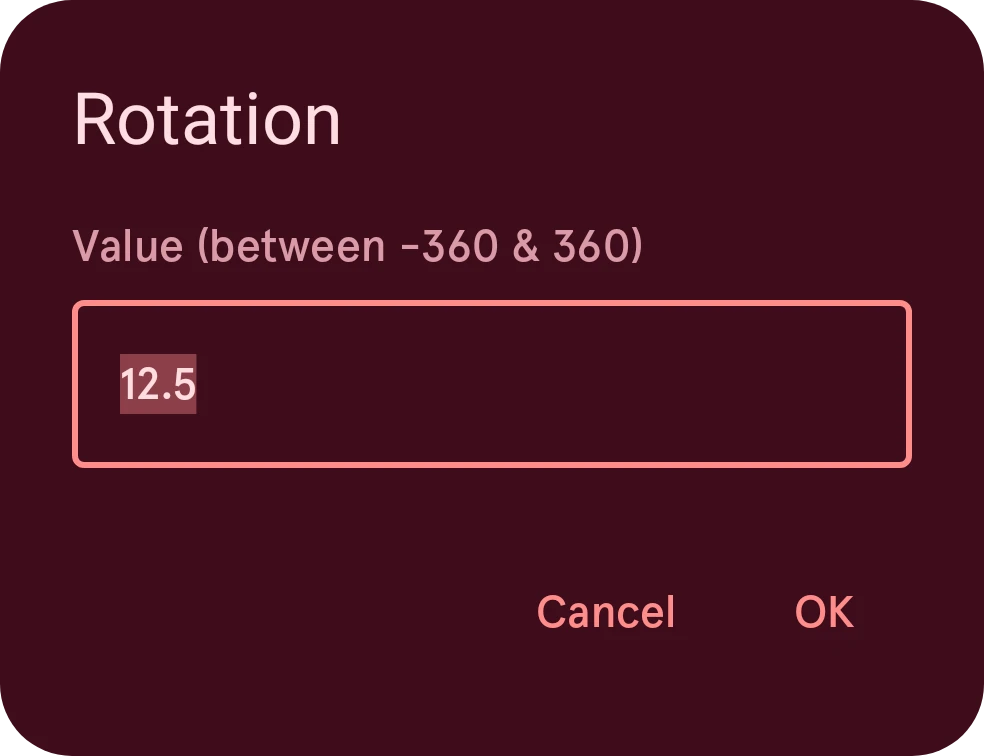
A dialog opens with the current value selected, so you can type the new one right away. It shows the range the setting allows; OK only works for a number inside it. Both a dot and a comma work as the decimal sign.
Automated values
Section titled “Automated values”In a dynamic element or a complication, many numbers can follow live data instead of a fixed value. Their row has an automate button in place of reset:
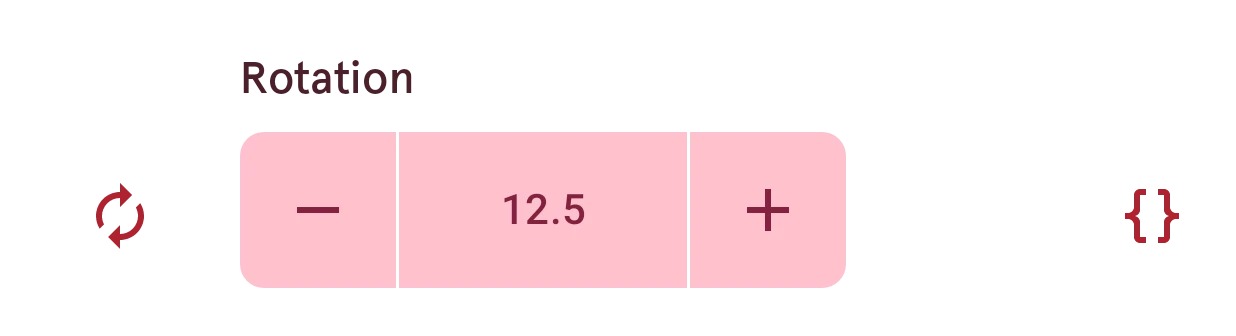
Automate
Opens the automation editor, to make the value follow the time or data.
Once a value is automated, the row says so and its buttons are grayed out: the automation sets the number now. Open the automation again to change or remove it.