Backup & restore
Save all your watch faces and watch elements to one backup file, and bring them back from one, for example on a new phone. Backups need Premium.
Backup & restore is under Libraries on the app’s main settings page. Here you save all your watch faces and watch elements to one file, and bring them back from one, for example on a new phone.
Backup
A backup is one file with all your watch faces and saved watch elements. It doesn’t include your settings, fonts or purchases: purchases come back through Google Play, and fonts download again by themselves. Creating and importing backups needs Premium. The first time, the app asks for access to its storage folder.
Generate a backup file
ActionProGenerate a backup file, for safety or to transfer your items to another device
You choose where the file goes: a folder on the phone, or any storage app that shows up in the file picker, such as Google Drive. The file is called something like
Pujie - Backup Jul 5, 2026 3_04_59 PM.pdb. To be safe against a lost or reset phone, keep it somewhere other than the phone itself. You can cancel while the backup is being made.Import a backup file
ActionProImport a backup file, to recover your libraries
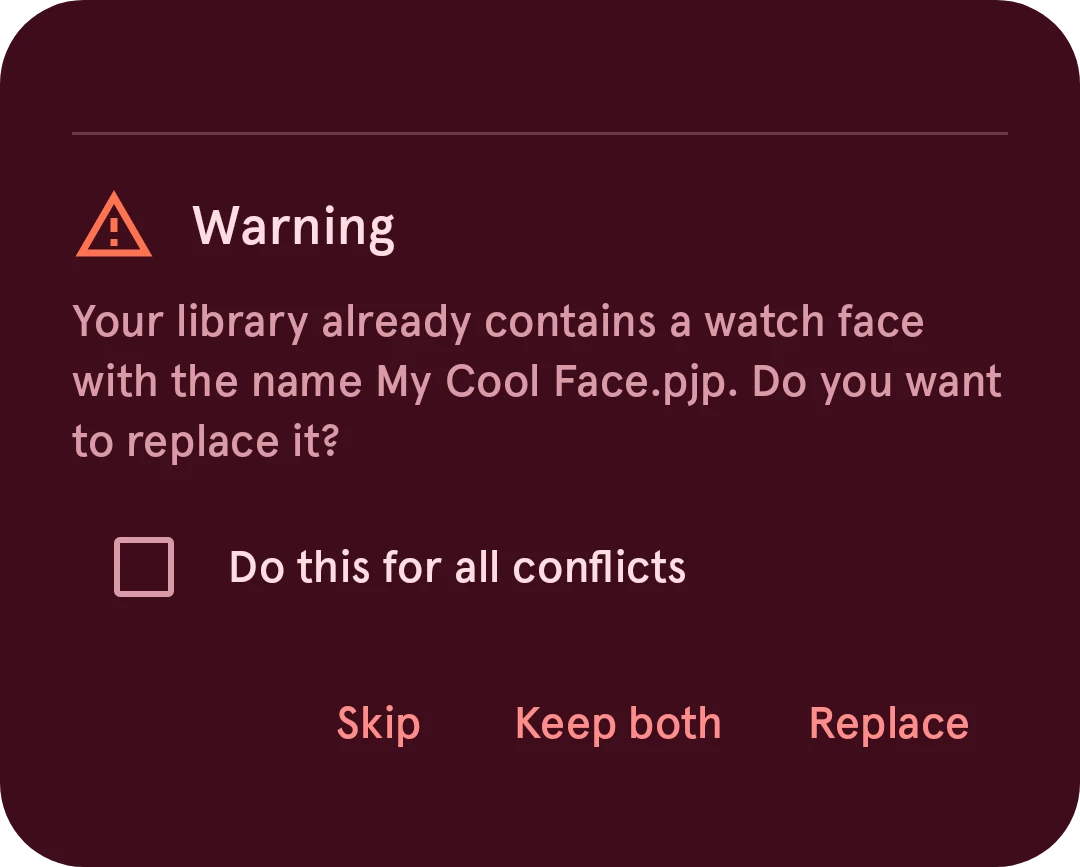
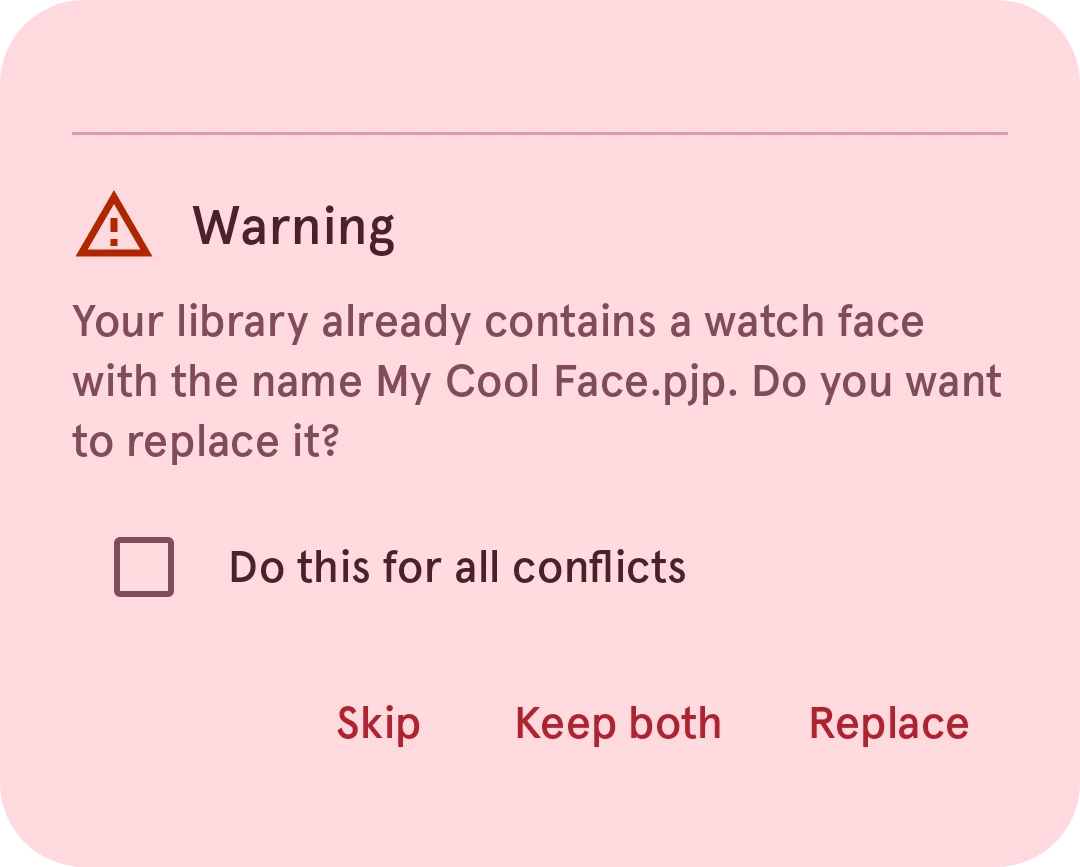
Adds the watch faces and elements from a backup file to your libraries. Nothing you already have is deleted. When the backup holds an item with the same name as one of yours, you choose: replace it, keep both (the copy gets a number), or skip it, for that item or for all of them.
Backups made by older versions of the app, including Pujie Black, can be imported too.
Importing only adds the items on your phone. To use an imported watch face, send it to your watch again.