
Combine shapes
Combine selected shapes into one: join them, cut one out of another, keep only the overlap or only what doesn't overlap, with a preview of the result.
Opened from
- Combine shapes, in the selection bar
Combines the selected shapes into a single shape. Long-press a shape in the layer list, tap the others, then tap Combine in the app bar (see Combining shapes). Only shapes can be combined.
Close
Closes the sheet and leaves the shapes as they were. Tapping outside the sheet does the same.
Combine
Replaces the selected shapes with the result, as one shape layer. Undo brings the shapes back.
Union
Everything any of the shapes covers, joined into one outline.
Subtract
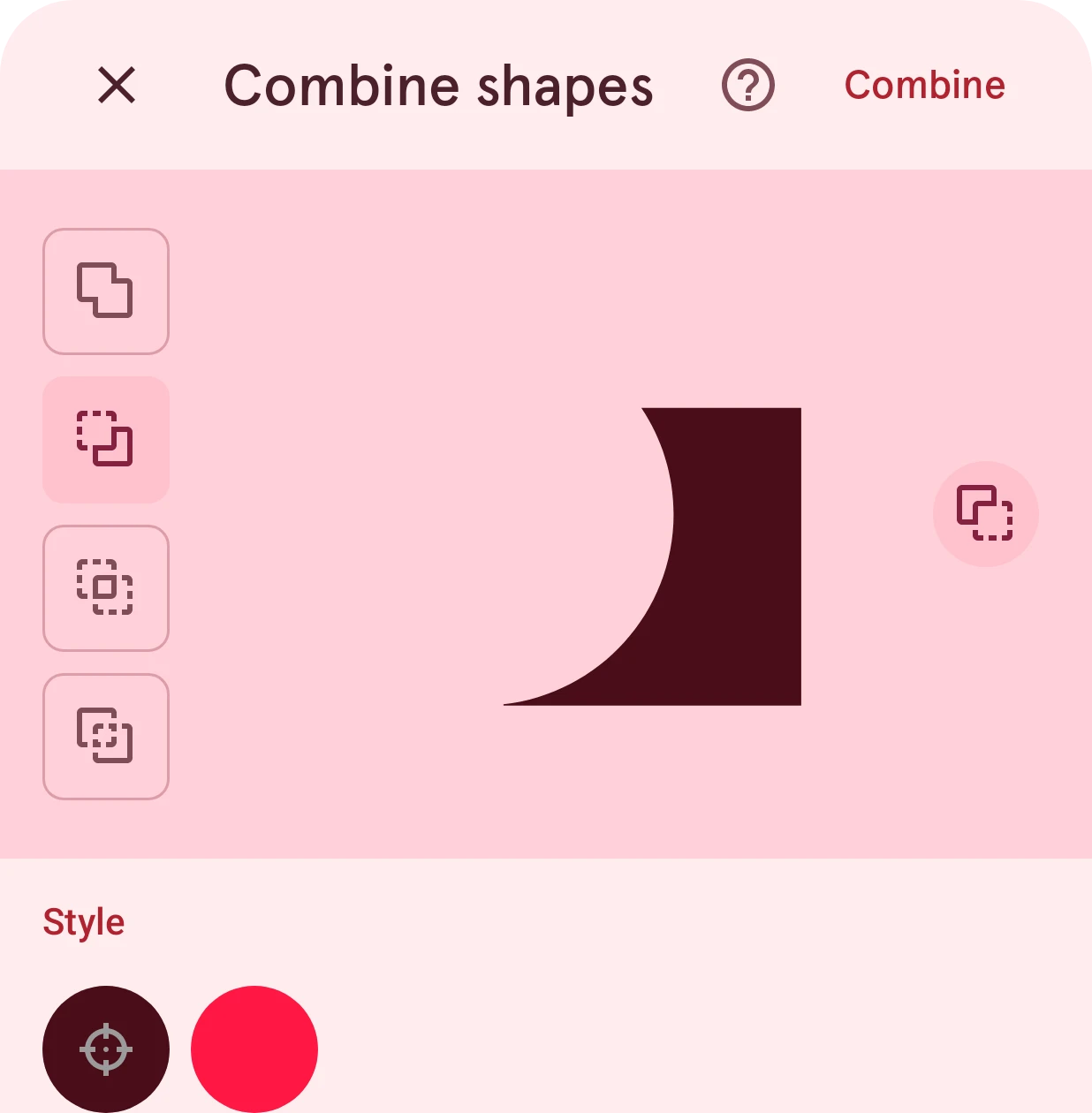
The base shape with the others cut out of it. Above, the circle is cut out of the square.
Intersect
Only the part where the shapes overlap.
Exclude
Only the parts where the shapes don’t overlap, with the overlap cut away.
Cut from a different shape
With Subtract only: makes the next shape the base, the one the others are cut out of. The preview shows which one survives.
Preview
The result, drawn as it will be added, in the chosen style.
Style
Which shape’s look the result gets: tap a swatch to pick it. It only shows when the shapes have different styles.