
Canvas
Zoom and pan the canvas, use the grid and the readout above it, and move, scale and rotate layers.
The canvas is where you draw: it shows the element at its place on a watch face, with the selected layer and its handles on top. What a touch does depends on the tool in the tools row.
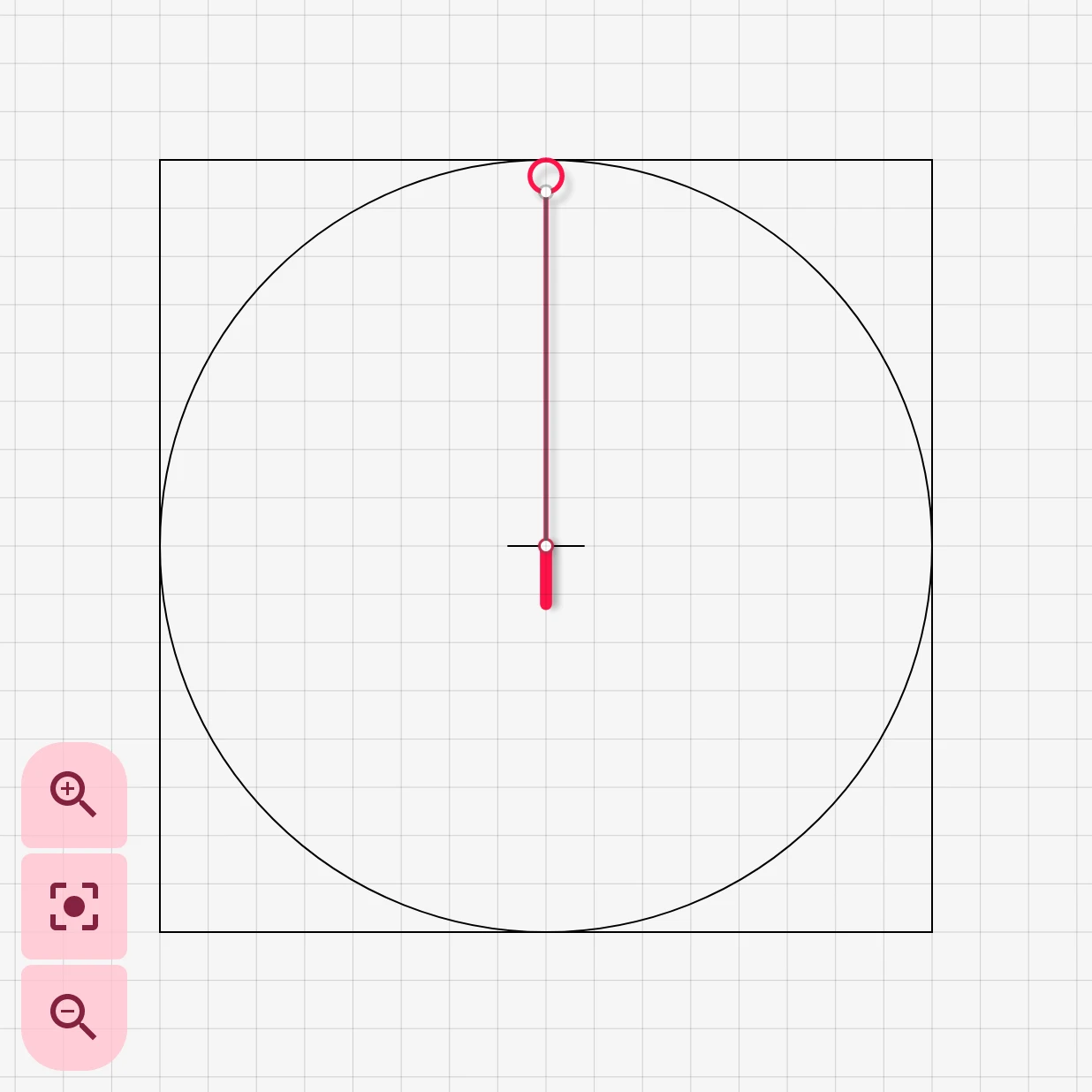
The square is the watch: everything inside it is on the face, and for a round watch a circle inside the square shows the face’s edge. The small cross marks the center of the face, where a watch hand turns. The selected layer shows its anchor points, here at both ends of the hand’s shaft.
Zooming and panning
Section titled “Zooming and panning”- Pinch with two fingers to zoom in and out.
- Double tap to zoom in on the spot you tapped.
- Drag with one finger on an empty part of the canvas to move it around. A quick swipe keeps it moving for a moment.
Dragging a point or a handle moves that point or handle instead of the canvas. To get back to the normal view, use Reset zoom in the app bar’s More menu, or the zoom buttons in the corner of the canvas. The Zoom controls setting decides when they show: always, only for a moment after you touch the canvas, or never.
Zoom in
Zooms in on the middle of the view.
Reset zoom
Goes back to the normal view, with the whole watch in sight.
Zoom out
Zooms out.
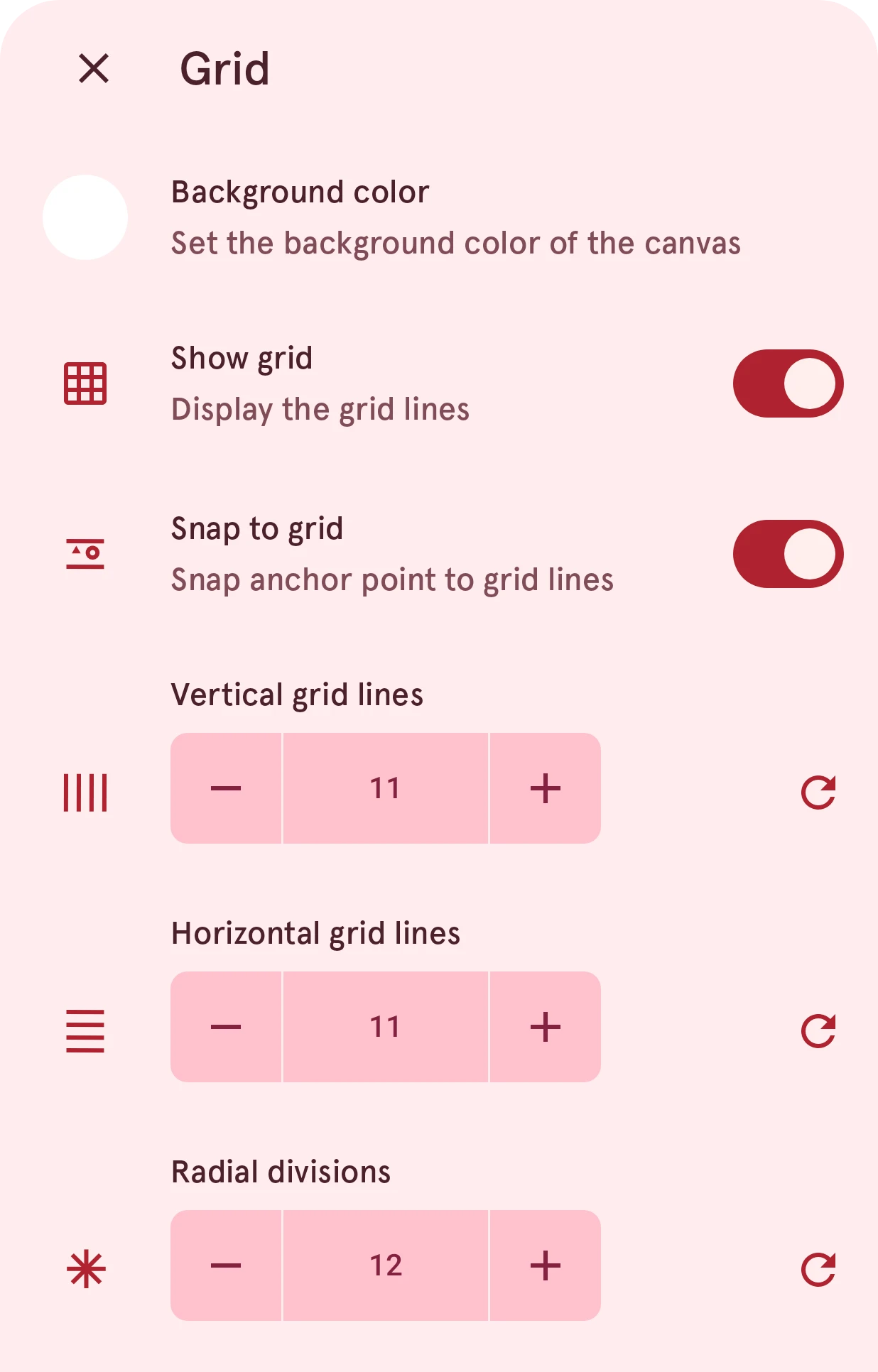
The grid button in the app bar sets up the grid behind your drawing: show it or not, snap anchor points to it, how many horizontal and vertical lines it has, and the radial divisions that snap a rotation to fixed steps. It also holds the canvas’s background color, so you can design light elements on a dark background or the other way around. See Grid for each setting.
To check an element against the rest of the face, turn on the watch face behind it with the clock button in the app bar.
The readout above the canvas
Section titled “The readout above the canvas”The strip at the top of the canvas shows the exact position of what you selected. Tap a value to type an exact number.


Toggle multi control point selection
In Select mode, switches between selecting one point and selecting several points at once, to move them together.
Adjust x coordinate
The x position of the selected point or handle, or R for a rotation.
Opens Enter a new value.
Adjust the global object
Variables and functions every layer of the element can use, so a calculation you need in many layers is written once.
Only for dynamic elements and complications.
Opens Global object editor.
Moving, scaling and rotating
Section titled “Moving, scaling and rotating”Tapping the Transform tool shows its three modes; the tool’s icon shows the one in use.
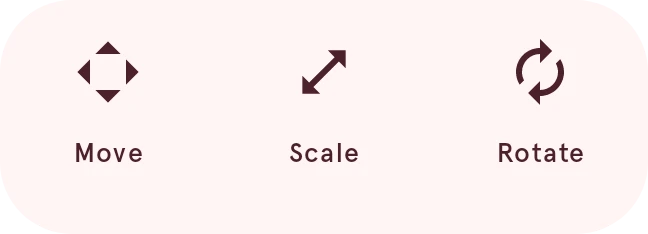
Move
Drag to move the selected layer.
Scale
Drag a handle to resize the layer. Selecting a handle shows the scale actions below.
Rotate
Drag to rotate the layer, then keep or cancel the rotation with the buttons that appear.
Scale actions
Section titled “Scale actions”With the Scale mode, selecting a handle shows these at the edge of the canvas. A toggle shows what it switches to, and the link toggle is only on the corner handles.
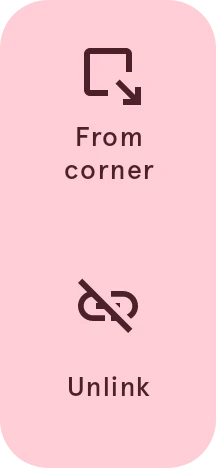
From corner
Scales from the opposite corner, which stays where it is.
From center
Scales from the center, so the layer stays in place.
Unlink
Lets the width and height change on their own.
Link
Keeps the proportions while you scale.
Shapes also have actions for their anchor points; they’re described with shapes.