
Catalog and search
Everything in the Library, with search, sorting and filters to find the watch face you want.
The Catalog is the whole Library in one list. Under the top bar a row of buttons picks what you see:


Open filters
Opens the filters.Watch faces
What the list shows. See Type.Change sorting
The order of the list. See Order.Descending order
Turns the order round: oldest first, fewest likes first.
Once you set filters, they show as chips in a second row, with Clear filters to remove them all.
Tap the type button to pick what the list shows: watch faces, one kind of element, or designers.
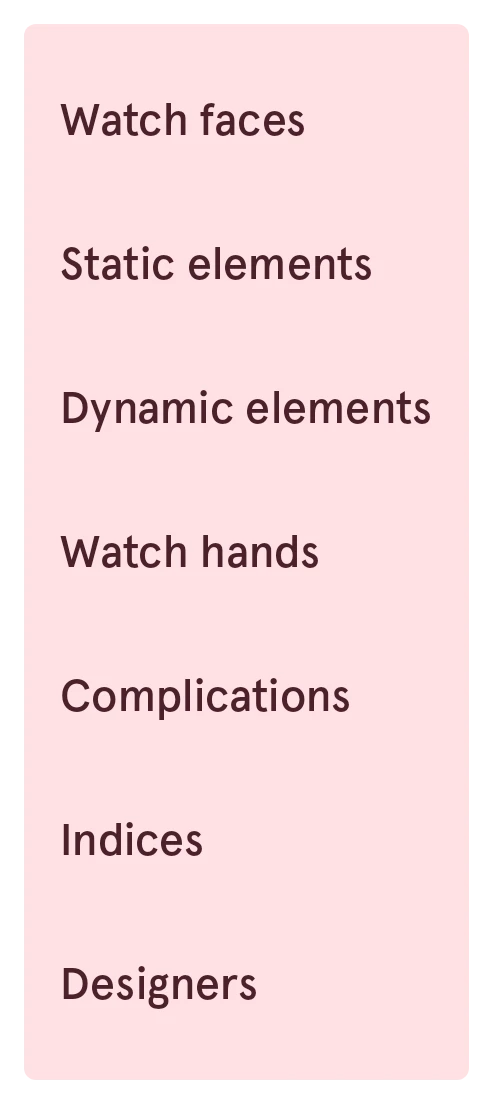
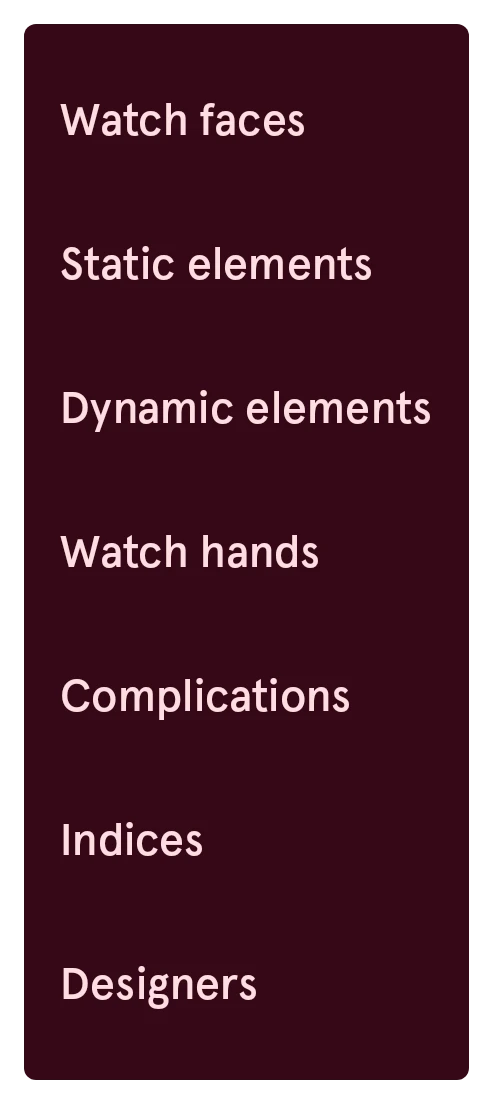
On Designers the list shows people instead of items; the filters don’t apply to them.
- By date: newest first.
- By likes: the most liked first.
- By name: alphabetical.
- By downloads: the most used first.
- Best match: how well an item matches your search and filters. It’s there only while you search or filter, and it’s picked by itself when you start a search.
Every order can also run the other way round (oldest first, fewest likes first). Designers have their own orders: by date joined, followers, name, or number of items.
Filters
Section titled “Filters”The filter button opens a sheet with everything you can narrow the list down by:
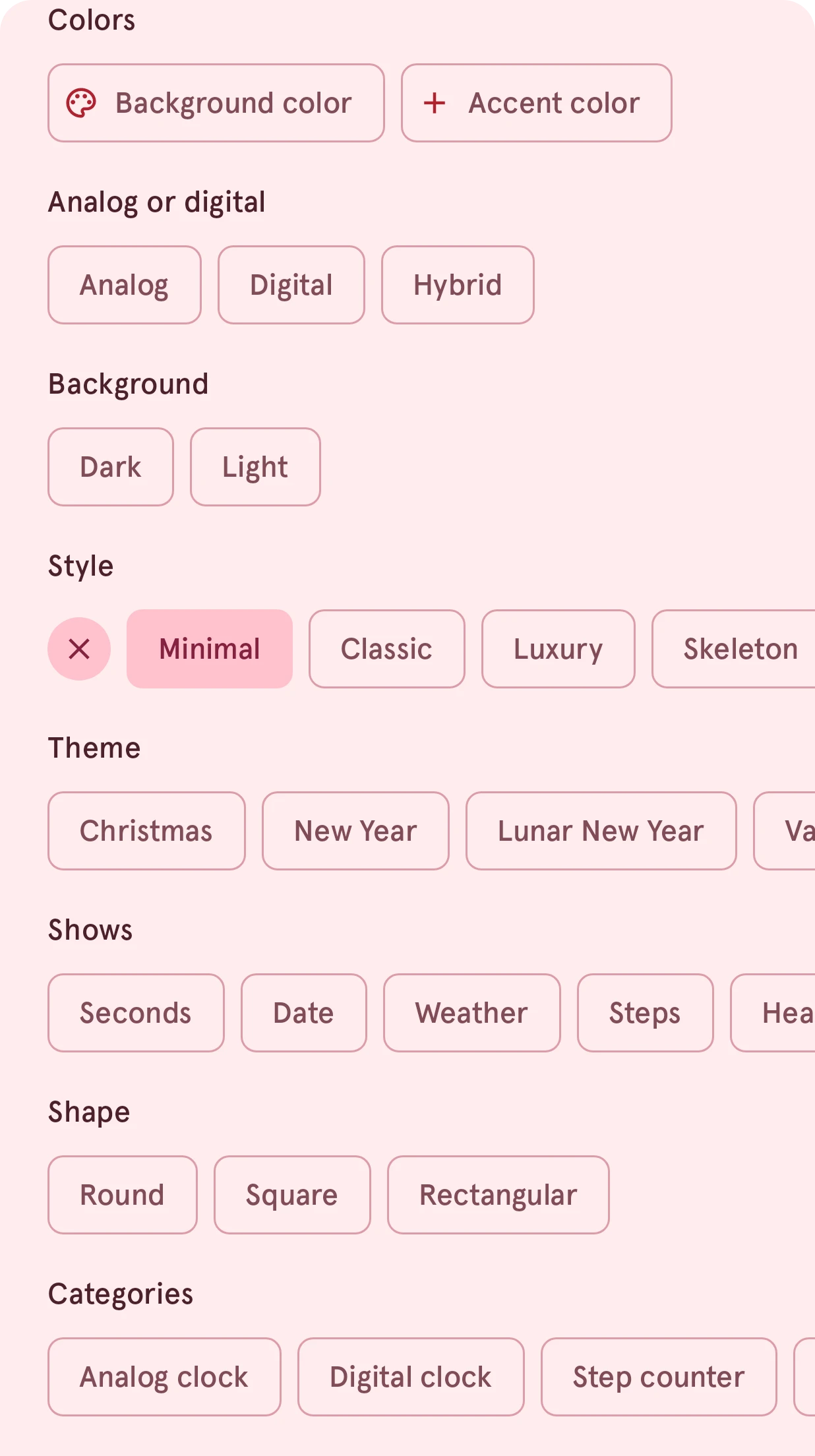
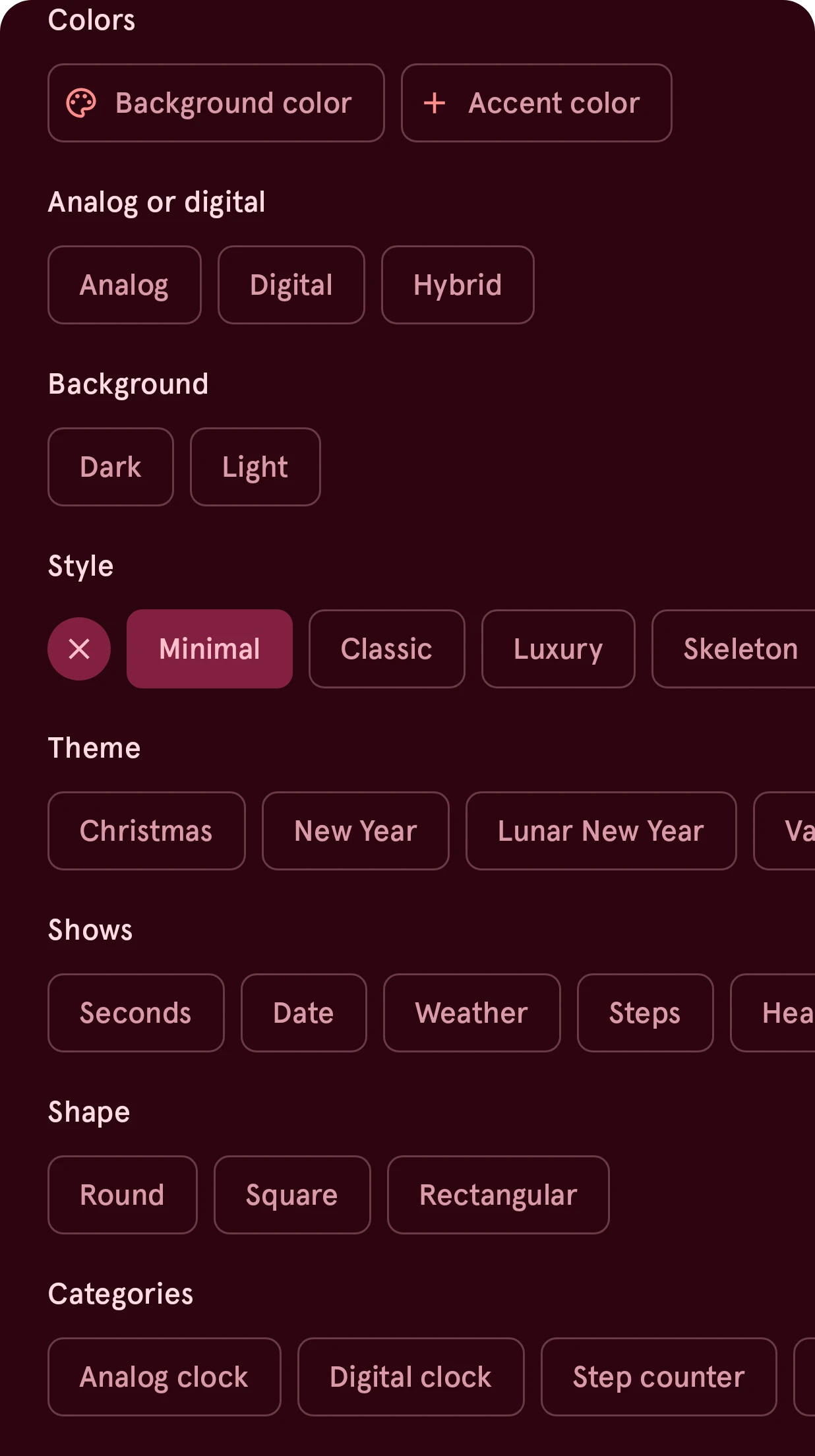
- Colors: a background color and up to a few accent colors.
- Analog or digital, Background (dark or light), Style, Theme, Shows (what the face shows) and Shape.
- Categories: the kind of element, for an element type.
A chip in the filter row removes its filter when you tap it. The round button at the end of a row in the sheet clears that row.
Search
Section titled “Search”Tap the search field on the Catalog to search the whole Library: names, tags, and the words the filters use.


-
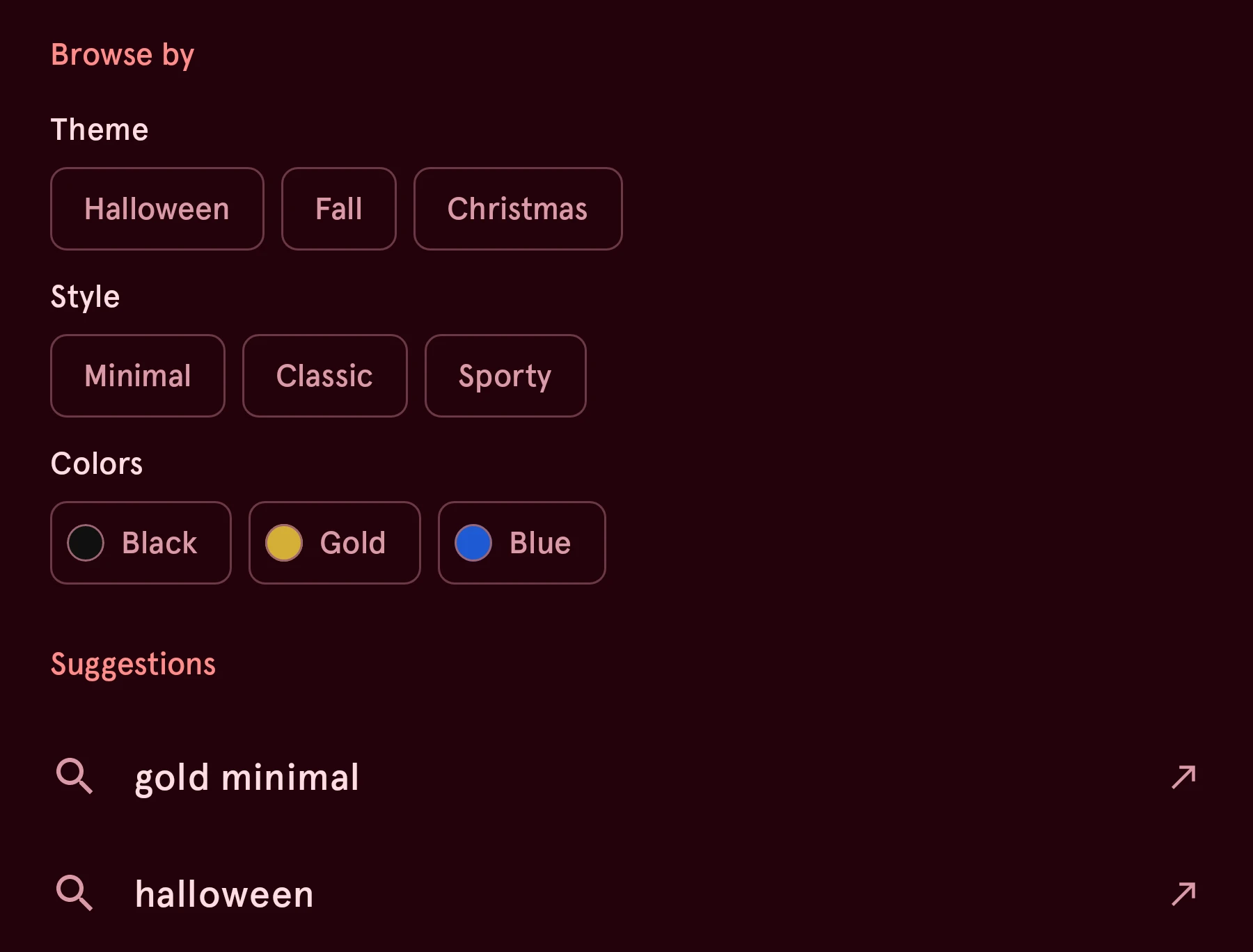
Before you type, it shows Browse by (ready-made filters to start from) and your Recent searches, which you can remove one by one.
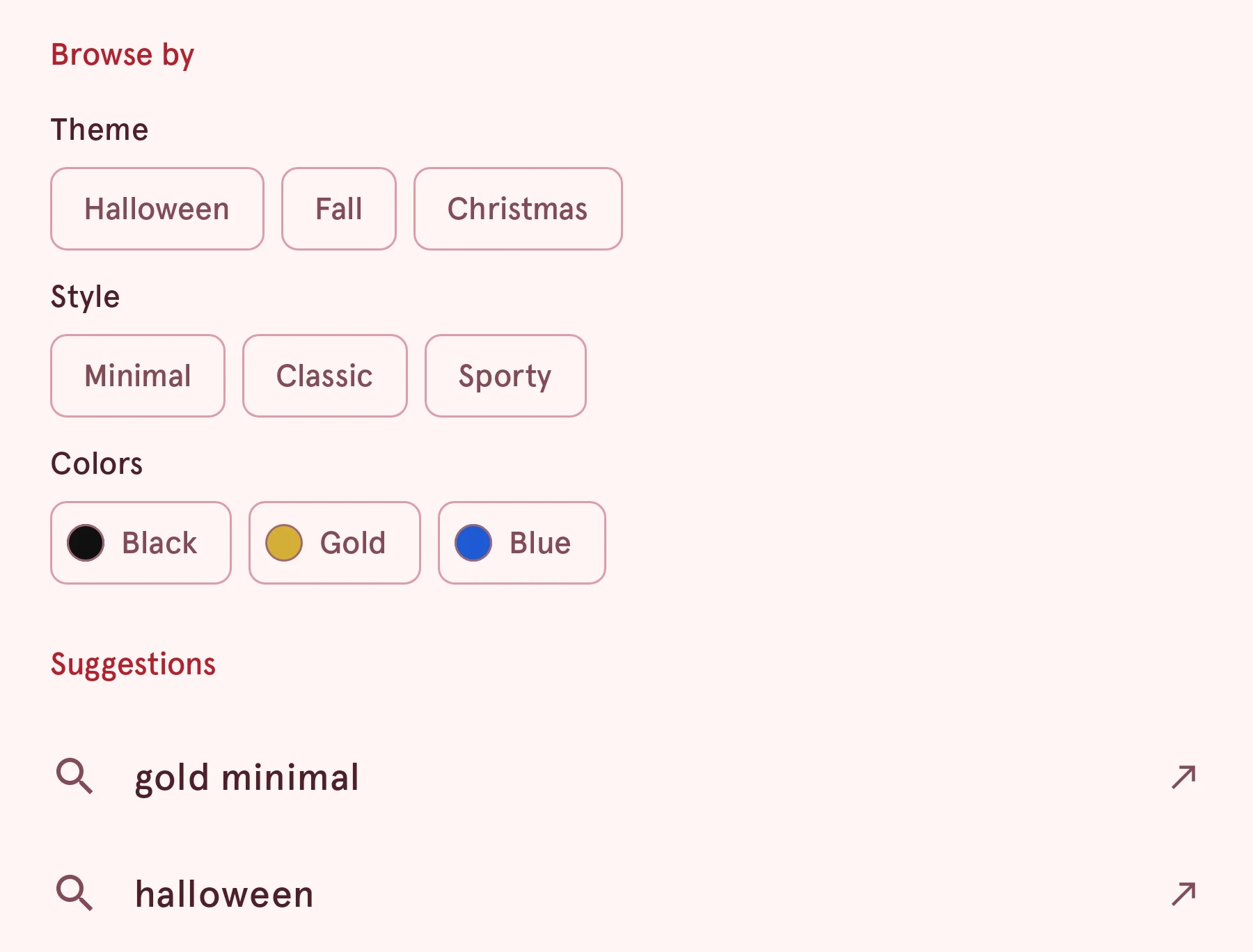
-
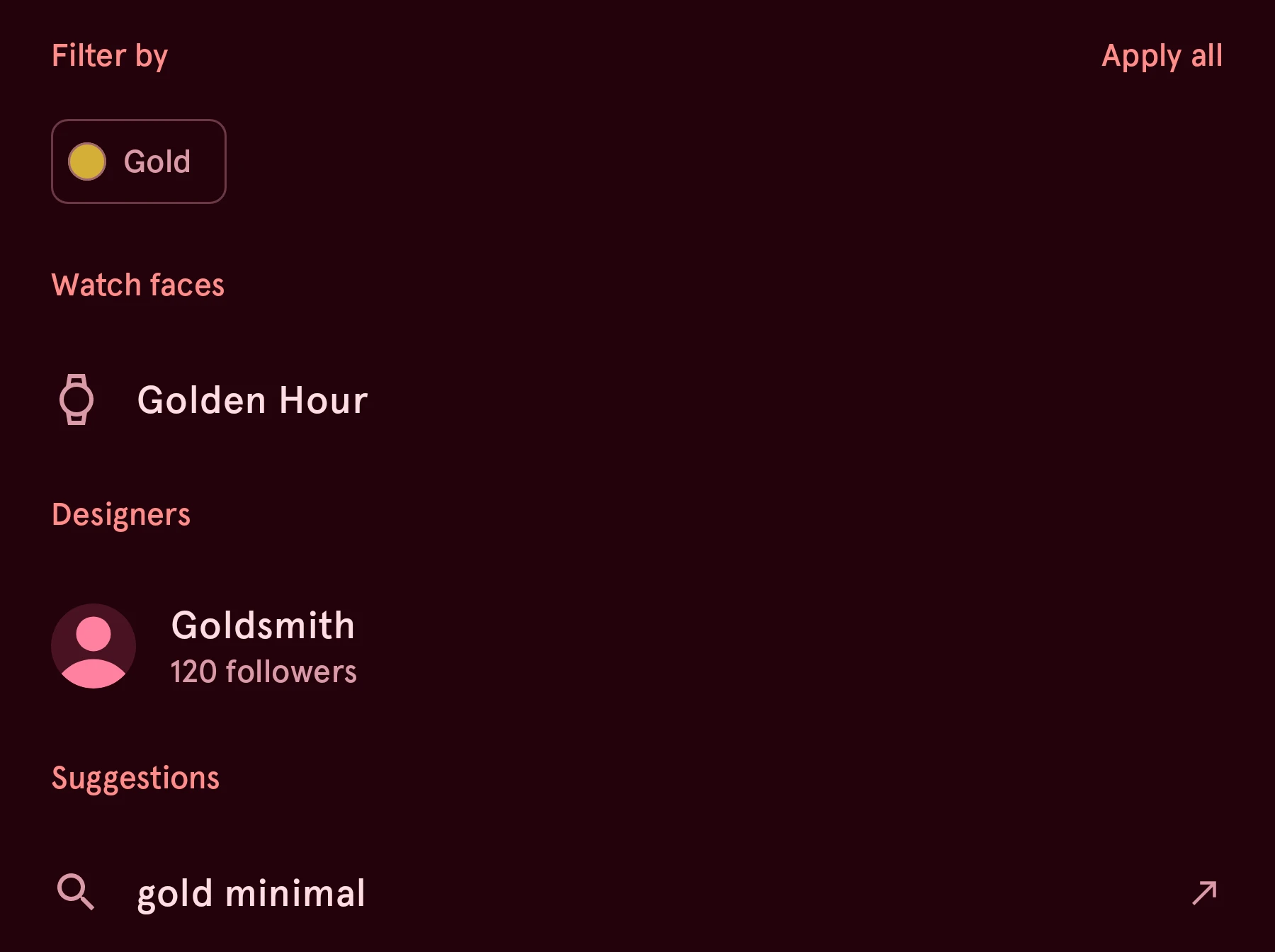
While you type, it suggests filters under Filter by (Apply all adds every one), matching watch faces by name (tap one to open it), and Designers.
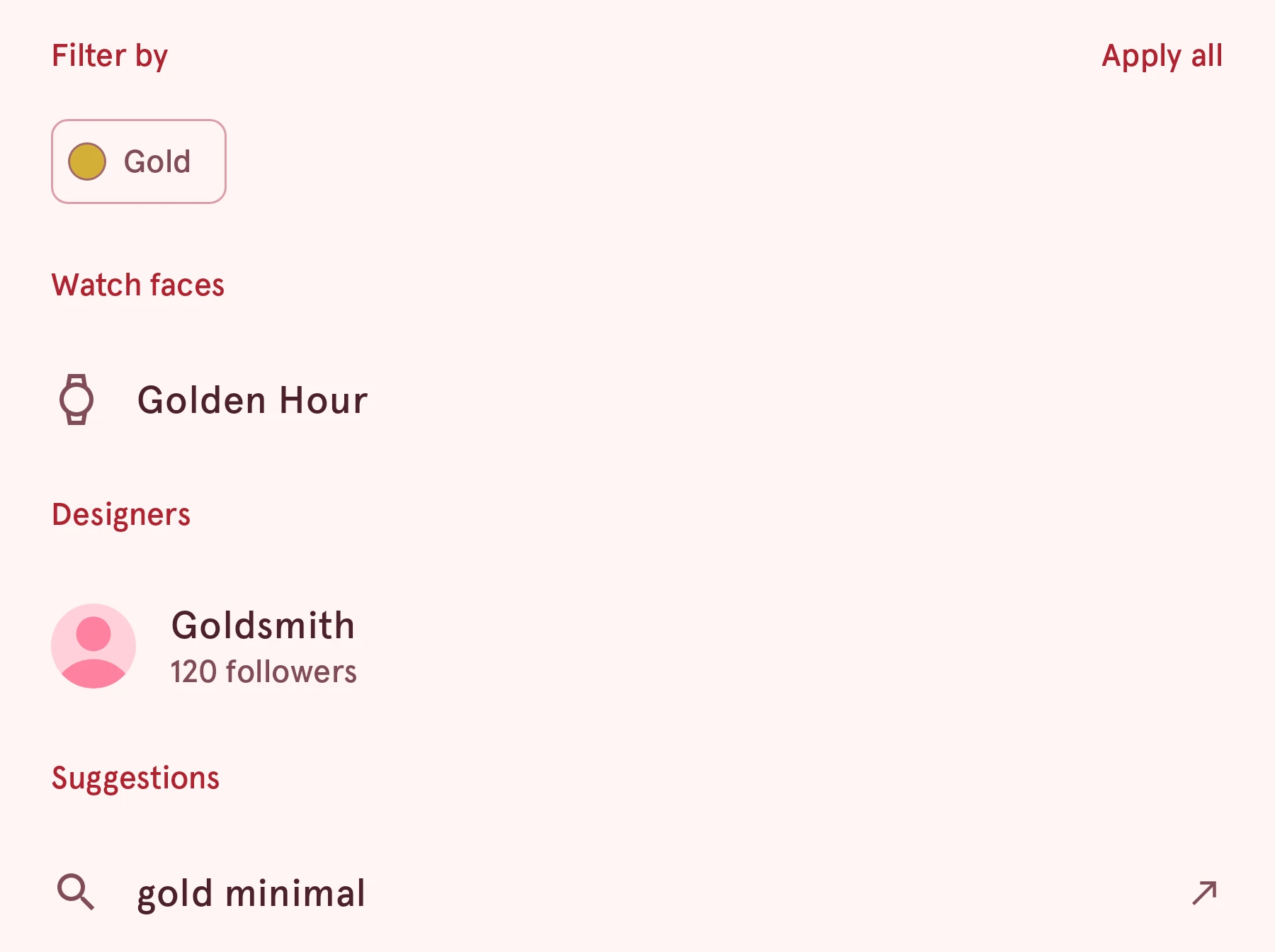
-
The keyboard’s search key turns words that match a filter into that filter, and searches for the rest.
When nothing matches, the list says so, with buttons to clear the filters or the search.
On My items the search field searches only your own items, on your phone, and suggests their names.