
Shadows and glows
Drop shadows, outer glows, inner shadows and inner glows: the Effects tab of a layer's style, with every setting.
The Effects tab holds the layer’s shadows and glows, in a list like the fill’s effects: each shadow or glow is a card, and a layer can have up to four. Tap + to add one, the eye to hide it, the sliders button to change it, and drag a card to reorder. The ⋮ menu on a card duplicates or deletes it; the one at the top shows, hides or removes them all.
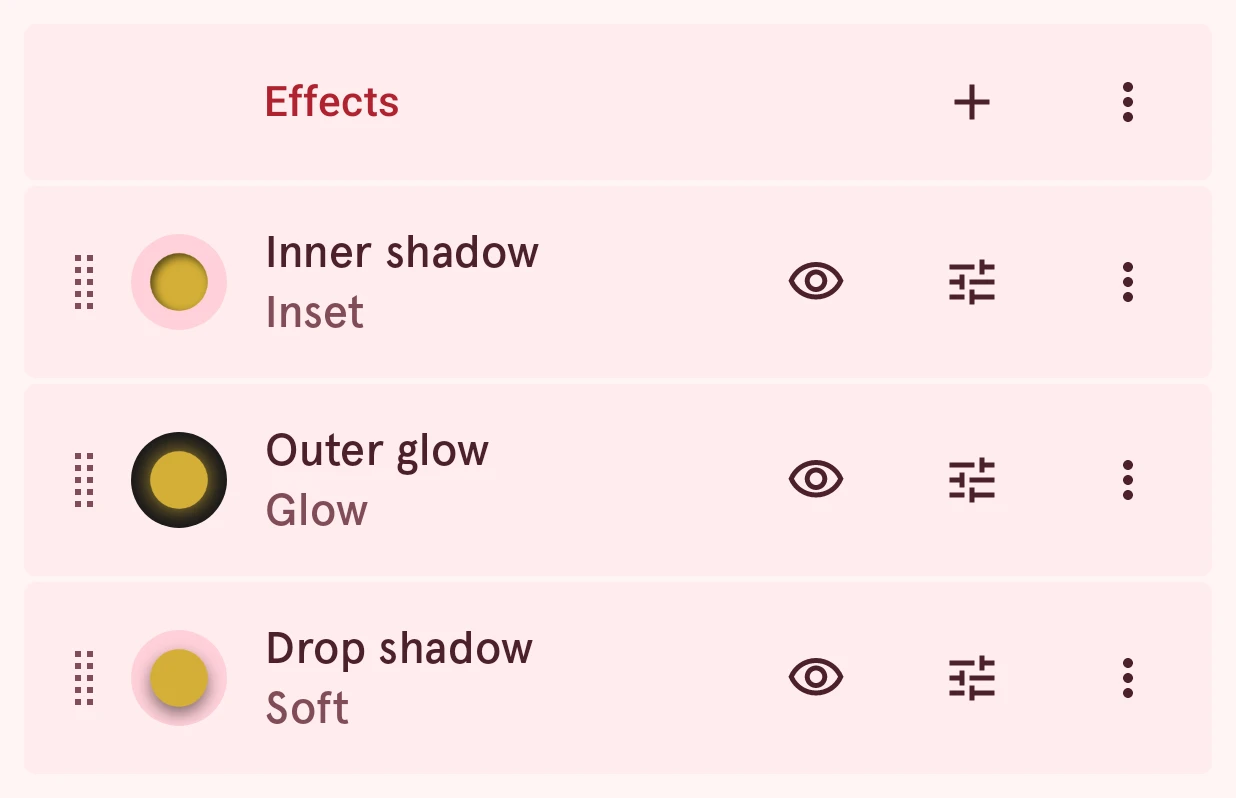
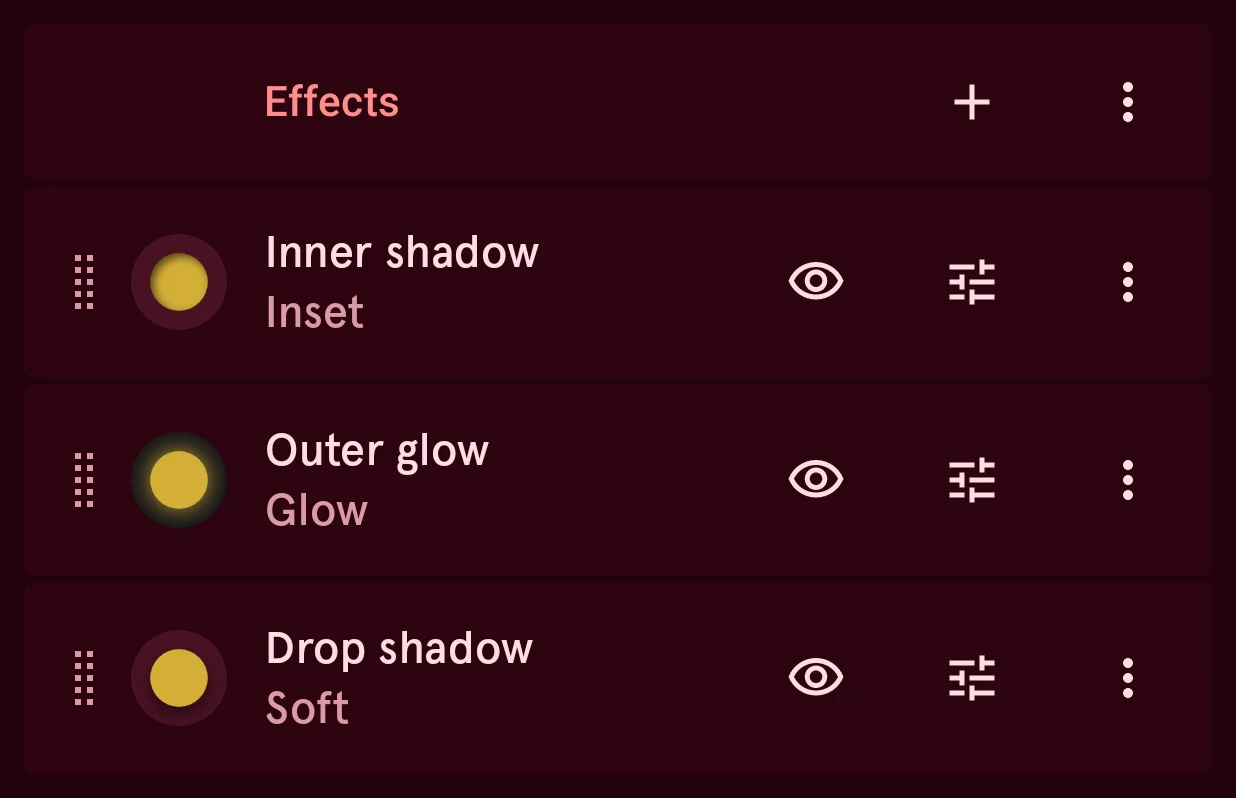
There are four kinds:
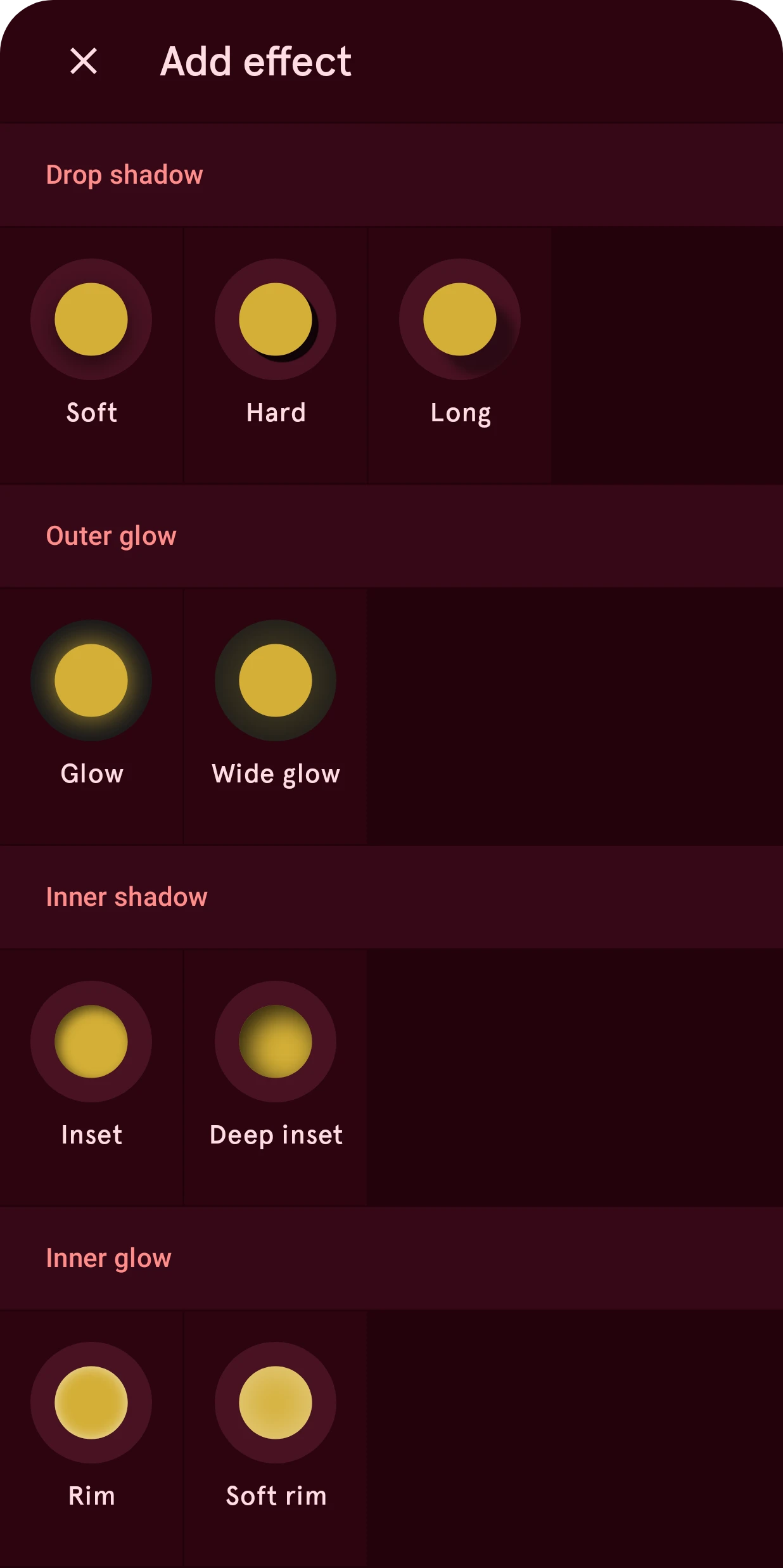
- Drop shadow: behind the layer, as if it floats above the dial. Soft, Hard and Long set how sharp and how far.
- Outer glow: a halo around the layer in its own color, as if it gives off light. It shows best on a dark dial.
- Inner shadow: along the inside of the edge, so the layer looks sunken. Inset is shallow, Deep inset a well.
- Inner glow: light along the inside of the edge, like a backlit or glass element. Rim is thin, Soft rim broad.
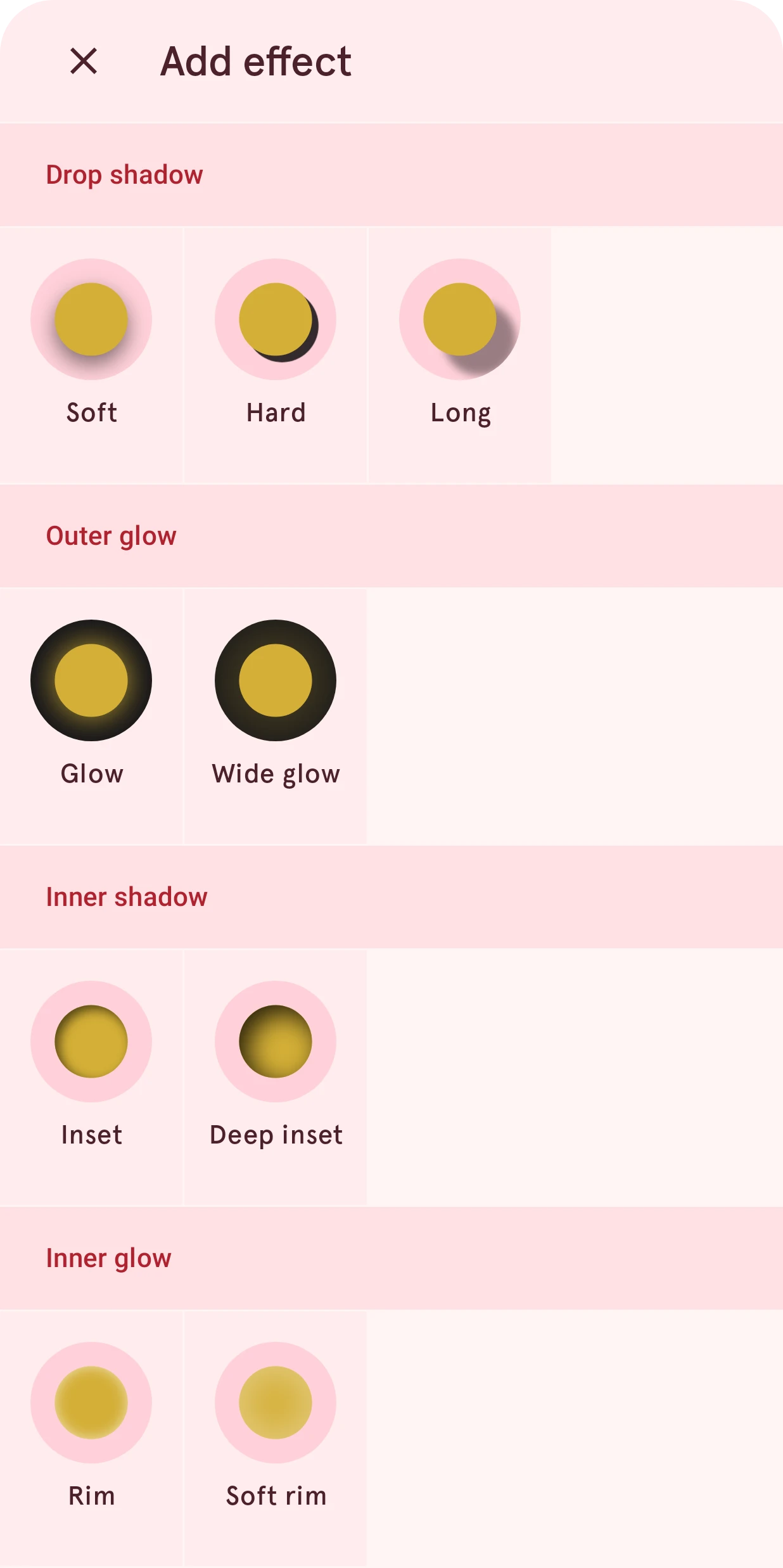
Inner shadows and glows draw inside the layer, over its fill, and drop shadows and outer glows behind it, so the list keeps the inner ones at the top. You can reorder cards within each group, not across it. Combine them freely: a soft drop shadow with a rim gives a raised glass look, a glow with an inset a lit, recessed one.
What’s not supported on Wear OS 6
Section titled “What’s not supported on Wear OS 6”Shadows and glows look as on the phone, with two exceptions on arcs: the watch can’t draw a drop shadow or outer glow on a moving arc, or an inner shadow or glow on any arc.
Settings
Section titled “Settings”Every card has these settings (a glow has no offsets, and calls its blur Glow size):
Opacity
NumberHow strong the shadow or glow is, from 0 to 1.
0.00 to 1.00, steps of 0.01
Can be automated.
Color
ColorThe shadow’s or glow’s color. Tap the swatch in the Opacity row: black for a shadow, the layer’s own color for a glow, or anything else, like a colored drop shadow.
Shadow radius
NumberHow soft the shadow is: 0 is a sharp copy of the shape, higher values blur it further out. On a glow it’s the glow’s size.
0.0 to 20.0, steps of 0.1
Shadow offset X
NumberMoves the shadow sideways, as if the light comes from the other side. A long, low light gives a long shadow.
-40.0 to 40.0, steps of 0.1
Shadow offset Y
NumberMoves the shadow up or down. Give every element the same offset, so they’re all lit from one side.
-40.0 to 40.0, steps of 0.1