
Automation
Make layers respond to time and data, from the automate menu and the style pages.
Automation makes a layer respond to time and data: a hand that turns, a bar that grows with your steps, a layer that only shows at night. Each automated property gets an expression, a small formula that works out its value from the time and data. Automation is available in dynamic elements and complications.
There are three places to automate:
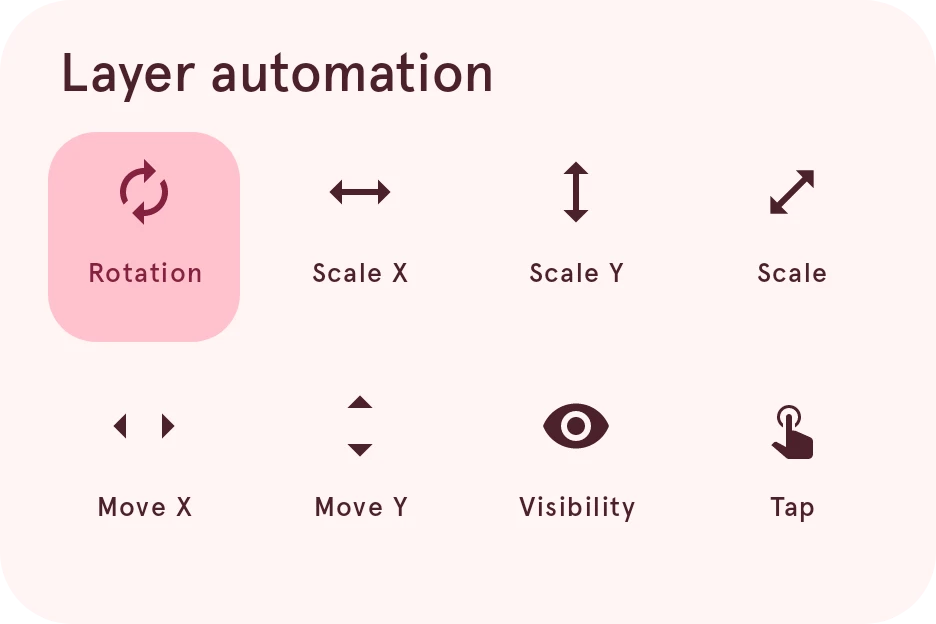
- The automate menu, for a layer’s position, size, rotation and visibility (below).
- The style pages: a style setting that can be automated has an automate button next to it, for example a color or an arc’s angles.
- The global object, from the button at the end of the readout above the canvas: variables and functions that every layer of the element can use, so you write a calculation once.
An automated layer shows an automation icon in the layer list, which turns into a warning when one of its expressions fails. To see the automation run, tap Play in the app bar; to try other values (another time, a low battery), use the Simulator in the More menu.
The automate menu
Section titled “The automate menu”Select a layer, then tap the automate button in the tools row:


The menu highlights the properties that are already automated. Each one opens the expression editor, where you write the expression that drives it.
Scale
Scales the layer in both directions at once. A layer can’t combine it with the sideways or up and down scale.
Opens Automate ….
Tap
Picks the layer’s tap action with an expression.
Only for watch faces in the original Pujie format, not for Wear OS 6 watch faces.
Opens Automate ….
Expressions and data
Section titled “Expressions and data”An expression works out a property’s value from data tags: [m] * 6 turns a layer with the minutes,
[bat_w] < 20 shows it only while the battery is low. The expression editor page explains
what an expression can contain and what each property expects, and Data tags lists all the
data you can use.