
Connect an AI assistant
Add Pujie's address to your AI assistant, then approve it in Pujie with the code it shows. Once per assistant.
You connect each AI assistant once. It takes a minute, with your phone and the assistant side by side.
Before you start, turn on Settings › AI assistants › Allow AI assistants in Pujie, and make sure you’re logged in to your Library account (what you need).
Add Pujie’s address to the assistant
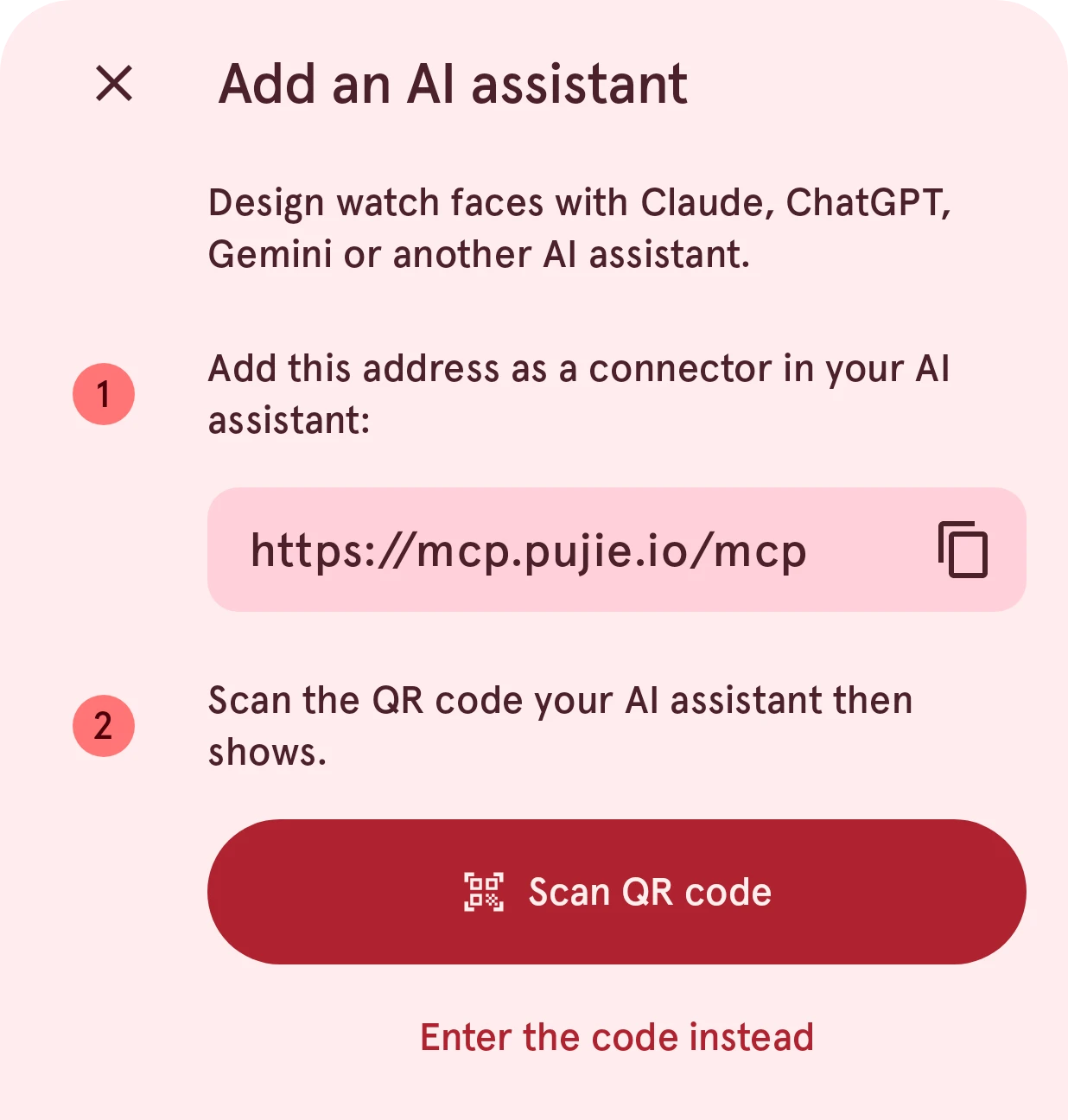
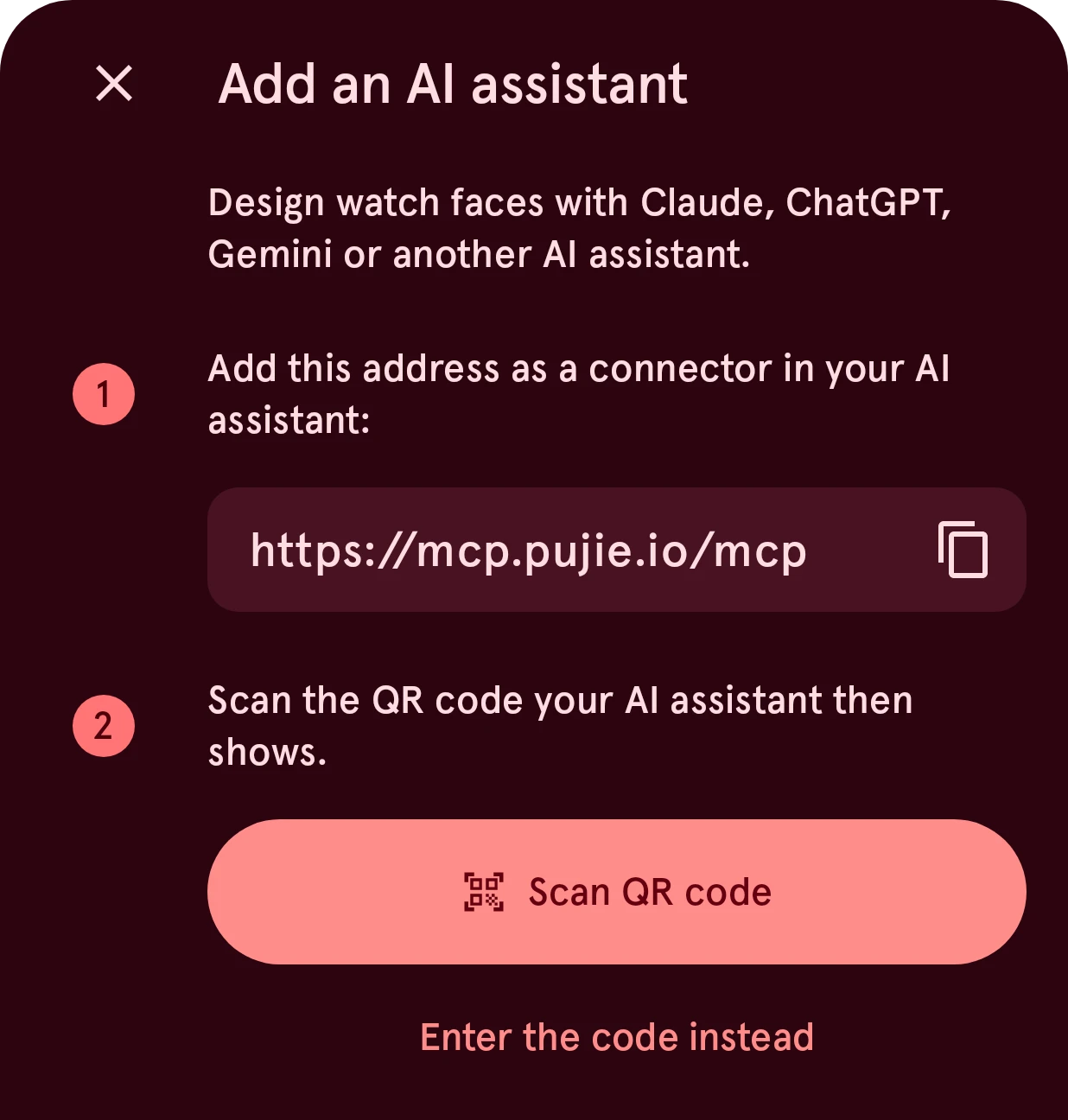
Section titled “Add Pujie’s address to the assistant”In your AI assistant, add a custom connector with this address:
https://mcp.pujie.io/mcpPujie shows it too, with a Copy button: Settings › AI assistants › Connect AI assistants › Add an AI assistant. Where the setting is differs per assistant: Claude, ChatGPT, Gemini. Using another one? See Other assistants.
The assistant opens Pujie’s connect page
Section titled “The assistant opens Pujie’s connect page”When the assistant connects, it opens a page from Pujie, Connect Claude to Pujie (with the assistant’s name). The page shows:
- on a computer, a QR code;
- on a phone, an Open Pujie button;
- and always a code of eight letters and digits, like
K7Q4-M2XD.
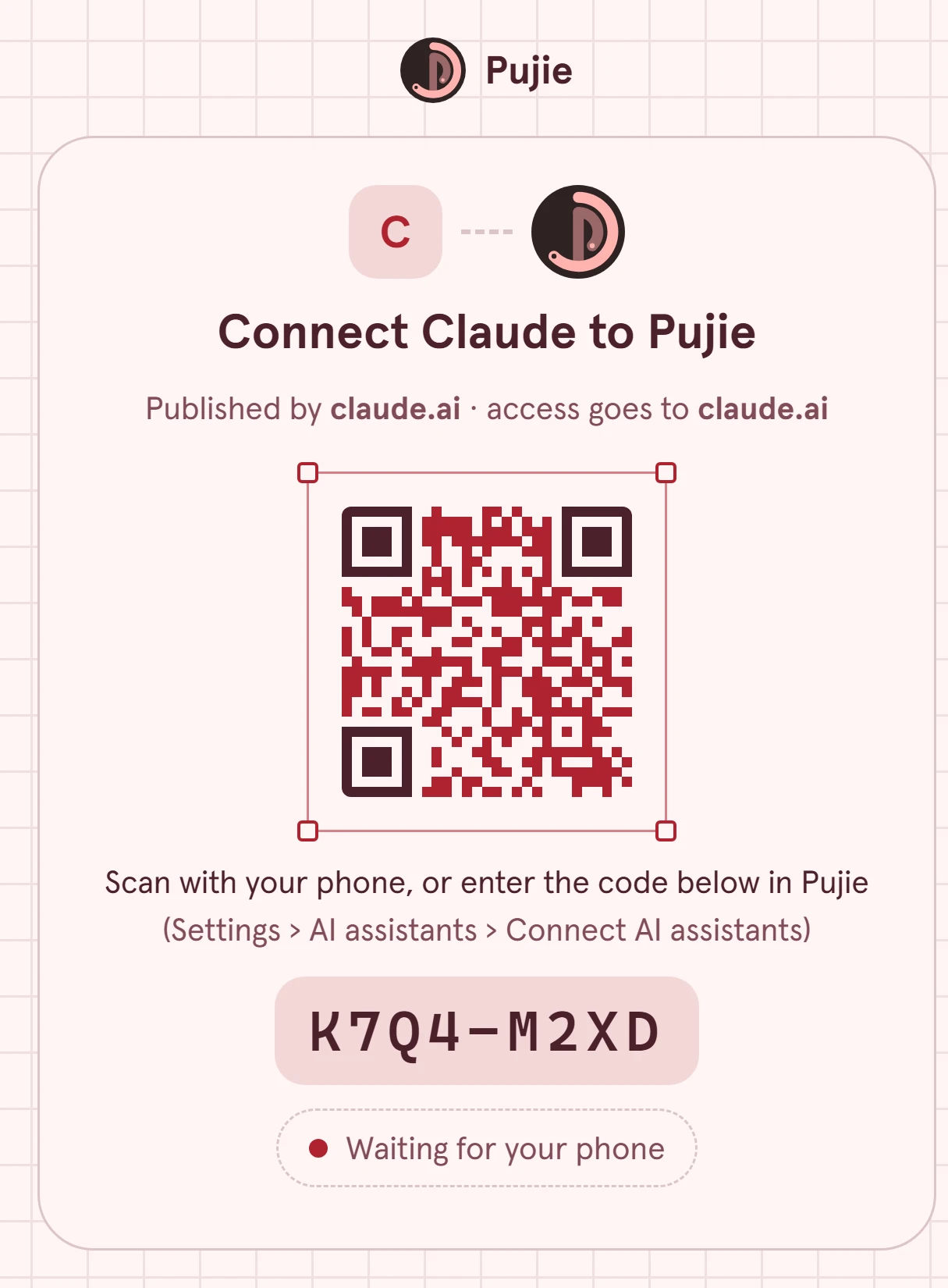
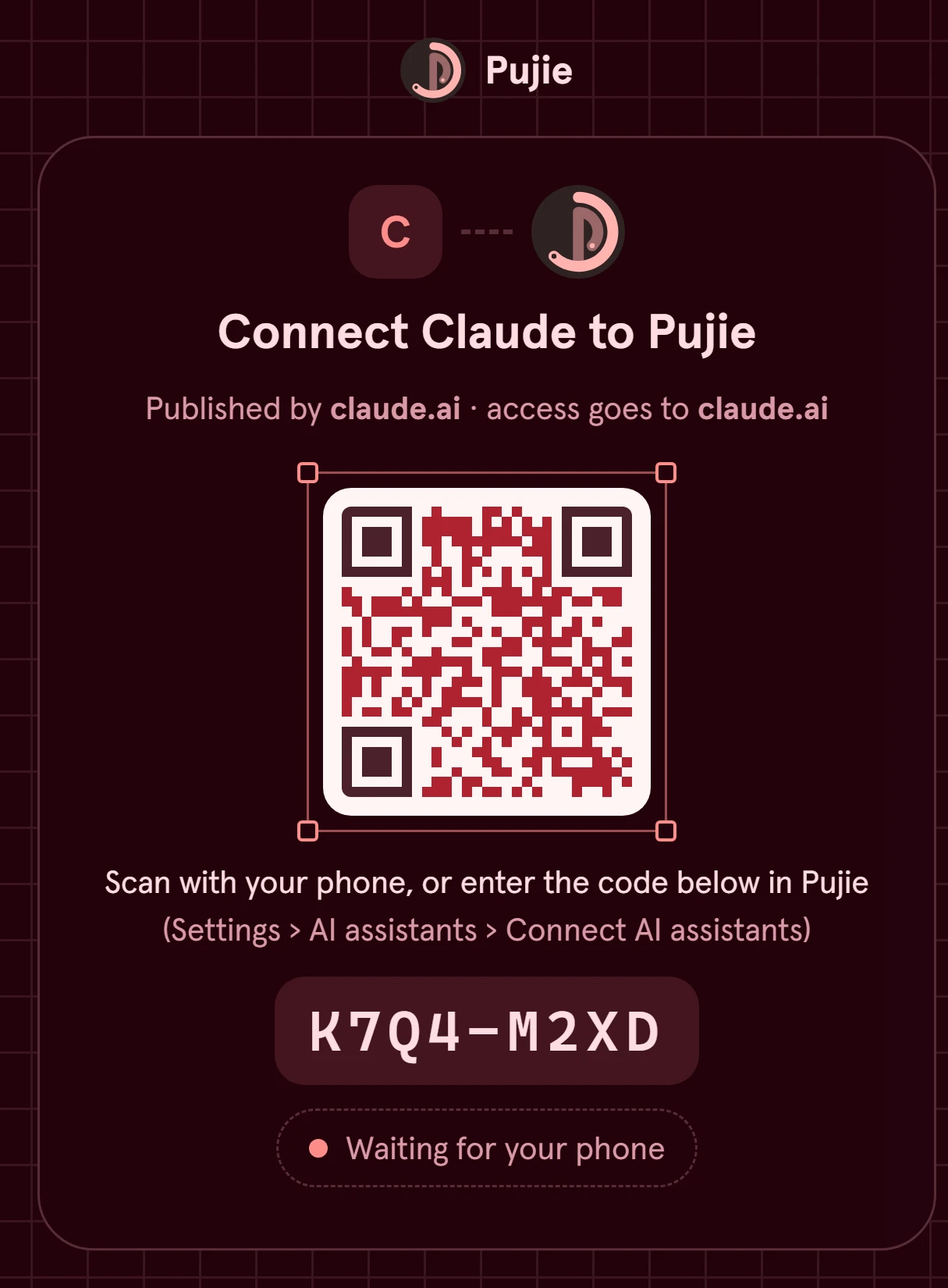
Keep the page open: it finishes by itself once you’ve approved in Pujie. The code expires after 10 minutes; if it does, connect again from the assistant.
Scan the code with Pujie
Section titled “Scan the code with Pujie”In Pujie, open Settings › AI assistants › Connect AI assistants and tap Add an AI assistant, then:
- Scan QR code and point the camera at the page’s QR code, or
- Enter the code instead and type the eight characters.
Scanning the QR code with your phone’s camera app, or tapping Open Pujie on the phone, opens the same sheet with the code filled in.
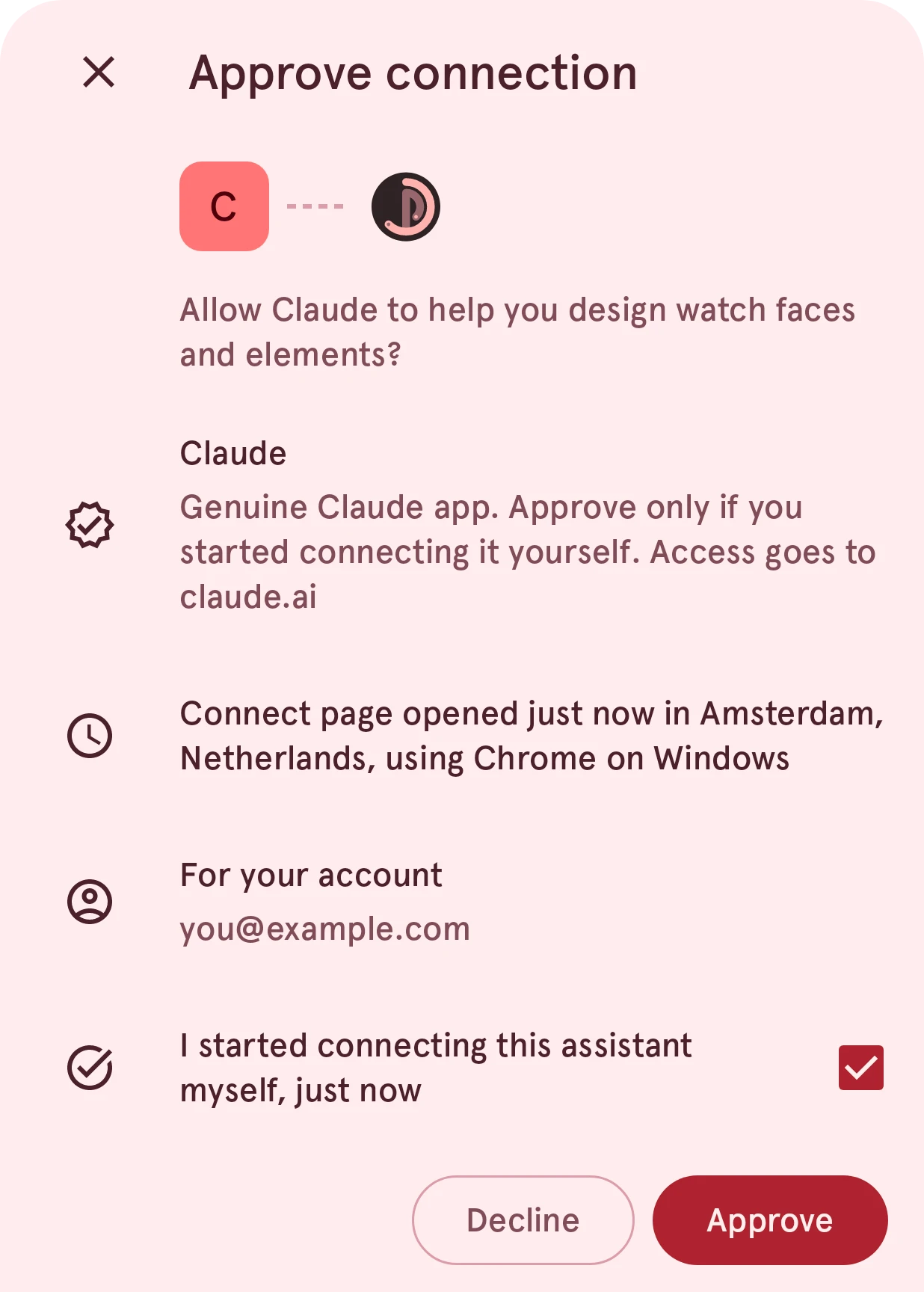
Check who it is, and approve
Section titled “Check who it is, and approve”Pujie shows who asks before anything is connected:
- Allow Claude to help you design watch faces and elements?, with the assistant’s name and logo;
- for an assistant Pujie knows (Claude, ChatGPT, Gemini), Genuine Claude app; for any other, a warning that Pujie doesn’t know it;
- Access goes to the address that receives the access, like
claude.ai; - when and where the connect page was opened, and in what browser;
- For your account: the Pujie account the assistant will work with.
Read it, tick I started connecting this assistant myself, just now, and tap Approve. Pujie says Claude is connected, and the page in the assistant finishes. Now ask the assistant for a watch face.
If it doesn’t work
Section titled “If it doesn’t work”- Turn on "Allow AI assistants" first: the master switch is off: Settings › AI assistants › Allow AI assistants.
- No pending connection with this code: the code was mistyped, or more than 10 minutes old. Connect again from the assistant for a new one.
- The assistant connects but can’t reach your phone: turn on Available to AI assistants and keep Pujie open, or turn on Keep connected when the screen is off (Staying connected).
- Access goes to a program on a computer: an assistant that runs on your computer (a command-line tool, for example) receives the access there. Approve it only if you just started it yourself.