
Uploading and publishing
Put your designs in the Library, share them with everyone, and change or remove them later.
Uploading puts a design in the Library: safe, and on all your phones. Publishing shares it with everyone. Both are Premium, and need you to be signed in and online.
Uploading Needs Premium
Section titled “Uploading ”A design you made is local: only on this phone. To upload it, open it in My items and tap Local item:
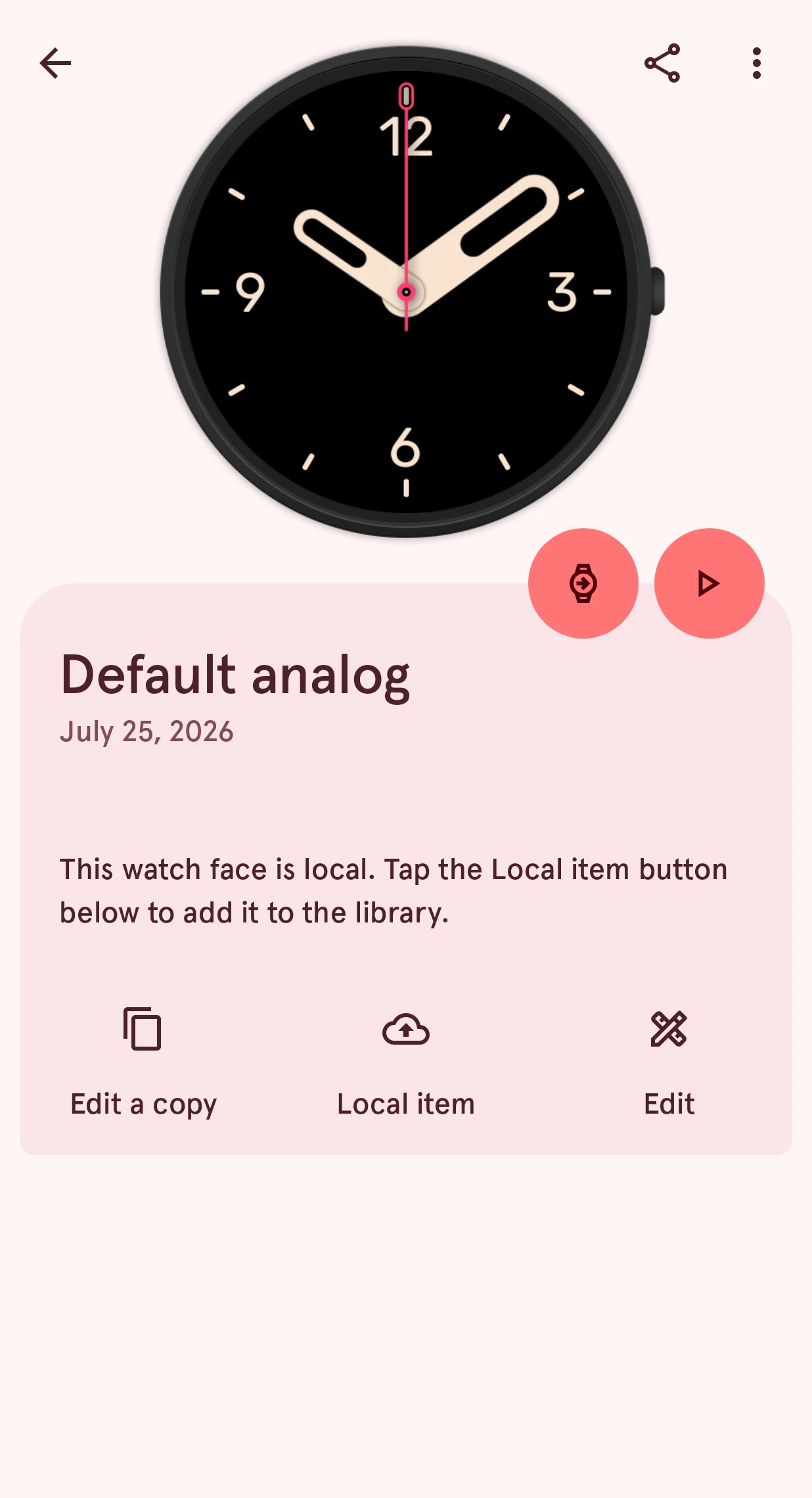
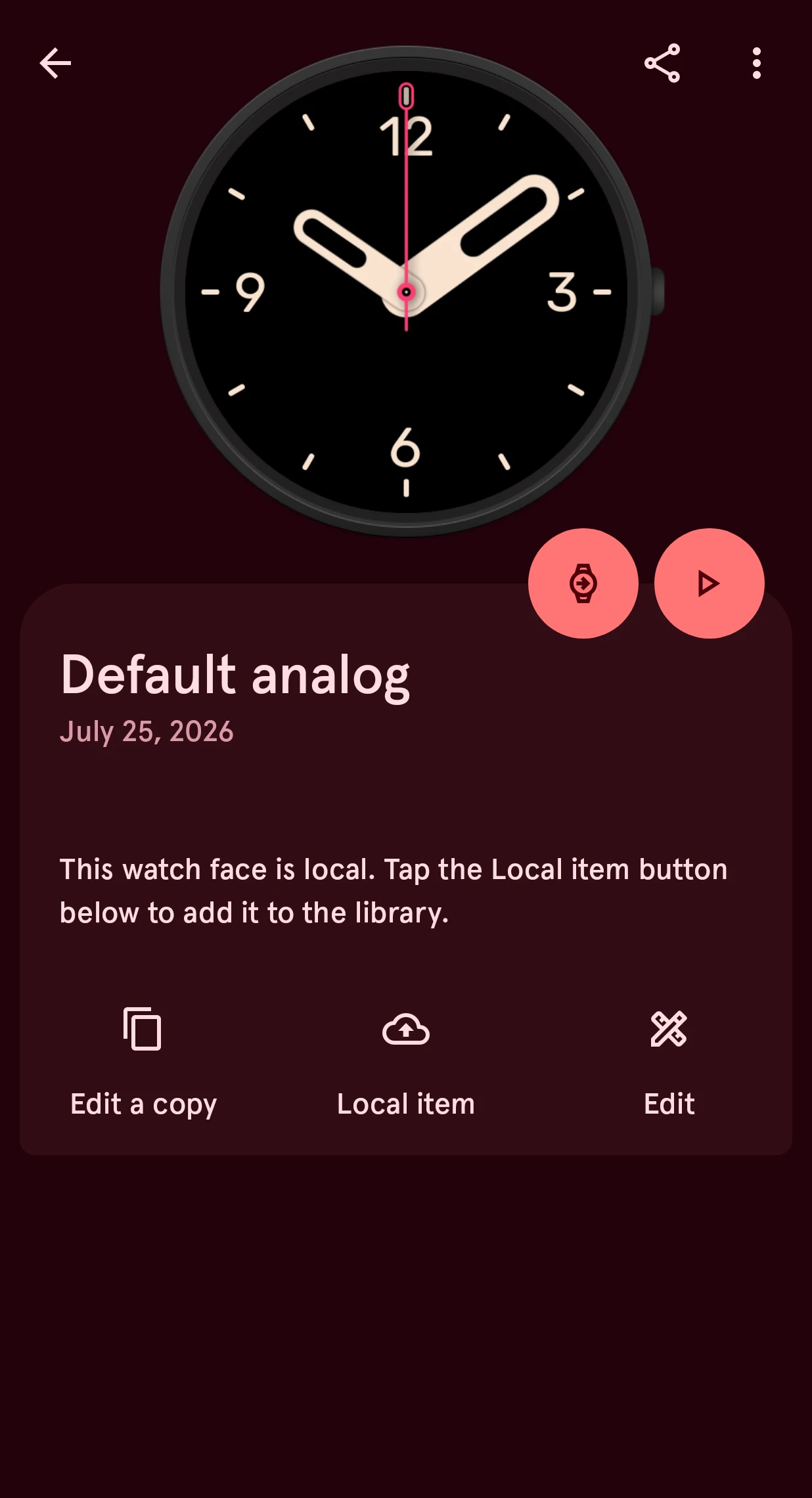
Local item
Uploads the watch face to the Library, as a private item.
The Library keeps the Wear OS 6 version of a watch face, so the app first checks it has one; if not, it says the face isn’t ready yet. Then it uploads, and the item is private: in the Library, but only you see it.
Making it public Needs Premium
Section titled “Making it public ”On a private item, tap Make public:
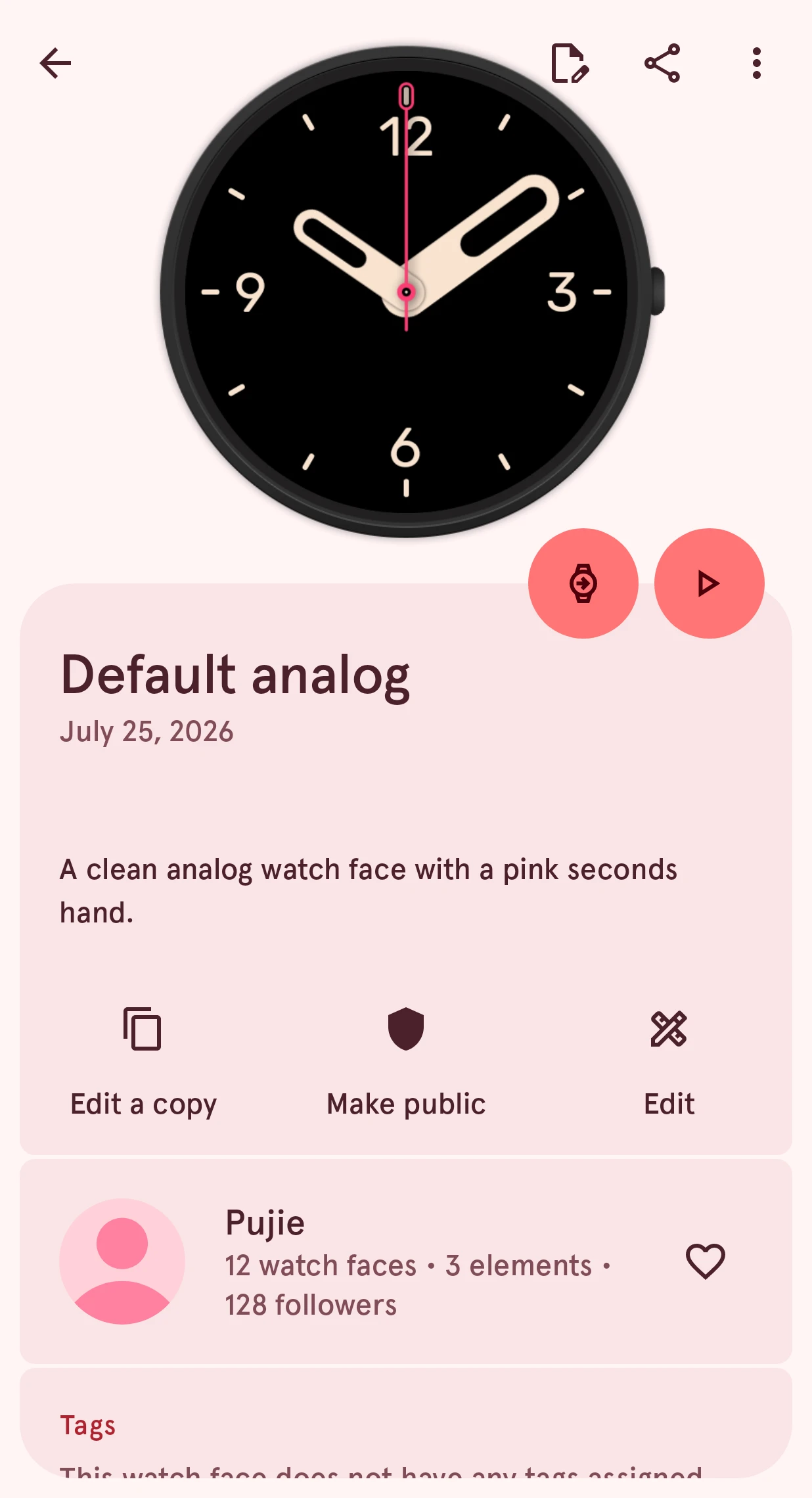
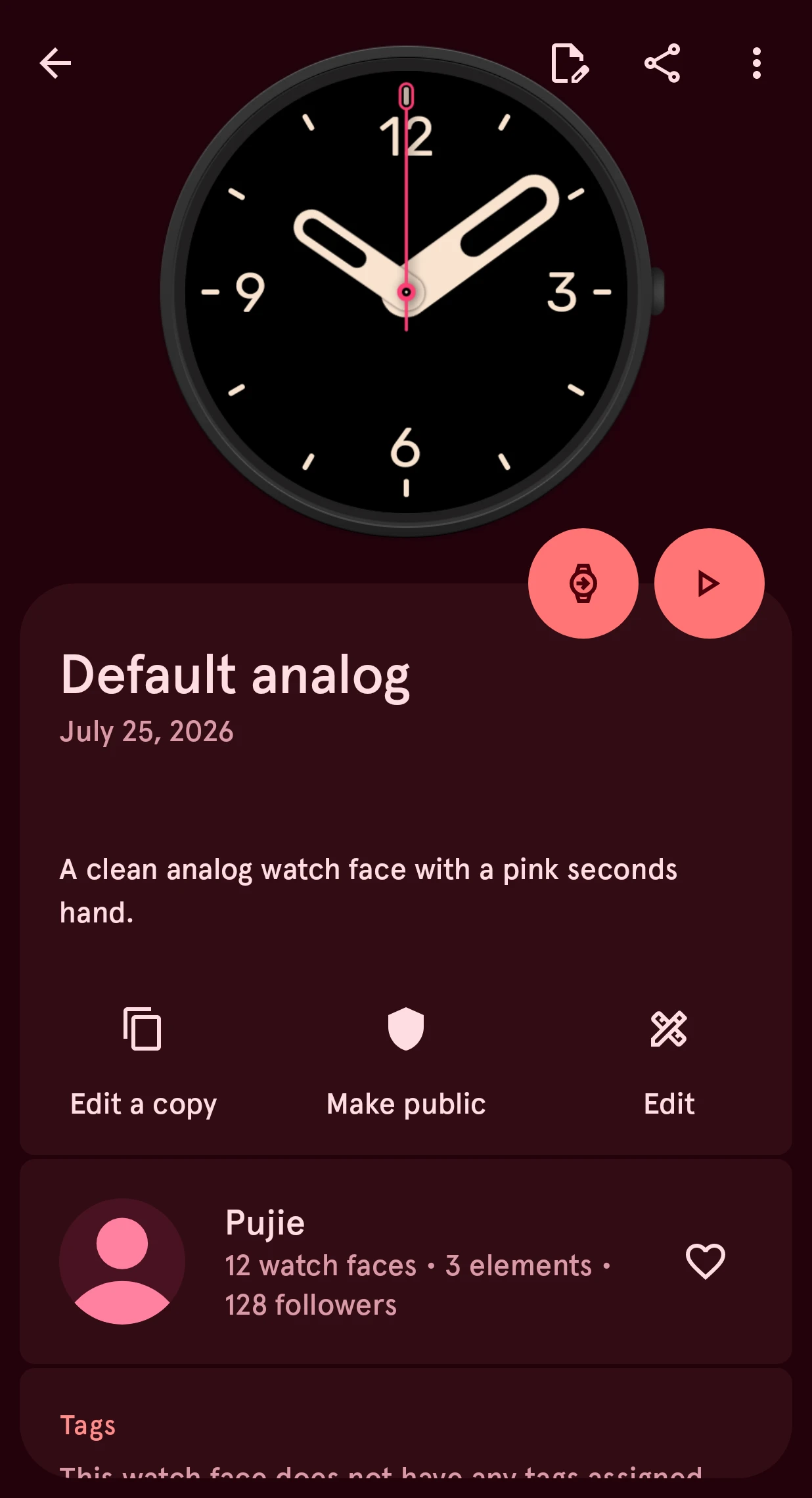
The app asks you to share only designs that are your own, and lets you add Acknowledgments: the designers whose work yours builds on. Tap Make public, and the watch face is in the Library for everyone.
If we took an item out of the public Library earlier, its details show a Review status card with the reason. Fix it and make the item public again: it’s then pending until we’ve had a look, and the button reads Under review:
Under review
We’re looking at your item before it goes public.
When your item is public, people can like it, comment on it and use it. The app offers to turn on notifications so you hear about it.
Editing the details
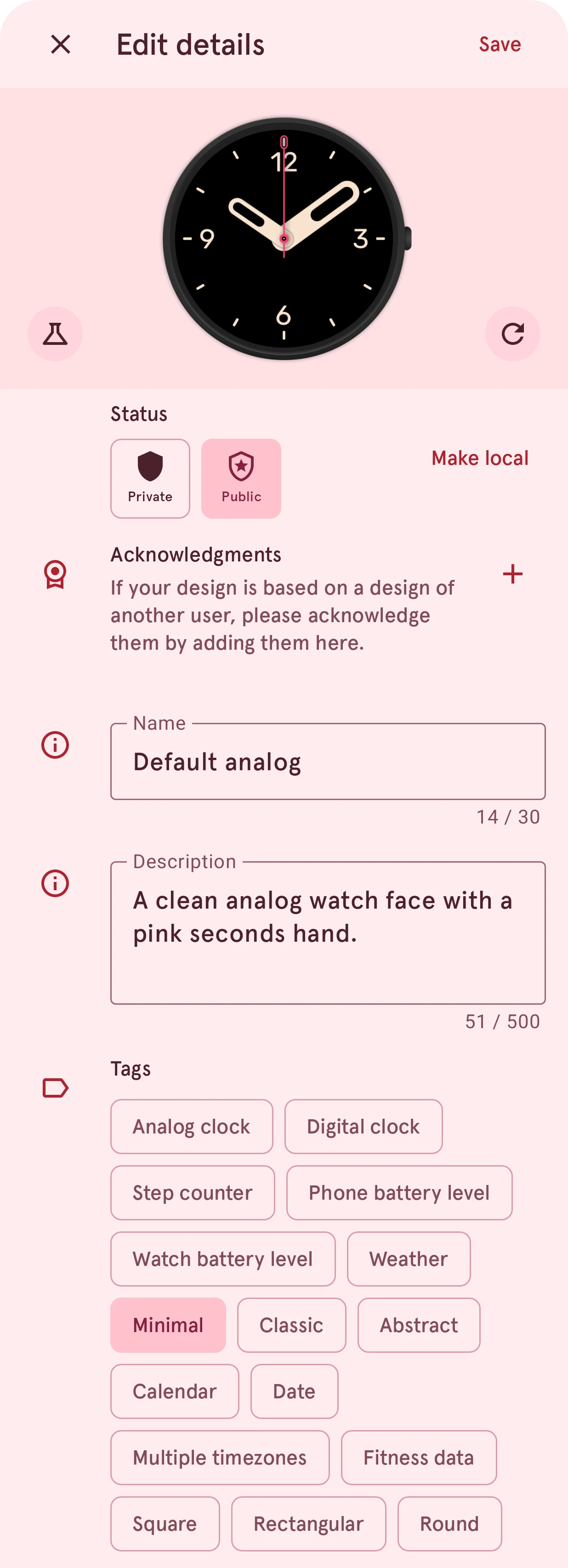
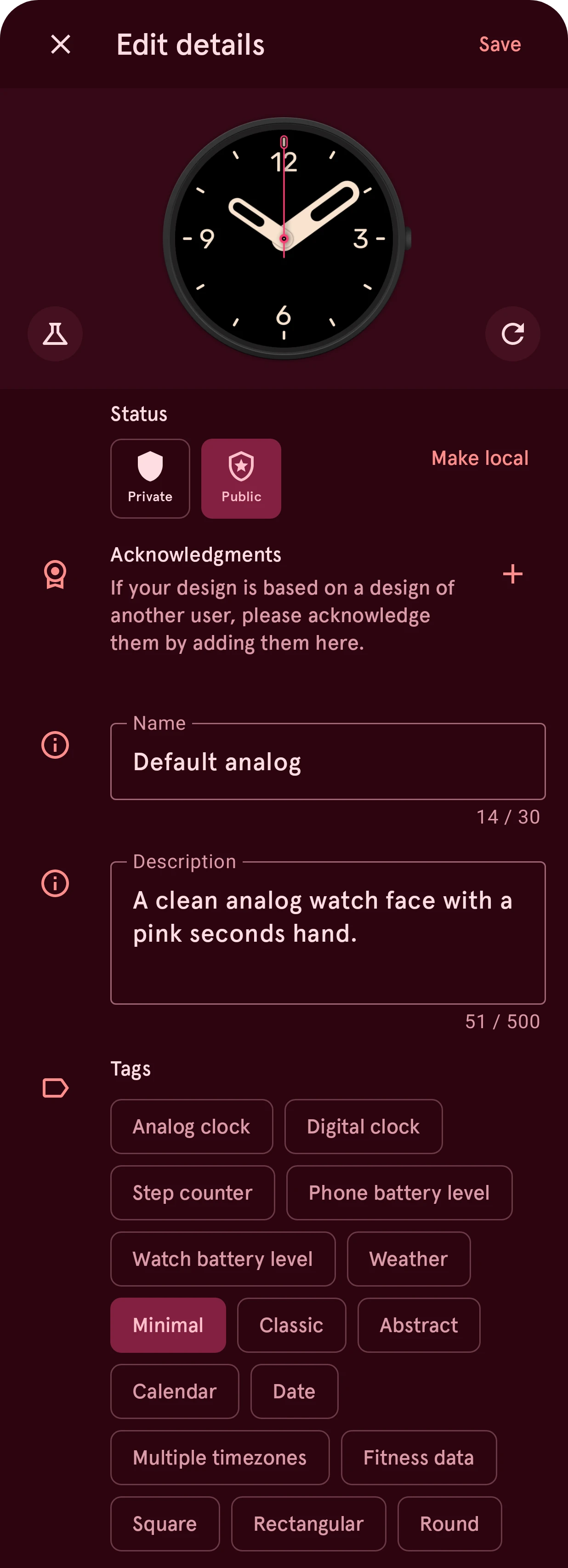
Section titled “Editing the details”The edit button at the top of your item’s details opens this sheet:
You need an internet connection.
Save
Asks you to confirm, then puts your changes in the Library. Closing the sheet without saving asks first. If the new name is the name of an item in your trash, the app offers to delete that one for good first.
Refresh preview
Draws the preview picture again from the item. When you changed the watch face on your phone and haven’t uploaded that yet, the button is gone: upload first, so the picture shows what’s in the Library.
Status
Public or Private. Going public asks the same as Make public.
Make local
Removes the item from the Library and keeps it on your phone, as a local item. The app asks first, and tells you how many likes a public item would lose.
Acknowledgments
Designers whose work yours builds on: + adds one, tapping one removes it.
Name
Up to 30 characters. It can’t be empty or contain
< > : " / \ | ? *.Description
Up to 500 characters.Tags
What the item is or shows: they help people find it with the filters and search.
Deleting
Section titled “Deleting”Delete in the More menu removes the item from the Library. If people liked it, the app tells you how many first. It goes to the trash, where you can restore it for 10 days.