
Elements
The element list of the watch face designer, adding elements, and what you can do with one.
A watch face is a list of elements, drawn from the bottom of the list up: the first element in the list is on top of the others. The Interactive and Ambient tabs each have their own list, for the normal face and the always-on face.
The list
Section titled “The list”Each list has a header with two buttons: one to add an element, and a menu for the whole list.


Elements menu
Section titled “Elements menu”The More button in the header opens this menu, which acts on every element in the list at once:
Clear all elements…
Removes every element from this list.Copy all elements to ambient…
Copies every element of this list to the other one: from the interactive face to the ambient face, or back. A quick start for an always-on face that looks like the normal one.
Copy all elements from ambient…
Copies every element of the other list into this one.
An element’s row
Section titled “An element’s row”Tap a row to select the element on the preview. Which buttons a row has depends on the element; this is a watch hand’s row. A complication’s row also has a complication button.


Drag to change the order of the elements
Touch and hold to pick the row up, then drag it to move the element up or down the list (higher up the list is drawn on top).
Edit color
The element’s colors, with the small icon showing its type. Tap it to change the colors.
Opens the element's colors.
Element is not ready for the watch face format
Something in this element doesn’t work on a Wear OS 6 watch. Tap it to see what, so you can change it before you send the watch face.
Only when the element can't go to a Wear OS 6 watch as it is.
Opens the Wear OS 6 issues.
Pick complication data
The data the complication starts with on the watch, until the wearer picks another source there. See Complications.
Only for complications.
Opens Pick your complication data.
Edit in place
Opens the element in the watch element designer, to change how it looks.
For watch hands, indices, dynamic elements, complications and static elements.
Opens the watch element designer.
Adjust element
Opens the element’s settings under its row: its position and size, how it moves, and what is special about its type. See Element types, which has a page for each type. While they’re open this button is an arrow that closes them.
While the element's settings are closed.
Opens the element's settings.
Element actions
Section titled “Element actions”The More button on a row opens what you can do with the element:
Which actions it lists depends on the element. A static element gets the most:
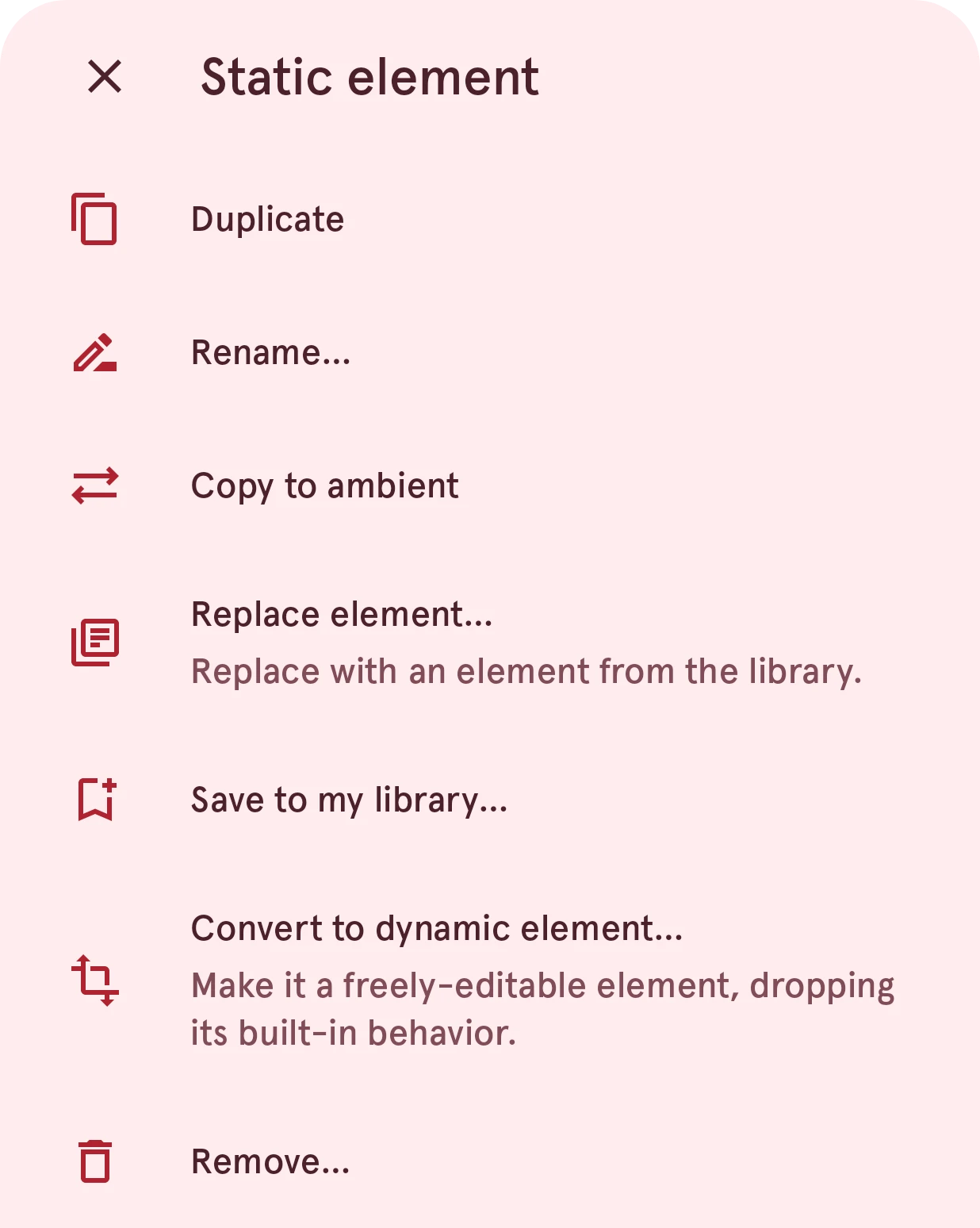
Duplicate
Adds a copy of the element, just above it in the list.Rename…
Gives the element a name of its own, which the list shows.Opens Rename element.
Copy to ambient
Copies the element to the other list, so it’s on both the normal face and the always-on face.
On the Ambient tab it reads Copy to interactive.
Replace element…
Replace with an element from the library.
Swaps the element for one from the Library. See Picking from the Library.
For watch hands, indices, dynamic elements, complications and static elements.
Opens the library.
Save to my library…
Saves the element as one of your own, in My items, to use it on other watch faces.
For watch hands, indices, dynamic elements, complications and static elements.
Opens Save to my library.
Convert to dynamic element…
Make it a freely-editable element, dropping its built-in behavior.
Turns the element into one you draw yourself in the watch element designer, starting from how it looks now.
For clocks, dates, progress circles, indicators, static elements and tap targets.
Asks you to confirm first.
Convert to static element
Turn it into a freely-editable static element.
Turns the element into a static element.For images and dynamic elements.
Asks you to confirm first.
Remove…
Removes the element from the watch face.Asks you to confirm first.
Adding elements
Section titled “Adding elements”The add button above the list opens a sheet with every kind of element, in two groups. Each type has a page of its own: tap its name below. Not sure which one you need? See Which one do I need?
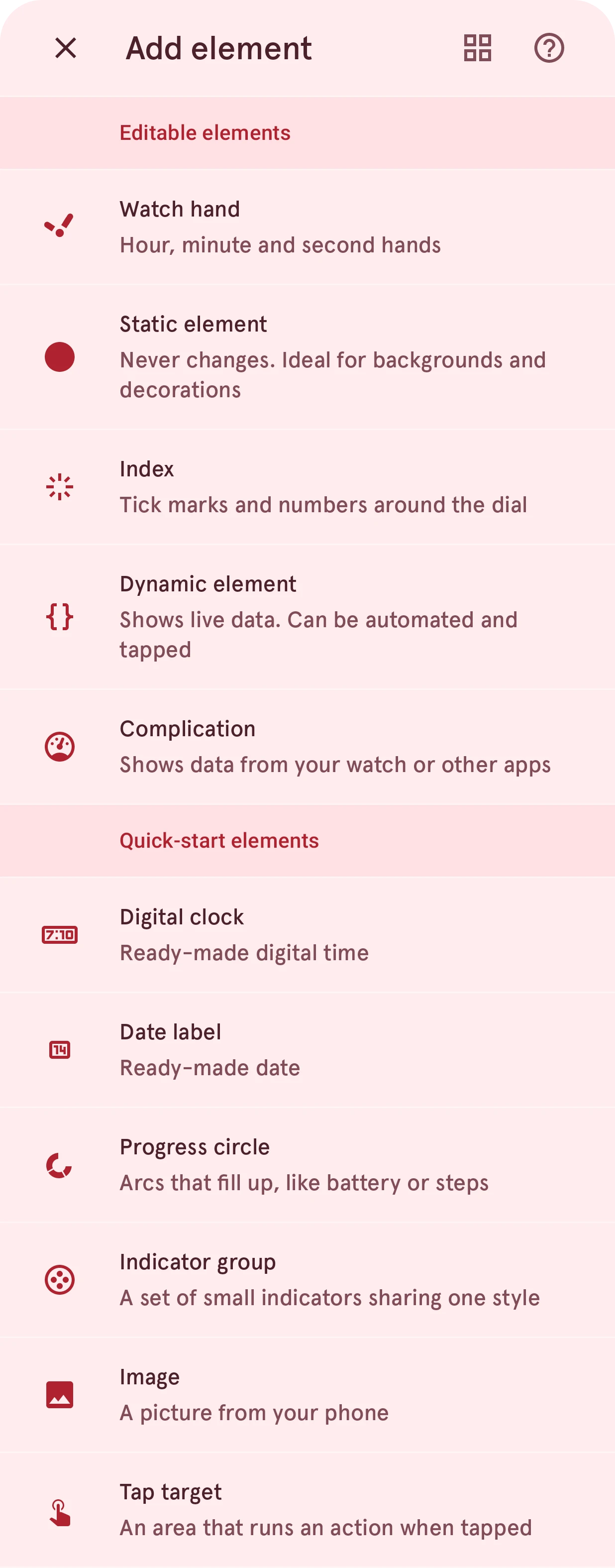
The button at the top switches the sheet between this list and a grid of cards; the question mark opens these pages.
Editable elements
Section titled “Editable elements”You draw these yourself, layer by layer, in the watch element designer, or start from one in the Library.
Hour, minute and second hands
Never changes. Ideal for backgrounds and decorations
Tick marks and numbers around the dial
Shows live data. Can be automated and tapped
Shows data from your watch or other apps
Quick-start elements
Section titled “Quick-start elements”Ready to use: they’re added with settings that work, and you set them up from there. There’s nothing to draw.
Ready-made digital time
Ready-made date
Arcs that fill up, like battery or steps
A set of small indicators sharing one style
A picture from your phone
For an editable element, you then pick where it comes from:
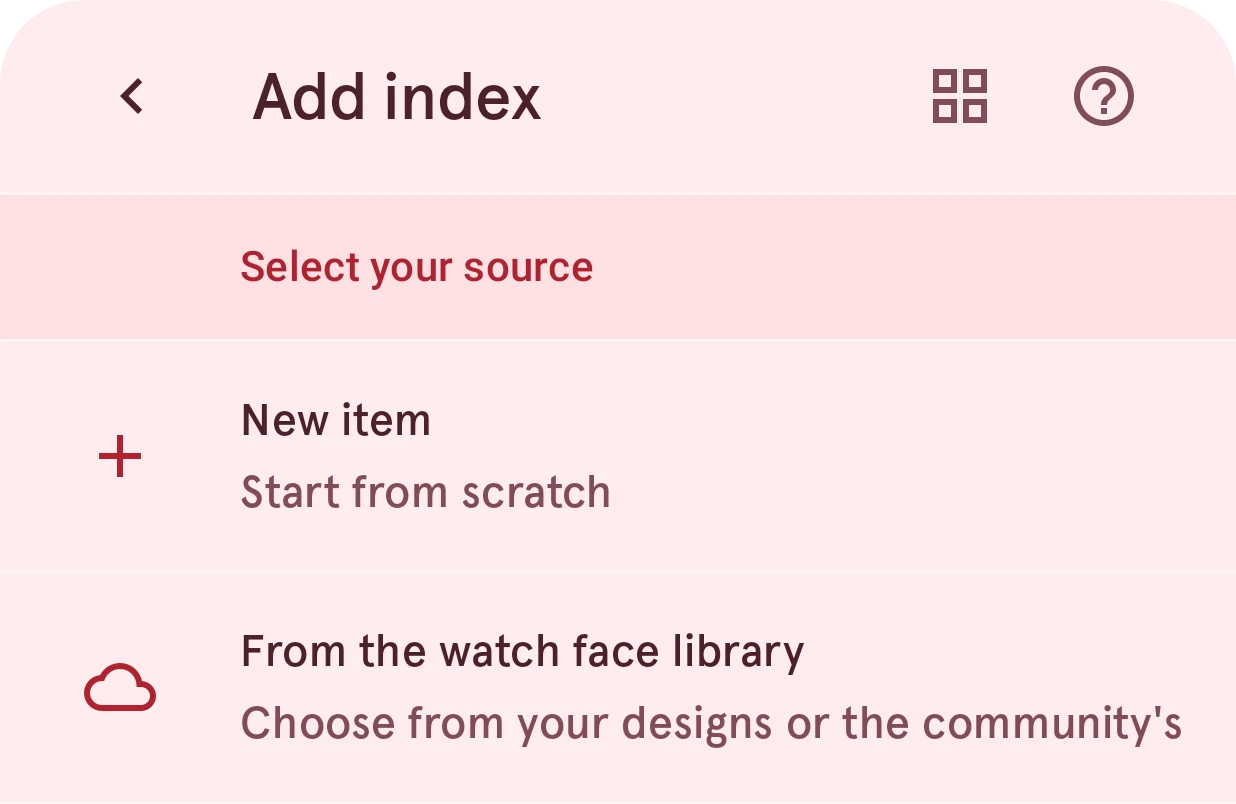
New item
Start from scratch
Opens the watch element designer with an empty element.From the watch face library
Choose from your designs or the community's
Picks a ready-made element from the Library. See Picking from the Library.