
Show live data with a complication
Add a spot to your watch face where the wearer picks the data, such as the weather, steps or the next event.
A complication is a design for data: you decide how it looks, the wearer picks on the watch which data it shows. One design works for many sources:
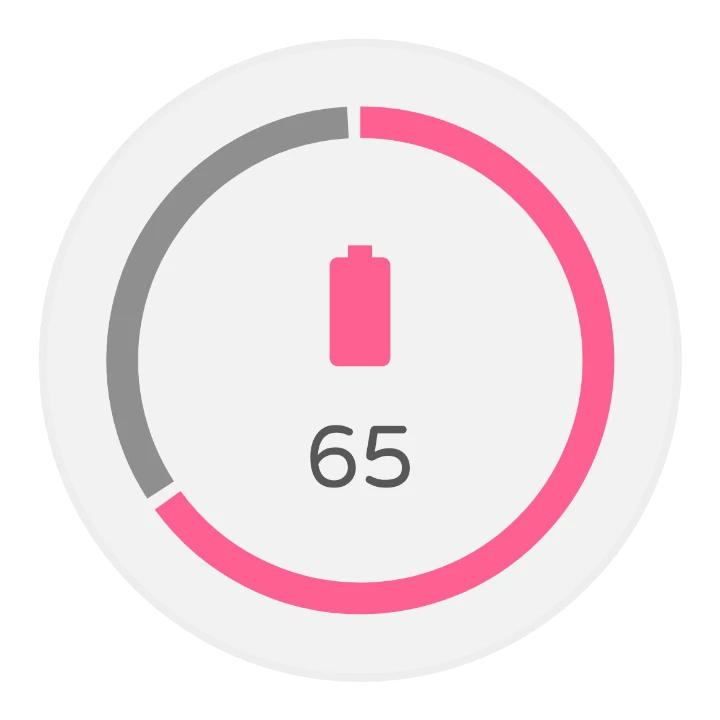
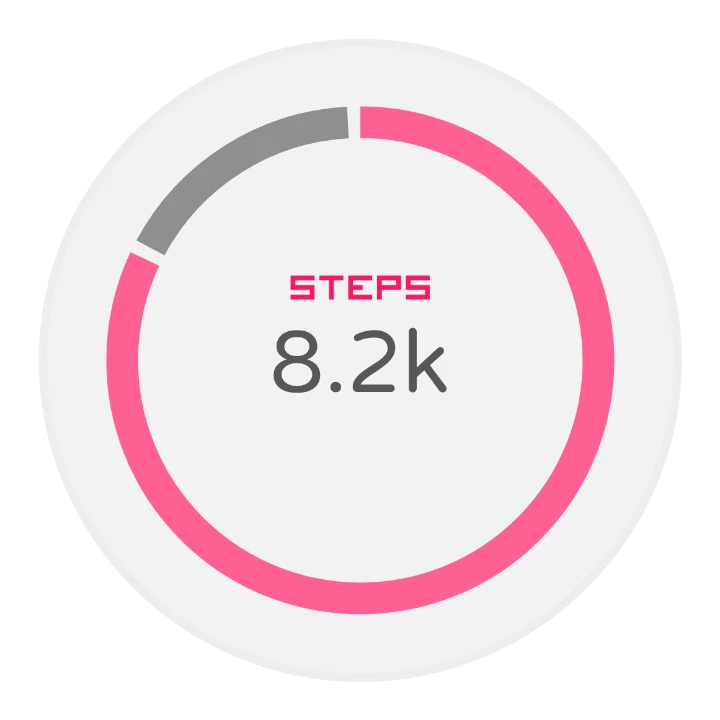
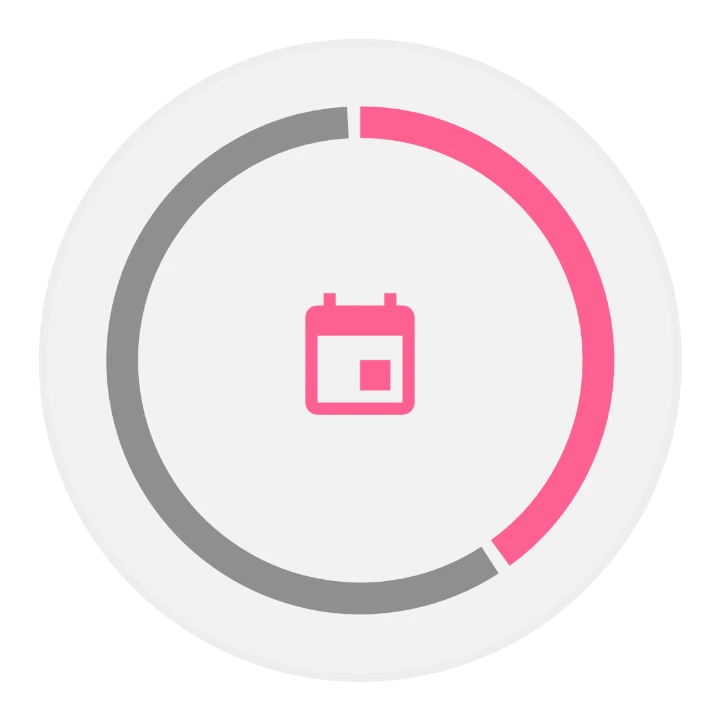
1. Add a complication
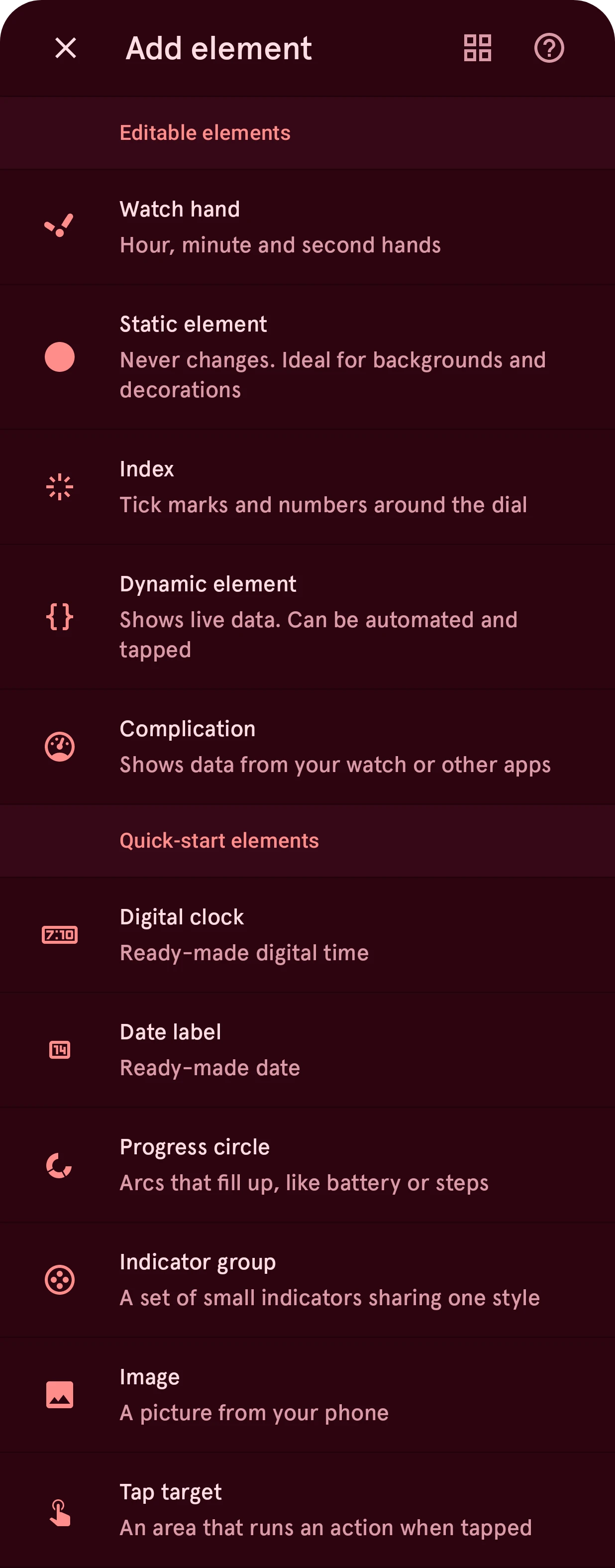
Section titled “1. Add a complication”In the watch face designer, tap the add button above the element list and pick Complication:
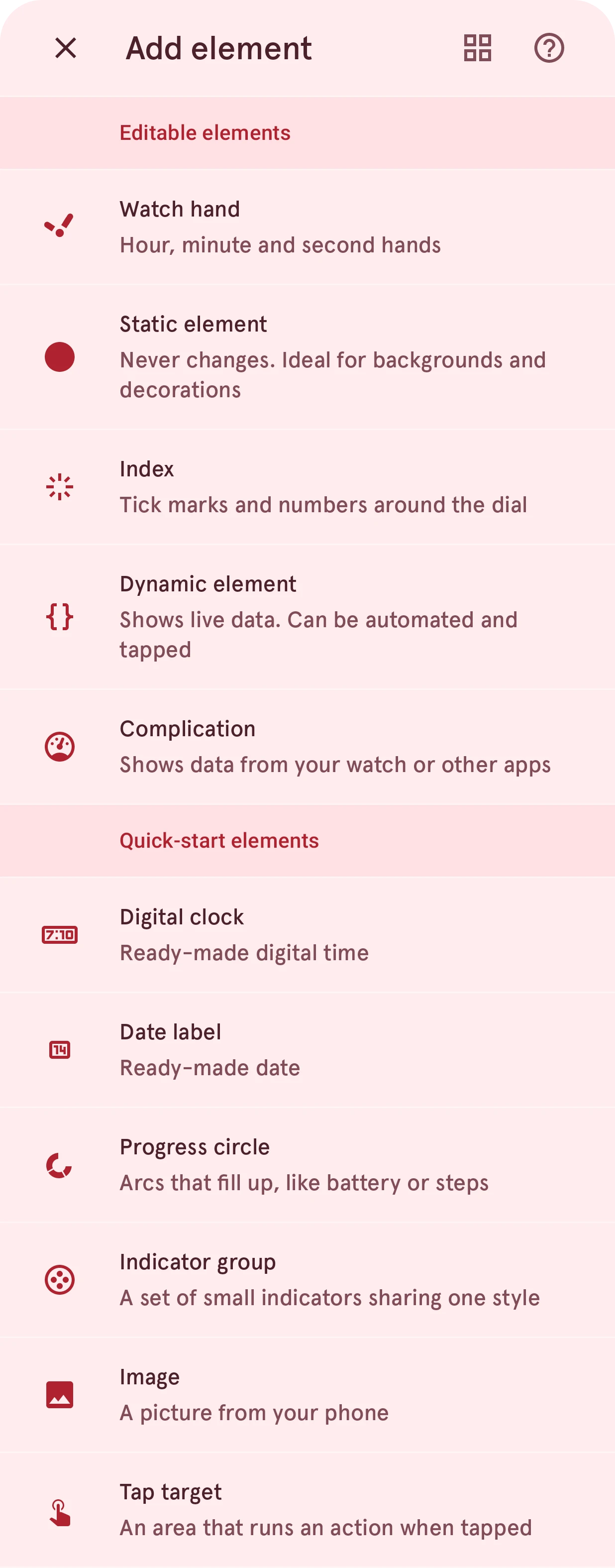
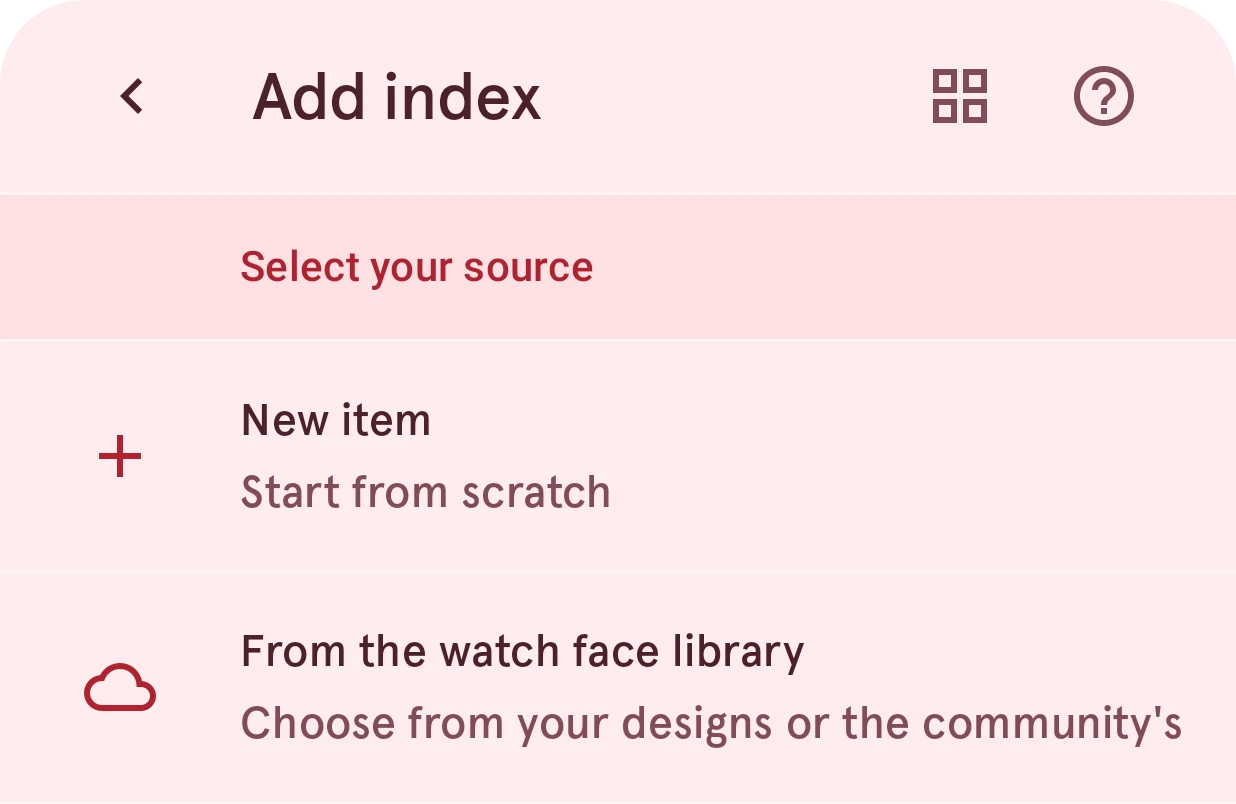
Make a new one, or take one from the Library:
2. Pick the kinds of data
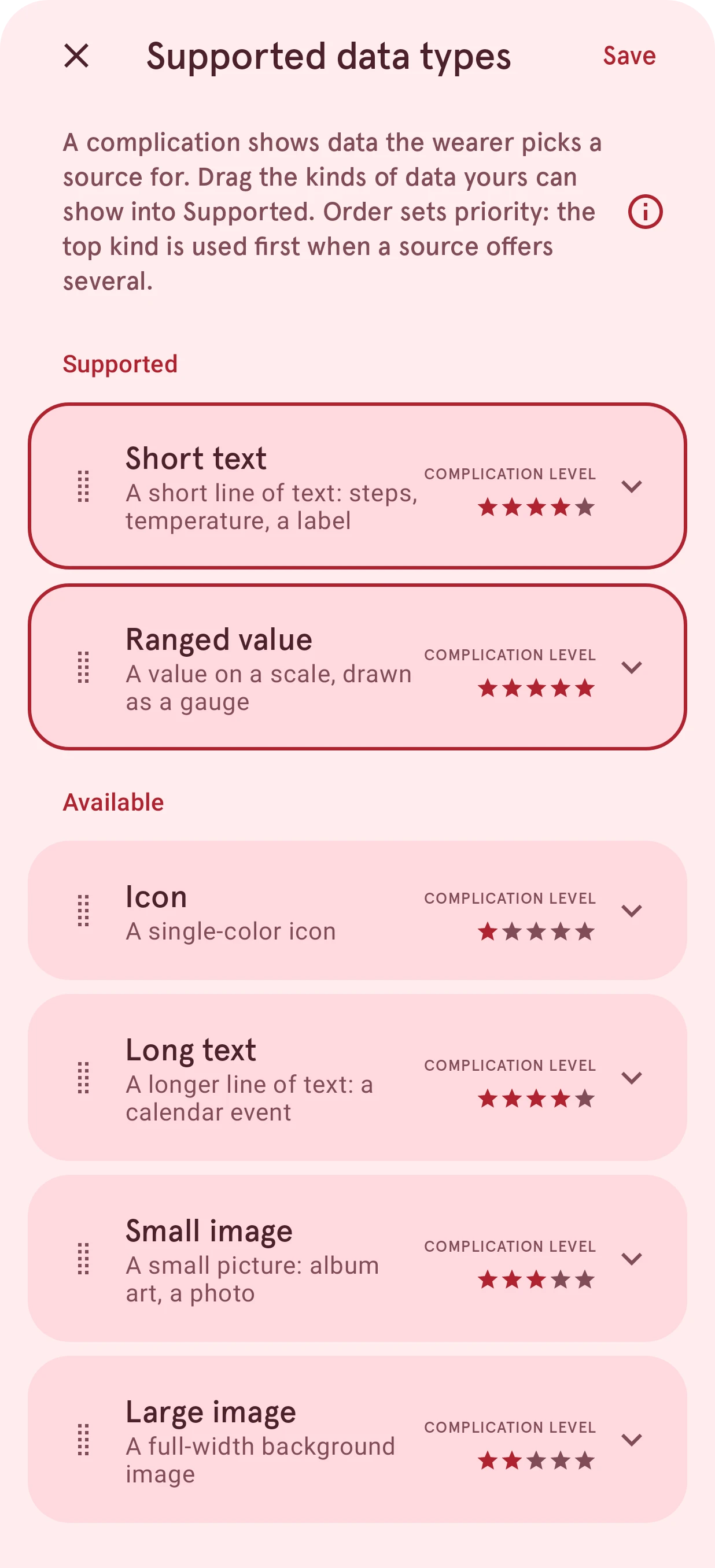
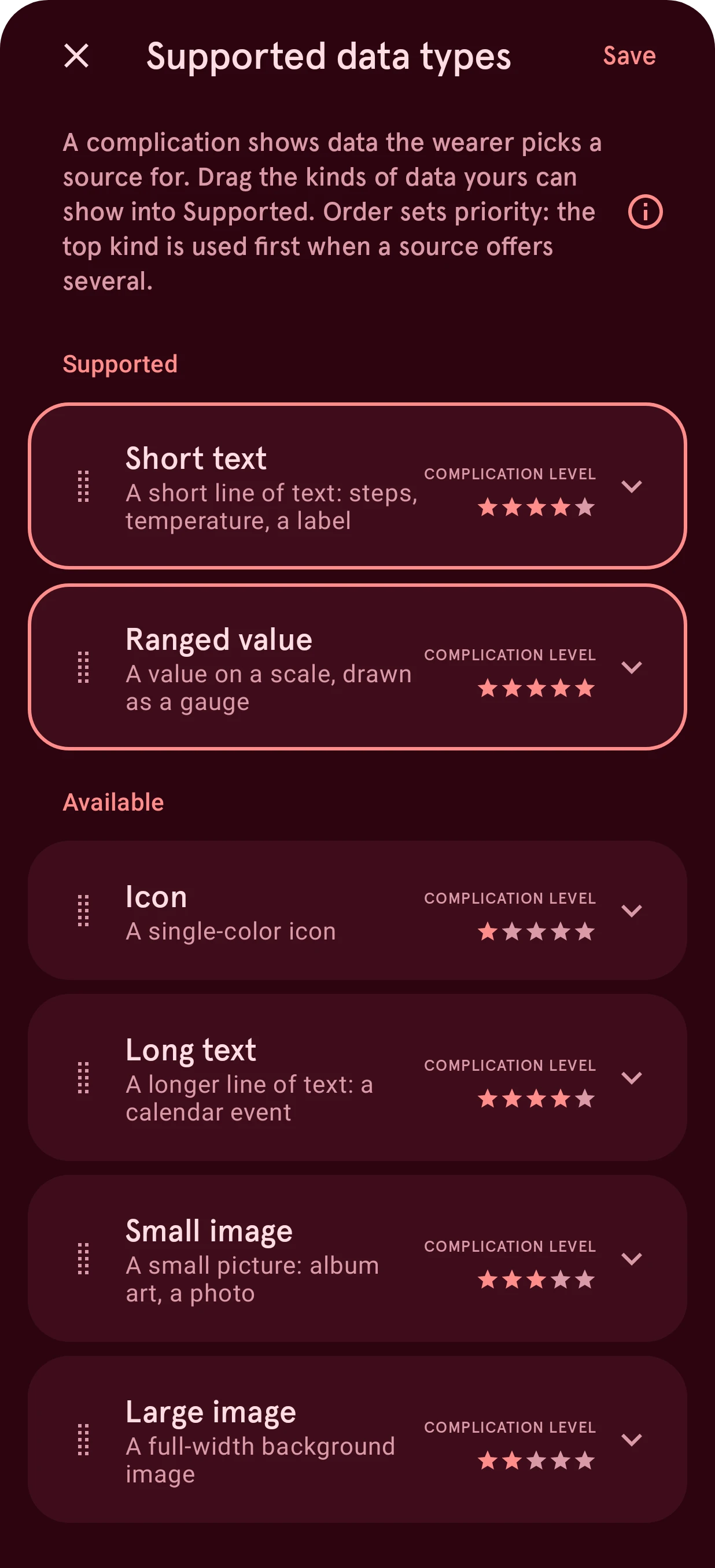
Section titled “2. Pick the kinds of data”A new complication starts with the Supported data types sheet. Drag the types your design shows from Available up into Supported, most important first, and tap Create. Not sure? Start with Short text, which most sources offer.
3. Design it
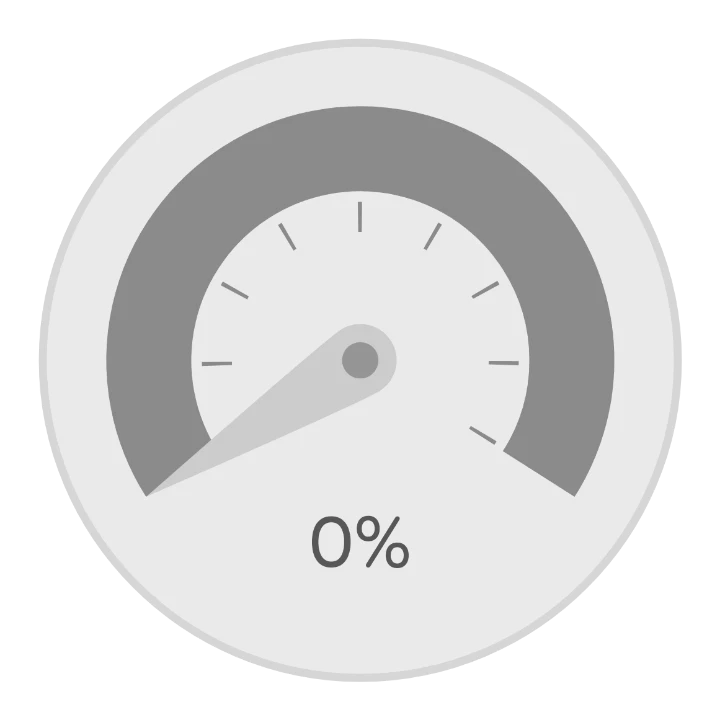
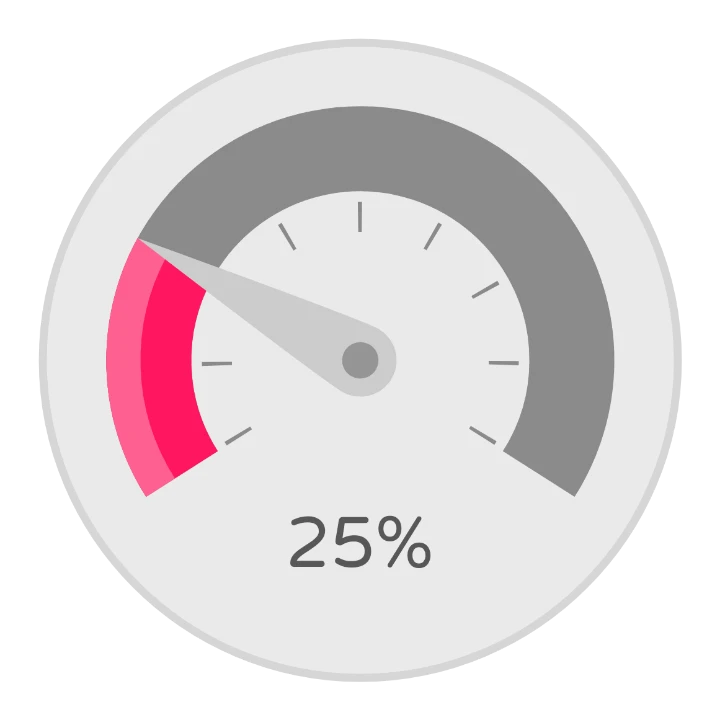
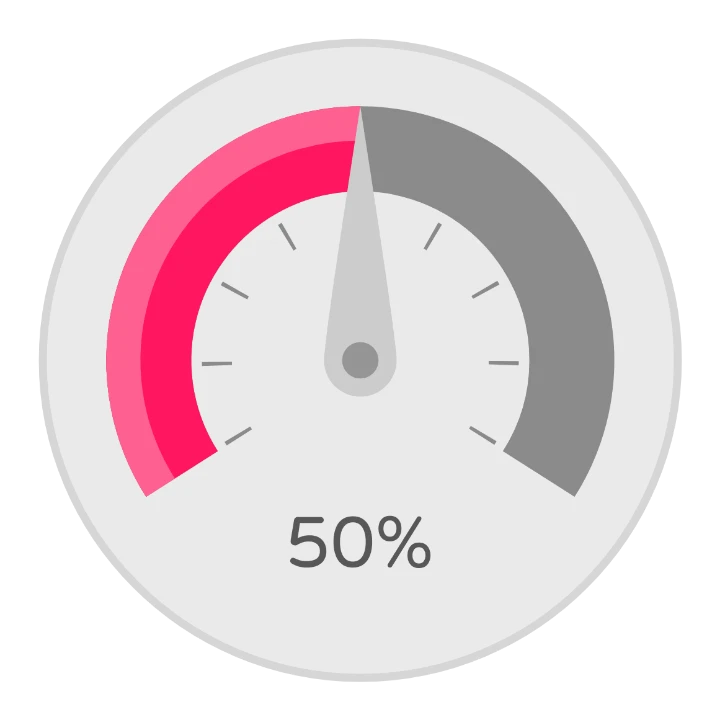
Section titled “3. Design it”The complication opens in the watch element designer. Its layers are bound to the data’s fields: the text, the title, the icon, the value. A ranged value can turn a needle or fill an arc:
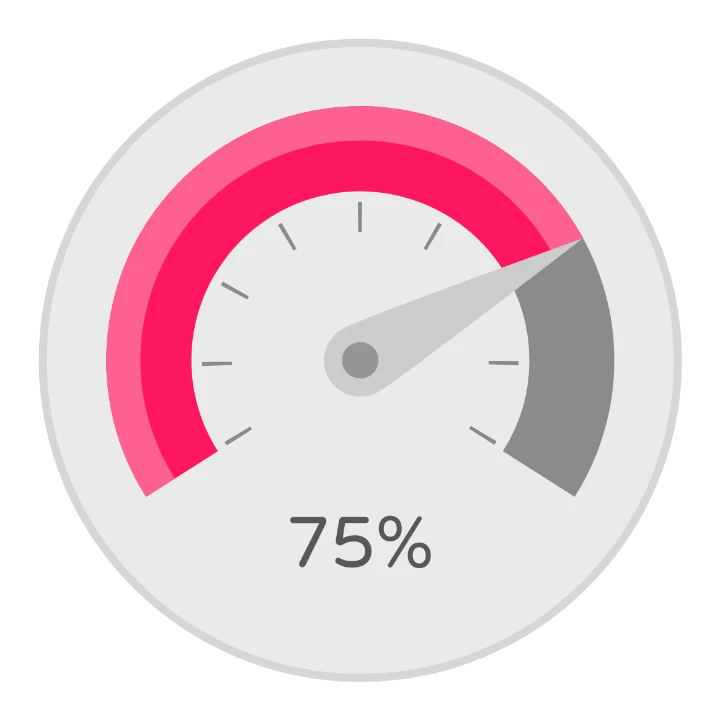
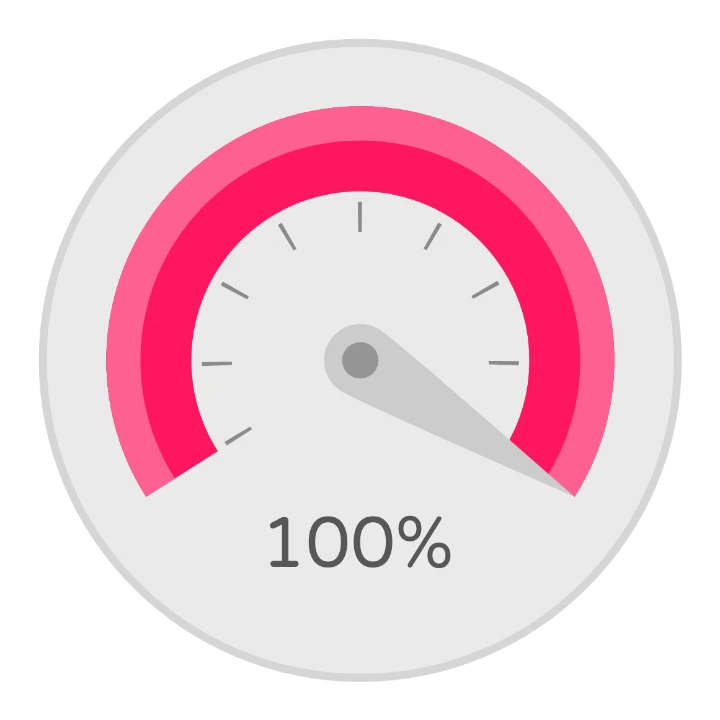
Try it with every kind of test data, so it looks good whatever the wearer picks. The full walkthrough is in Making a complication.
4. Put it on your watch and pick the data
Section titled “4. Put it on your watch and pick the data”Send the watch face. Then on your watch, long-press the watch face, tap the edit button under it, tap the complication, and pick the app and data to show.
Next: draw your own element.