
Syncing
How your Library items reach all your phones, and what the sync status at the bottom tells you.
Needs Premium With Premium, your items in the Library are also on every phone you sign in on: the app downloads them to its library folder. That’s syncing. It only ever downloads; putting a design in the Library is always your own step, uploading.
When it syncs
Section titled “When it syncs”-
When you open the Library (at most every 15 minutes or so).
-
When something changes in the Library, such as an item you uploaded from another phone.
-
When you tap Sync Library in your account menu, to sync right now:
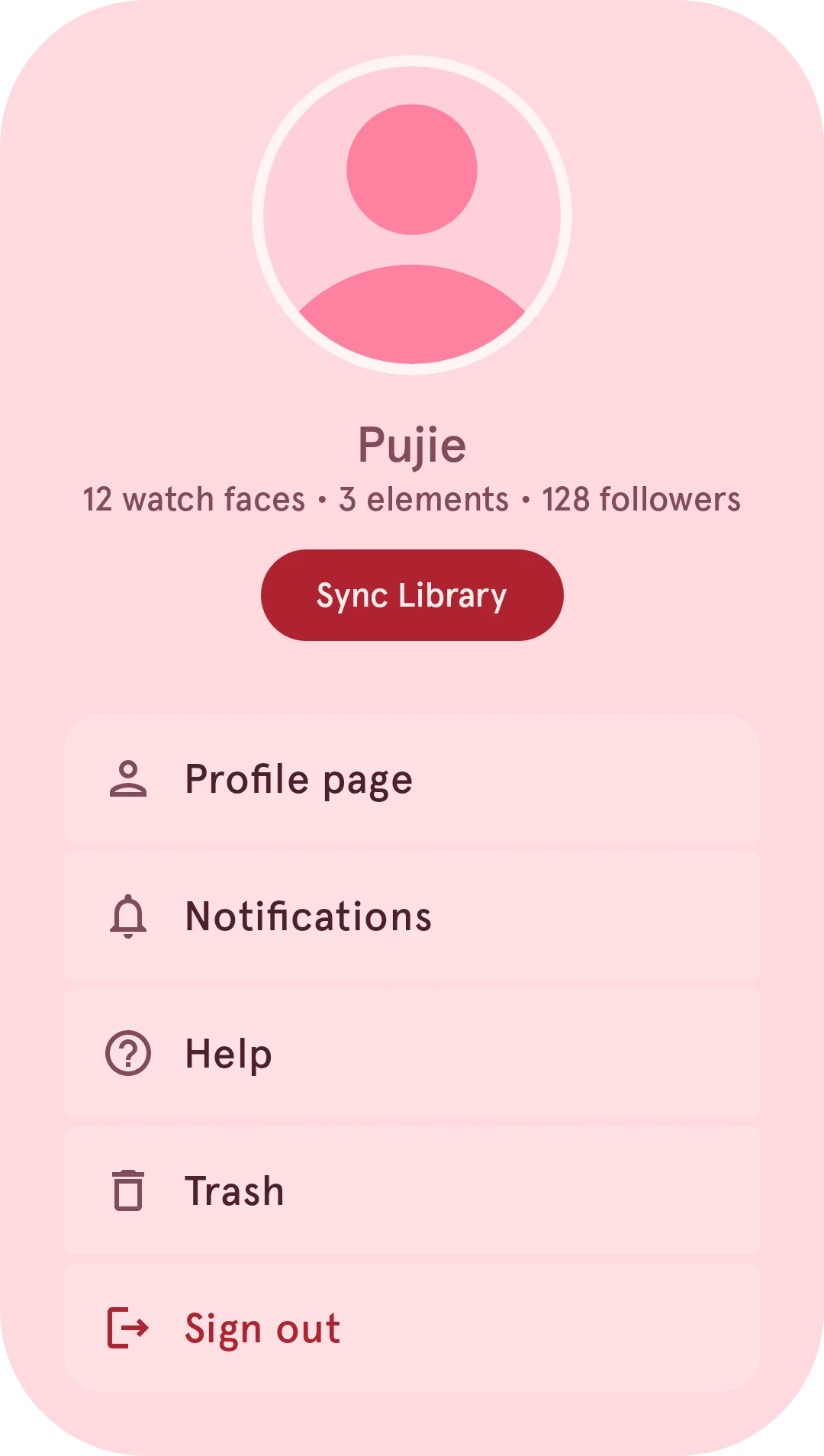
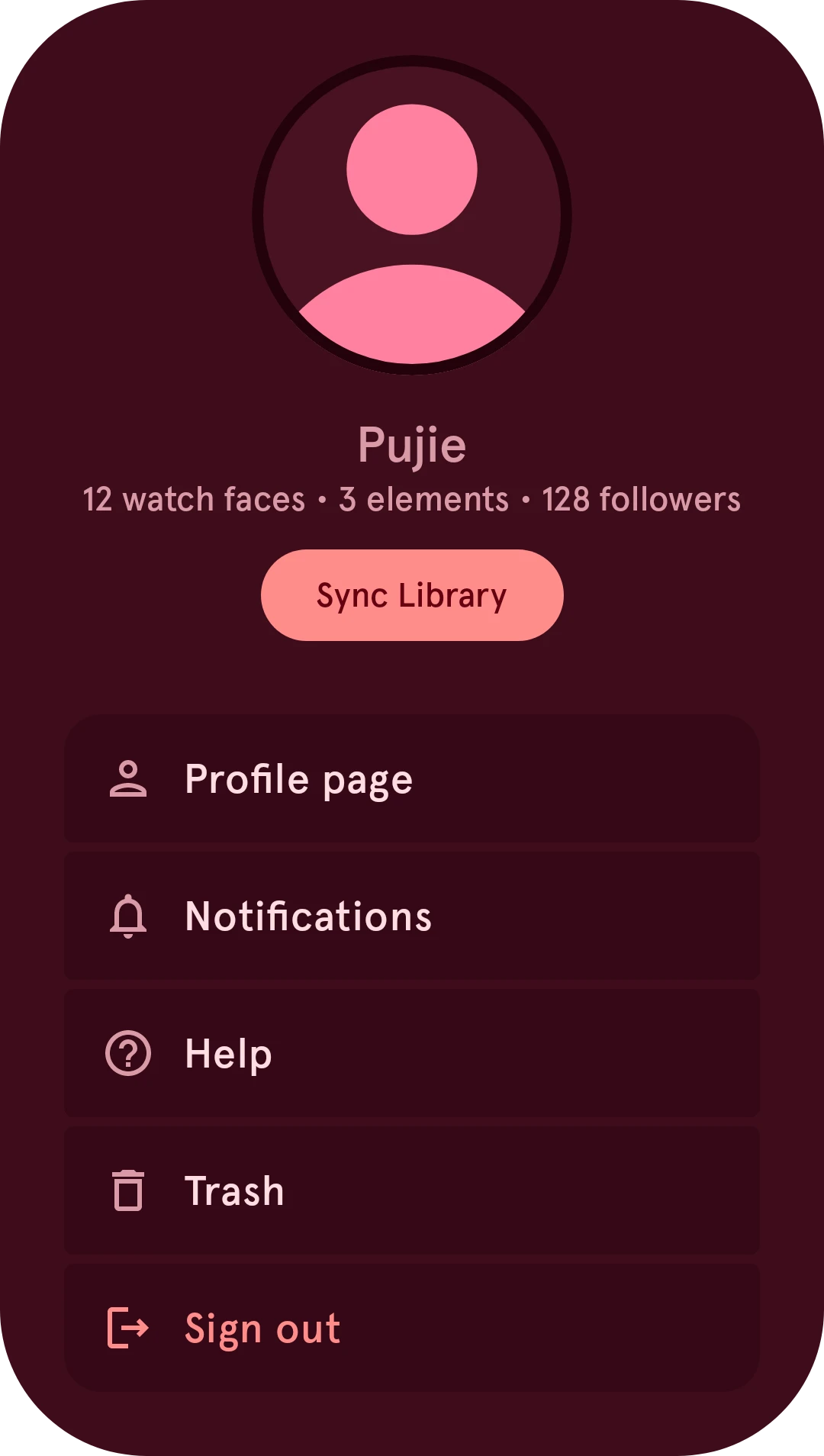
With the Full synchronization requires Wi-Fi setting on, a full sync waits until you’re on Wi-Fi.
The sync status
Section titled “The sync status”While it syncs, a small bar at the bottom of the Library shows how it’s going. The arrow tucks it away into a small circle; the cross closes it once it’s done.
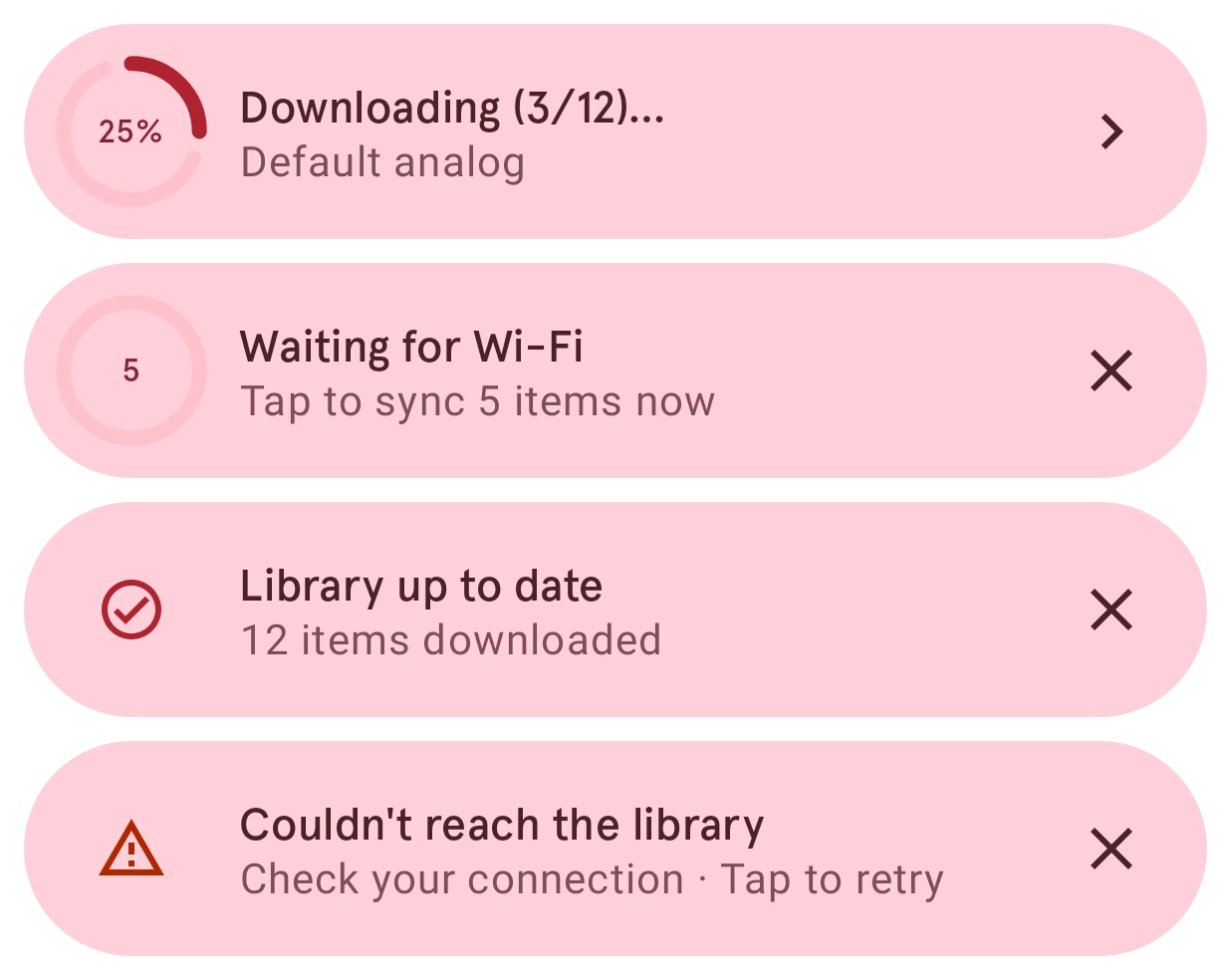
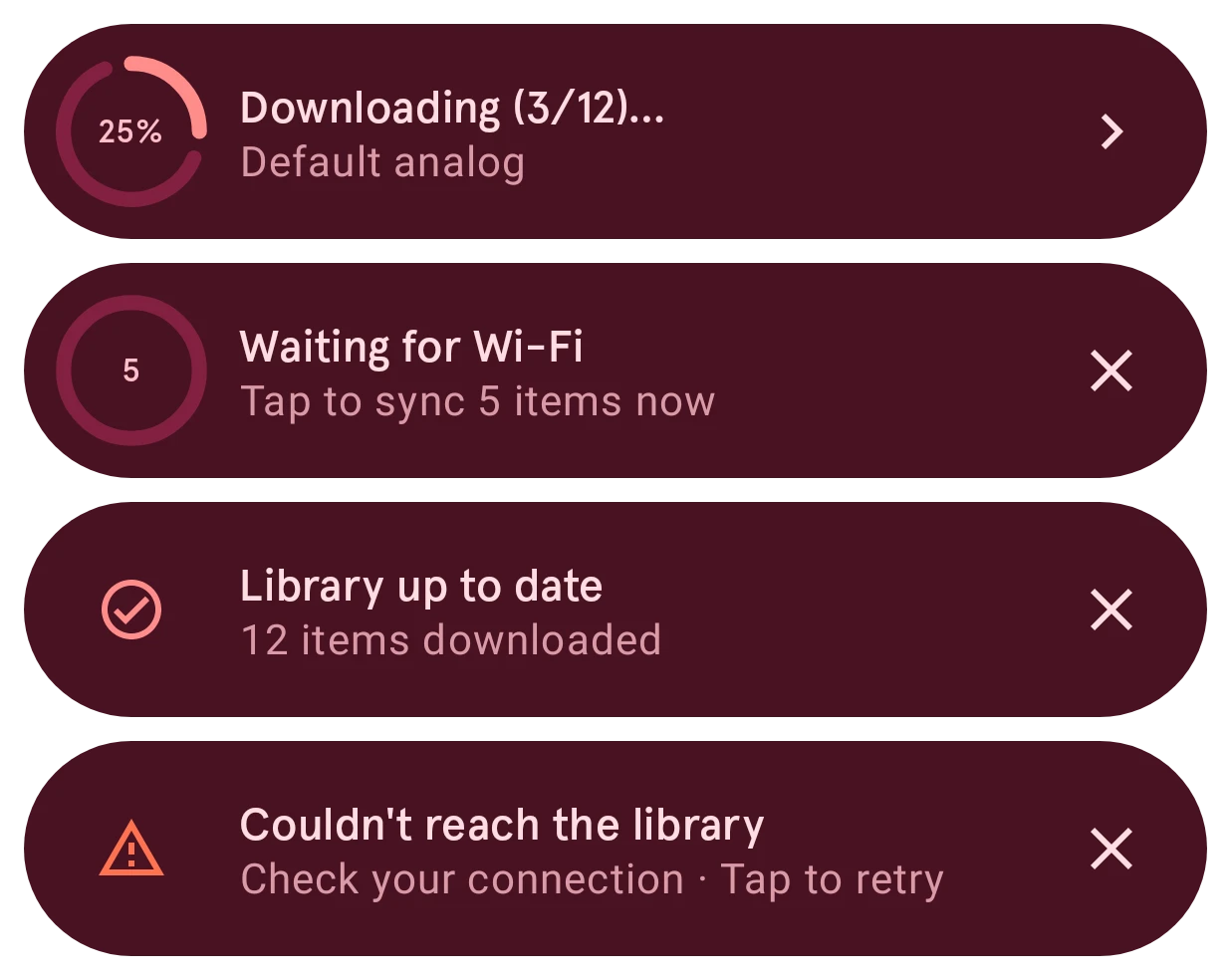
Downloading…
Busy, with the item it’s on. Before the downloads start it reads Checking library… or Preparing items….
Waiting for Wi-Fi
There’s something to download, but you’re not on Wi-Fi. Tap it to download now anyway.
Library up to date
Done. It lists what changed (items downloaded, moved to the trash, renamed, or now local only); tap it for the details.
Sync failed
Couldn't reach the library, Downloads failed or Sync failed: check your connection, then tap it to try again.
When the app’s library folder can’t be found, the bar reads Library folder is missing: tap it to choose one.
Changes from your other phones
Section titled “Changes from your other phones”- An item you renamed on another phone is renamed here too.
- An item you deleted on another phone is removed from this one too: moved to a trash folder in the app’s library folder, not deleted outright. The app waits until it’s sure (two syncs at least half an hour apart), so a brief hiccup never removes anything.
- An item you made local on another phone stays on this phone, as a local item.
Two versions
Section titled “Two versions”When this phone and the Library have different versions of an item, its details say so and let you choose:
- This phone and the library have different versions. You changed it in both places: Keep mine or Use library version.
- Your local version is newer. Upload it, undo your changes, or Compare versions first.
- The library has a newer version of this. Download it (it replaces your copy on this phone), or upload your older one over it.
Each choice asks you to confirm, since one of the two versions is replaced.