
Favorites and designers
Like watch faces, follow the designers behind them, and keep your own profile up to date.
The Favorites tab, one of the Library’s four tabs, keeps the watch faces and elements you liked and the designers you follow. This page is about both, and about your own profile.
Tap the heart on an item’s card, or its likes button on the item’s details, to like it. Liking tells the designer you like their work, and helps the Library suggest more for you (see For you). Tap it again to take your like back.
The Favorites tab lists everything you liked, the latest first. The type button picks watch faces or a kind of element.
A designer’s profile
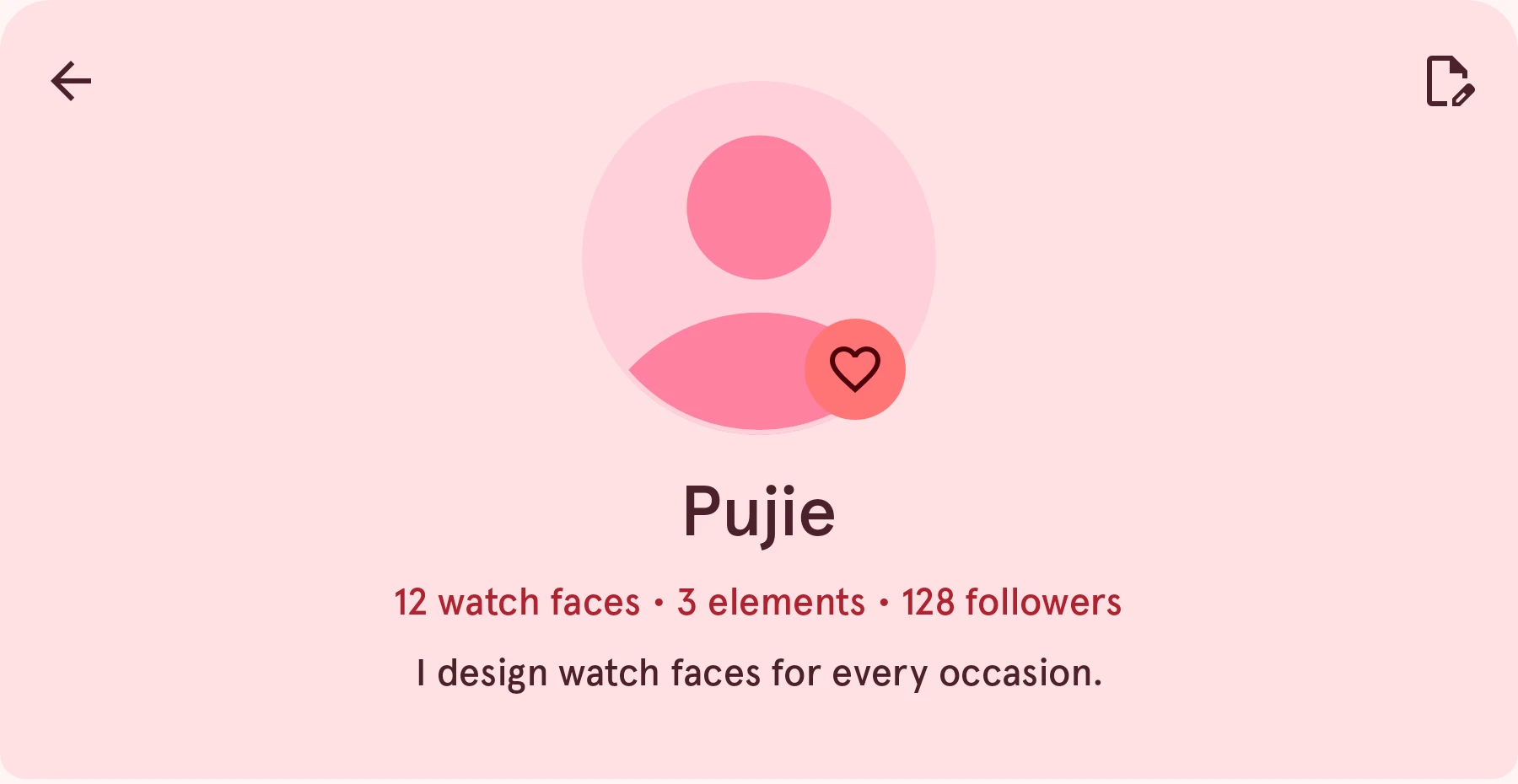
Section titled “A designer’s profile”Every item shows who made it; tap the designer to open their profile. On top: their picture, name and bio. Below it, everything they made public, with the type button to pick watch faces or a kind of element, and the usual order buttons.
Edit profile
On your own profile: changes your picture, nickname and bio. See Editing your profile.
Overflow
On someone else’s profile: Report, for a profile that breaks the Library’s rules.Like
Follows the designer: their new watch faces then show up in From your favorite designers in the Gallery, and you can get a notification when they publish one. Filled in, it means you follow them; tap it again to stop.
Nothing
How many watch faces and elements they shared, and how many people follow them.
Pick Followers with the type button to see who follows the designer. On the Favorites tab, pick Users to see the designers you follow.
Your own profile
Section titled “Your own profile”Profile page in your account menu opens your profile as others see it.
Editing your profile
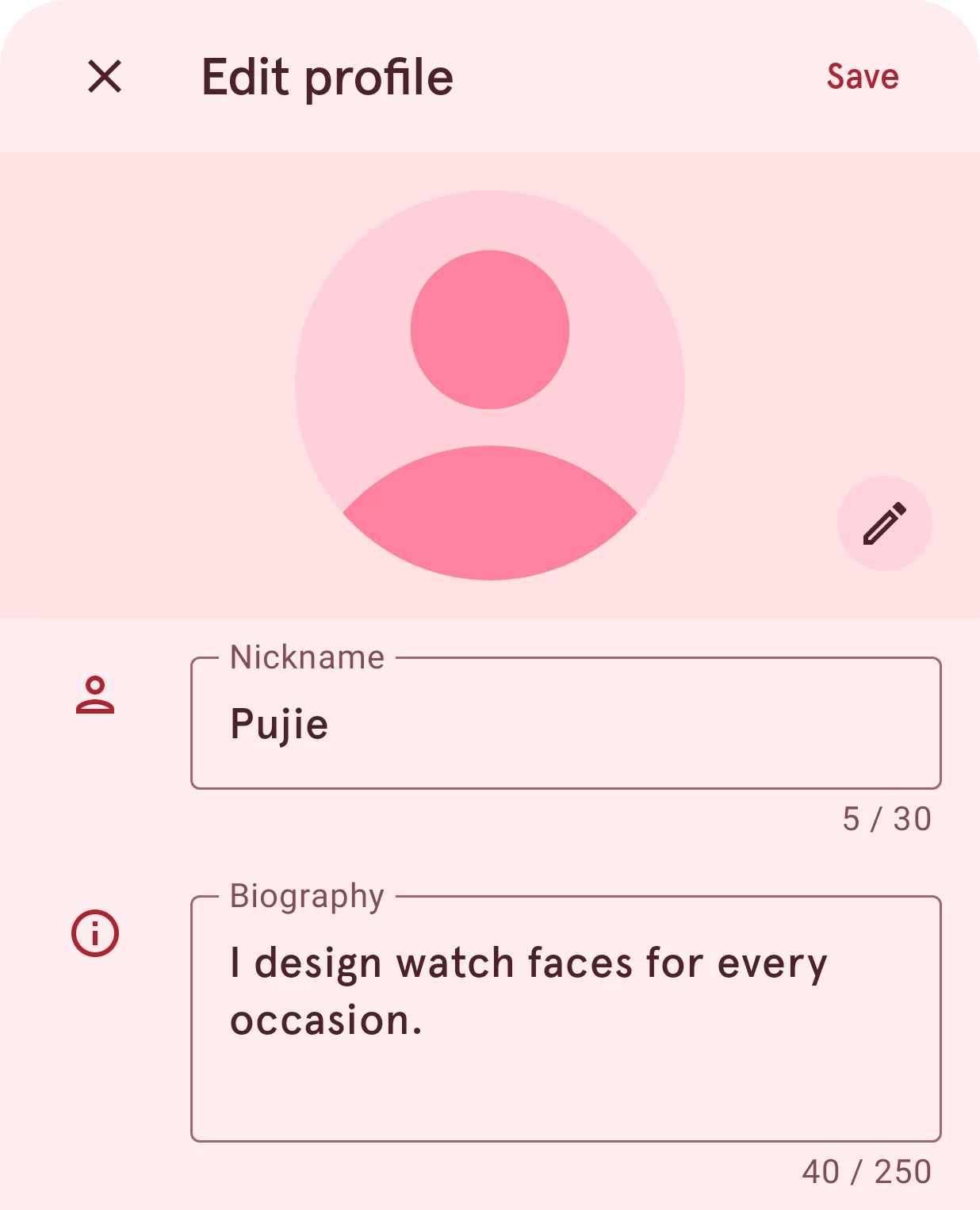
Section titled “Editing your profile”The edit button on your profile opens this sheet. You need an internet connection.
Save
Saves your changes. Closing the sheet without saving asks first.Pick image
Picks a new picture from your phone.Nickname
The name everyone sees: up to 30 characters, and it can’t be empty.Biography
A few lines about you, up to 250 characters. You can leave it empty.
Liking and following need you to be signed in.