App behavior
The setup you saw when you first opened the app, the preview's watch shape, the app's language and colors, and the zoom controls and OPR banner.
App behavior is the first page under General on the app’s main settings page. It holds the setup you saw when you first opened the app, the preview shape, the app’s language and colors, the zoom controls and OPR banner of the watch face designer and the watch element designer. How the watch face designer behaves while you edit has its own page, Watch face designer, and how the Library opens is on Watch Face Library.
General
Install on watch/Onboarding
ActionRun the app onboarding and get instructions about how to install the app on your watch
Runs the setup you saw when you first opened the app: installing the Pujie app on your watch, checking the connection, and picking a first watch face. Use it when you get a new watch, or when sending watch faces stops working and you want to go through the connection steps again. You can skip any step, and there are no purchase options when you start it from here.
If the Play Store on your watch says the app isn’t compatible, the install step has a Compatibility button with more help.
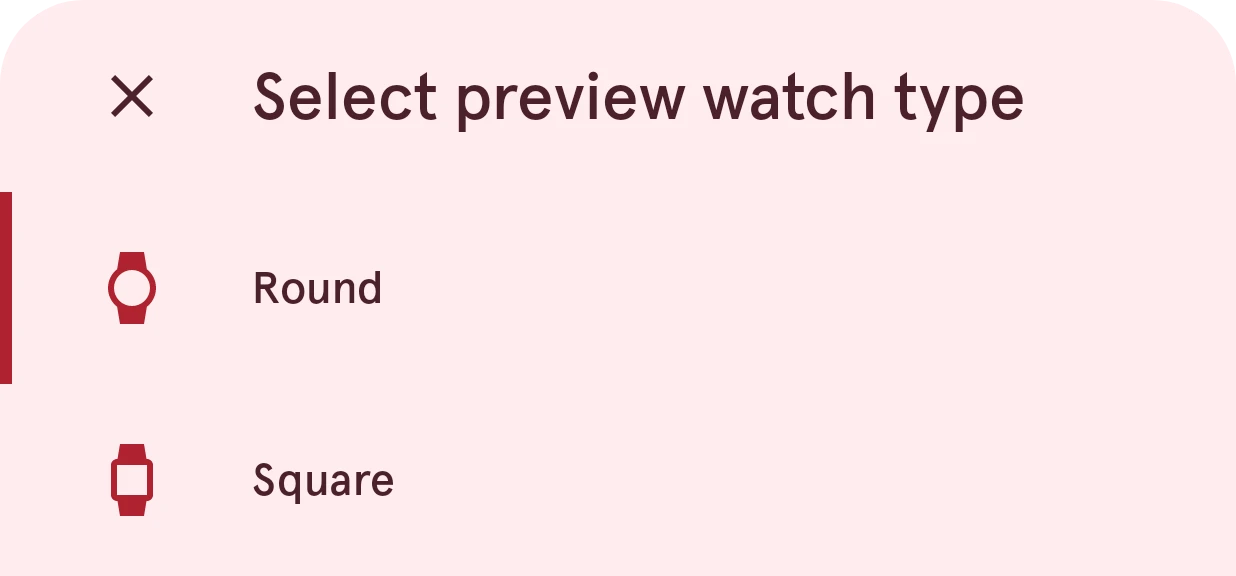
Watchface preview shape
ActionShows the preview shape you picked.
The shape the app uses for previews: the canvas in the watch face designer and the watch face pictures in the Library. Pick the shape of your own watch, so watch faces look the way they will on your wrist. This only changes previews on your phone. Your watch always shows a face in its own shape.
Localization
App language
ActionShows the app's language, or System default.
The language of the phone app. System default follows your phone’s language. On Android 13 and later you’ll also find this choice in your phone’s own settings for app languages. The app comes in these languages:
- English
- NederlandsDutch
- DeutschGerman
- FrançaisFrench
- EspañolSpanish
- Português (Brasil)Brazilian Portuguese
- ItalianoItalian
- PolskiPolish
- 한국어Korean
- TürkçeTurkish
- 日本語Japanese
- עבריתHebrew
- العربيةArabic
- IndonesiaIndonesian
It doesn’t change your watch faces. For the language of dates and text on the watch, see Watch settings.
Behavior
Use dynamic theming
SwitchEnable to apply Material You dynamic theming to the app. Requires Android 12 or later.
When this is on (the default), the app takes its colors from your wallpaper, like other Material You apps. When it’s off, the app uses Pujie’s own colors. Light or dark mode follows your phone either way. Phones with Android 11 or older have no wallpaper colors, so there the switch makes no difference.
Show OPR
SwitchEnable to show the On Pixel Ratio (OPR) of the ambient face in the main interface
OPR (on pixel ratio) is the share of pixels that are lit in the ambient version of a watch face. On an OLED screen only lit pixels use power, so a lower OPR means the always-on display costs less battery.
With this on (the default), the OPR shows in a small banner while you look at the ambient face, in the designer and on a watch face’s page in the Library. The banner warns above 10% and marks the value as too high above 15%. Tap it for tips on lowering it. The value is measured on the phone’s preview, so use it as a guide rather than an exact number for your watch.

Zoom controls
ChoiceHow the zoom controls behave in the watch face and element designer
The zoom controls are the buttons on the canvas of the watch face designer and the watch element designer: zoom in, reset the view, and zoom out. You can always zoom with two fingers, whichever option you pick.

- Auto-hide
The controls fade out after 5 seconds without touching the canvas, and come back as soon as you touch it. They stay visible when your phone has animations turned off or a screen reader running, so they are always within reach.
- Always visible
The controls stay on the canvas all the time.
- Hidden
The controls are not shown. Zoom and pan with your fingers only.