
Supported data types
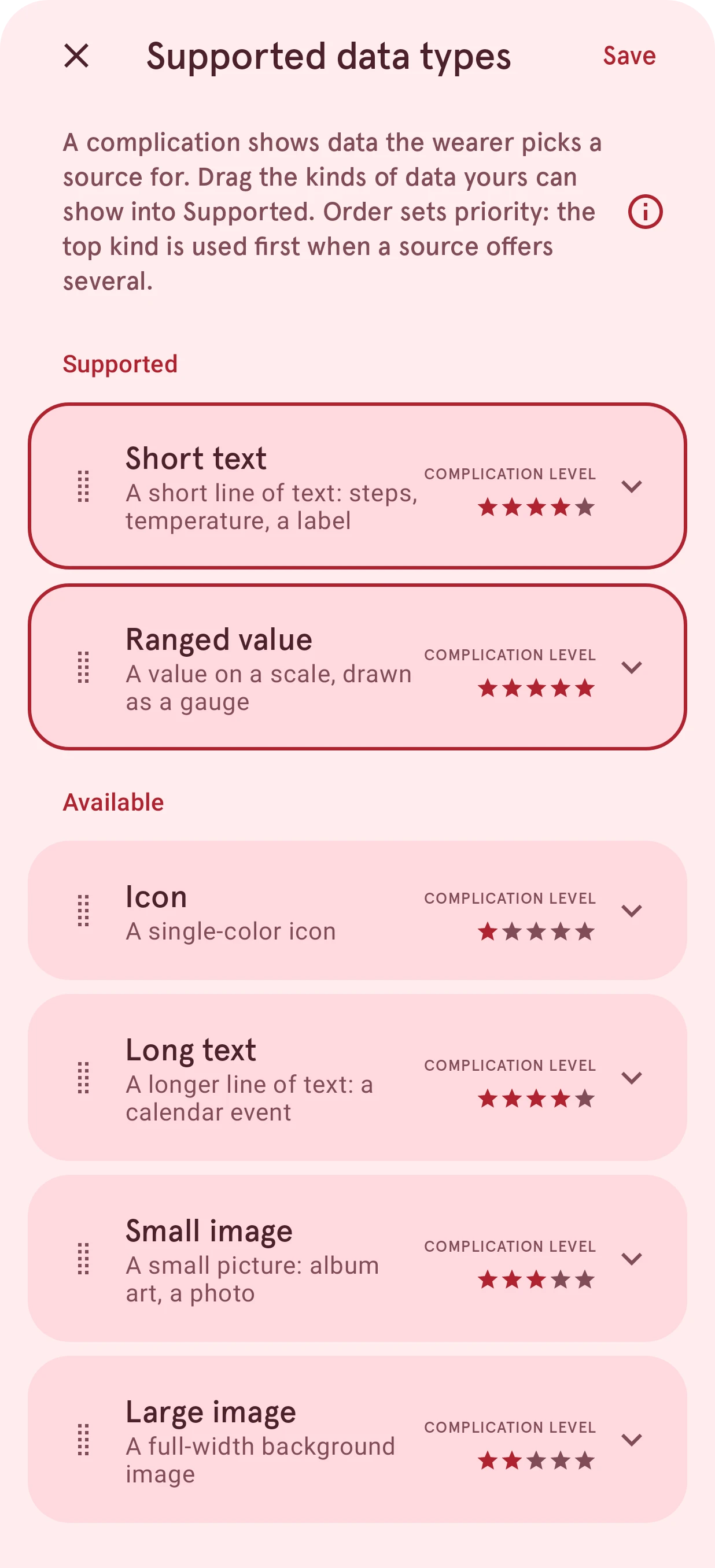
Choose the kinds of data a complication accepts, from an icon to a ranged value, and put them in order: when a source offers several, the top one is used.
Opened from
- Supported data types, in the app bar
Chooses which kinds of data the complication can show. The wearer picks a data source on the watch; the complication works with every source that can provide one of the supported types.
Close
Closes the sheet and keeps the types as they were. The sheet can’t be swiped away, since dragging reorders the cards.
Save
Keeps the supported types and their order. It’s grayed out while nothing is supported: a complication needs at least one type.
About supported data types
What the sheet is for. Tap the info button for more, including how to hide layers that don’t apply to a type.
Supported
The types the complication accepts, in order of priority: when a source offers several of them, the top one is used. Put the richest type you designed for first.
Data type
One data type. Drag the handle to move it up or down, or across Available to stop supporting it. The stars rate how much the type can show, from an icon (one star) to a ranged value (five). Tap the arrow to see the fields the type always has and the ones it may have.
Available
The types the complication doesn’t accept. Drag one above this label to support it.