
Animation target
Make an element move to its always-on look instead of just switching: pick the element it turns into.
When the watch dims to the always-on face, it can change smoothly instead of switching at once: each interactive element moves and scales to its animation target while it fades out, and the always-on element fades in along the same path. Coming back, it runs the other way.
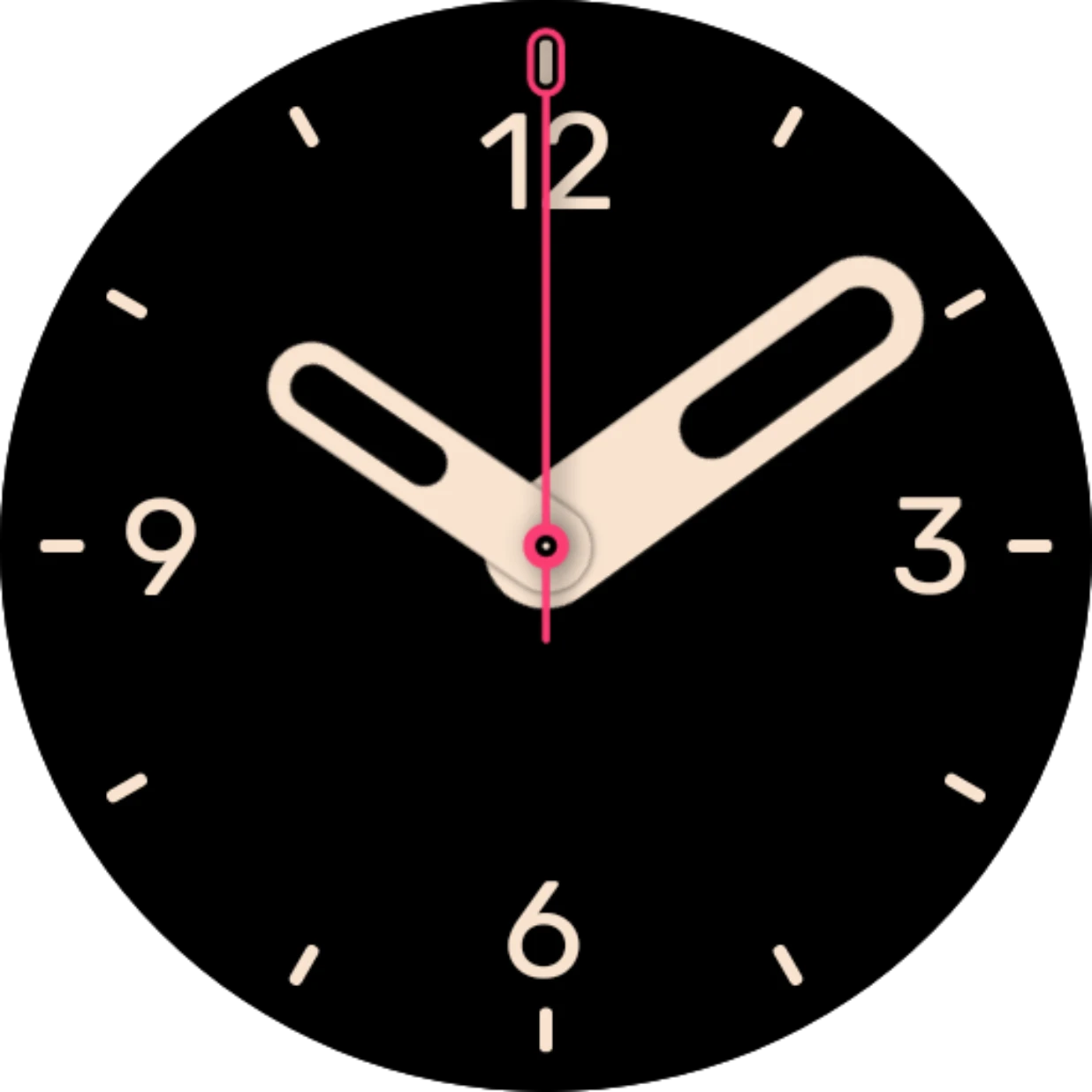
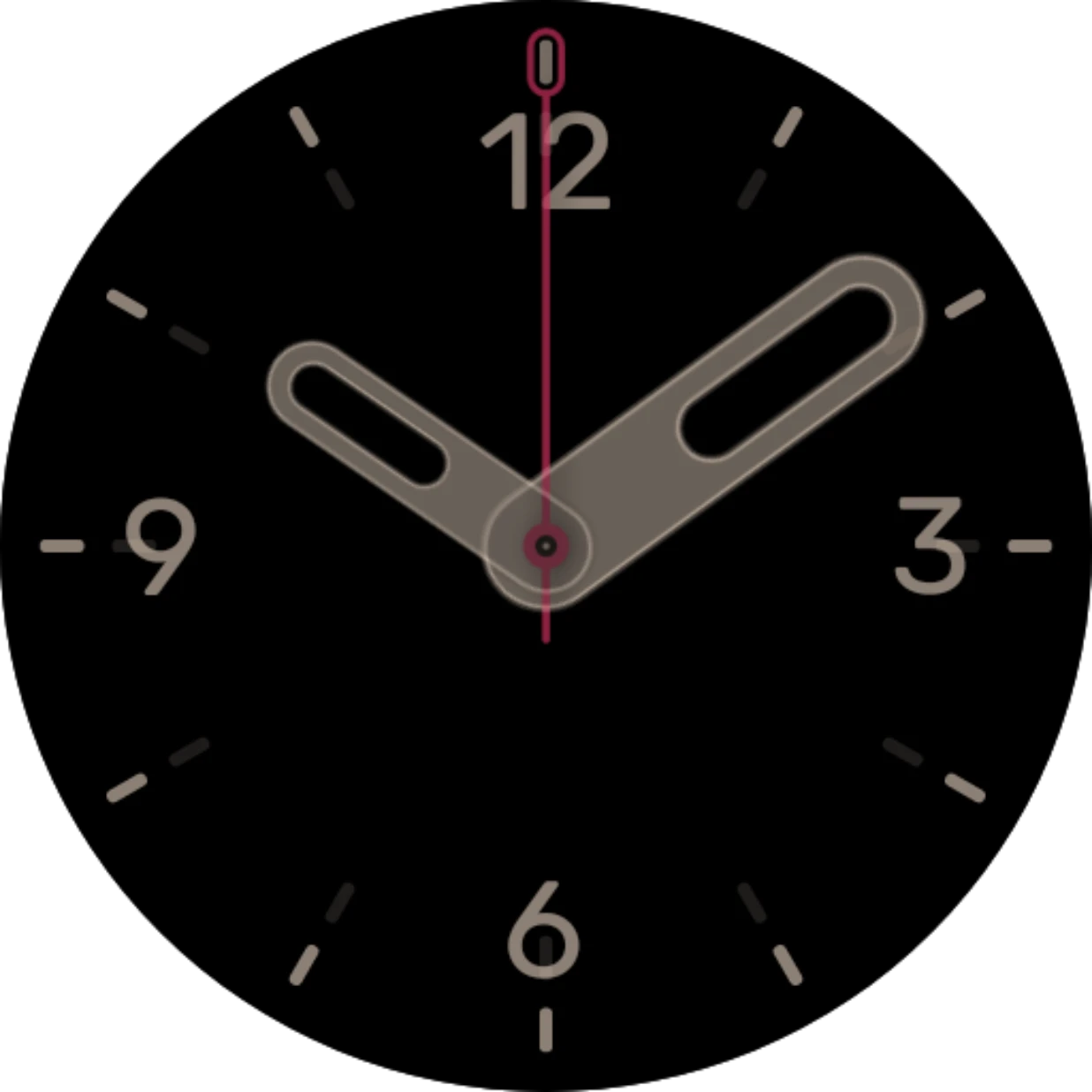
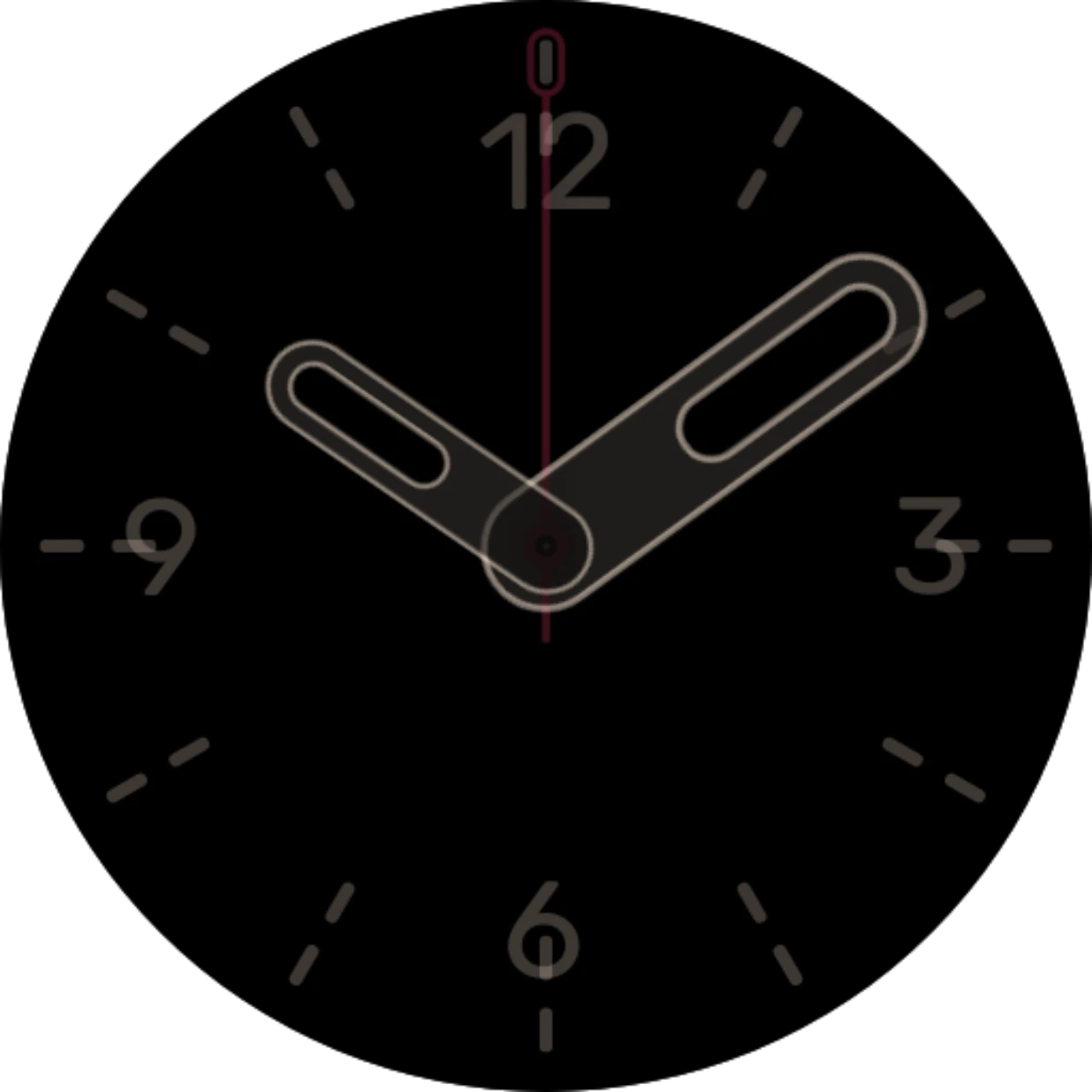
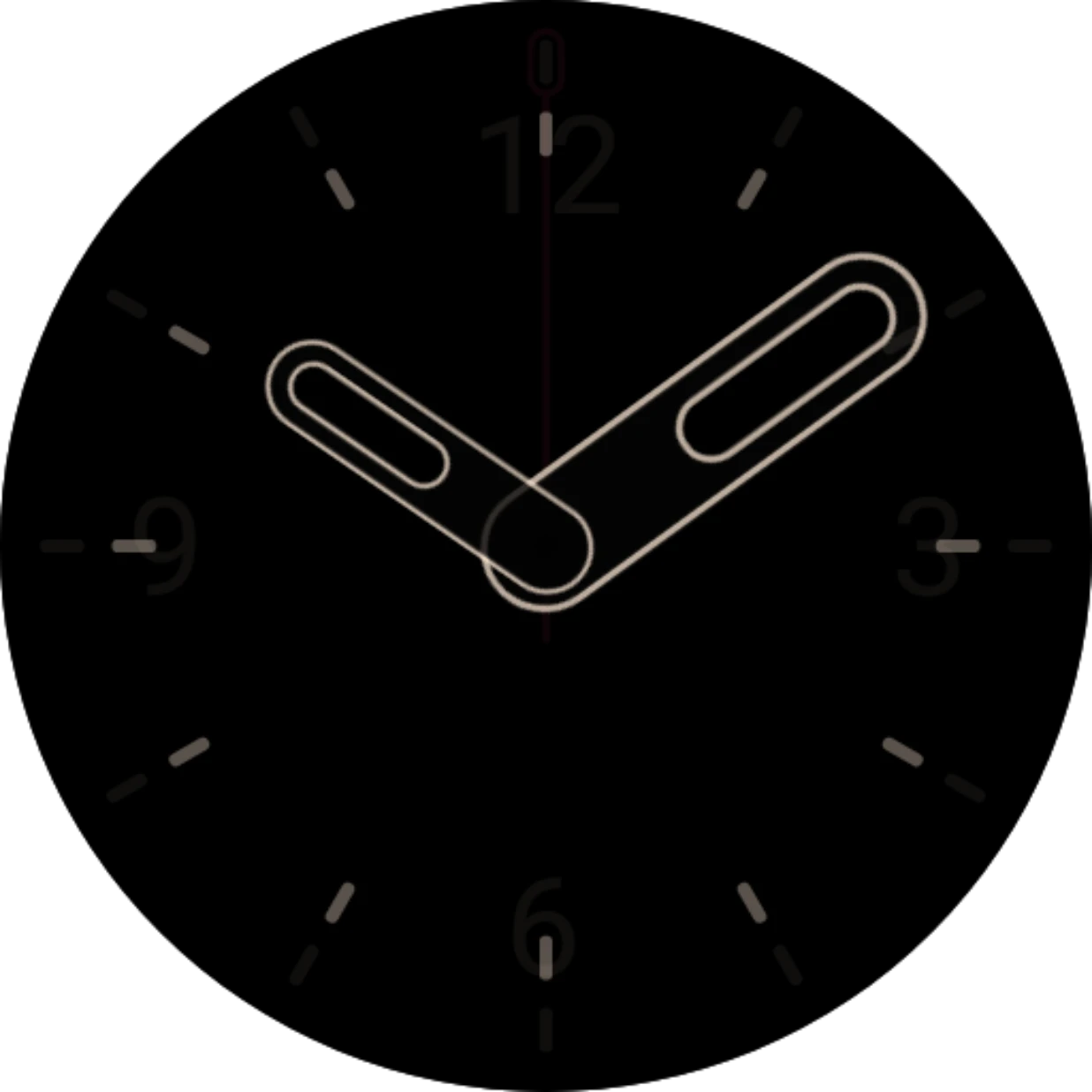
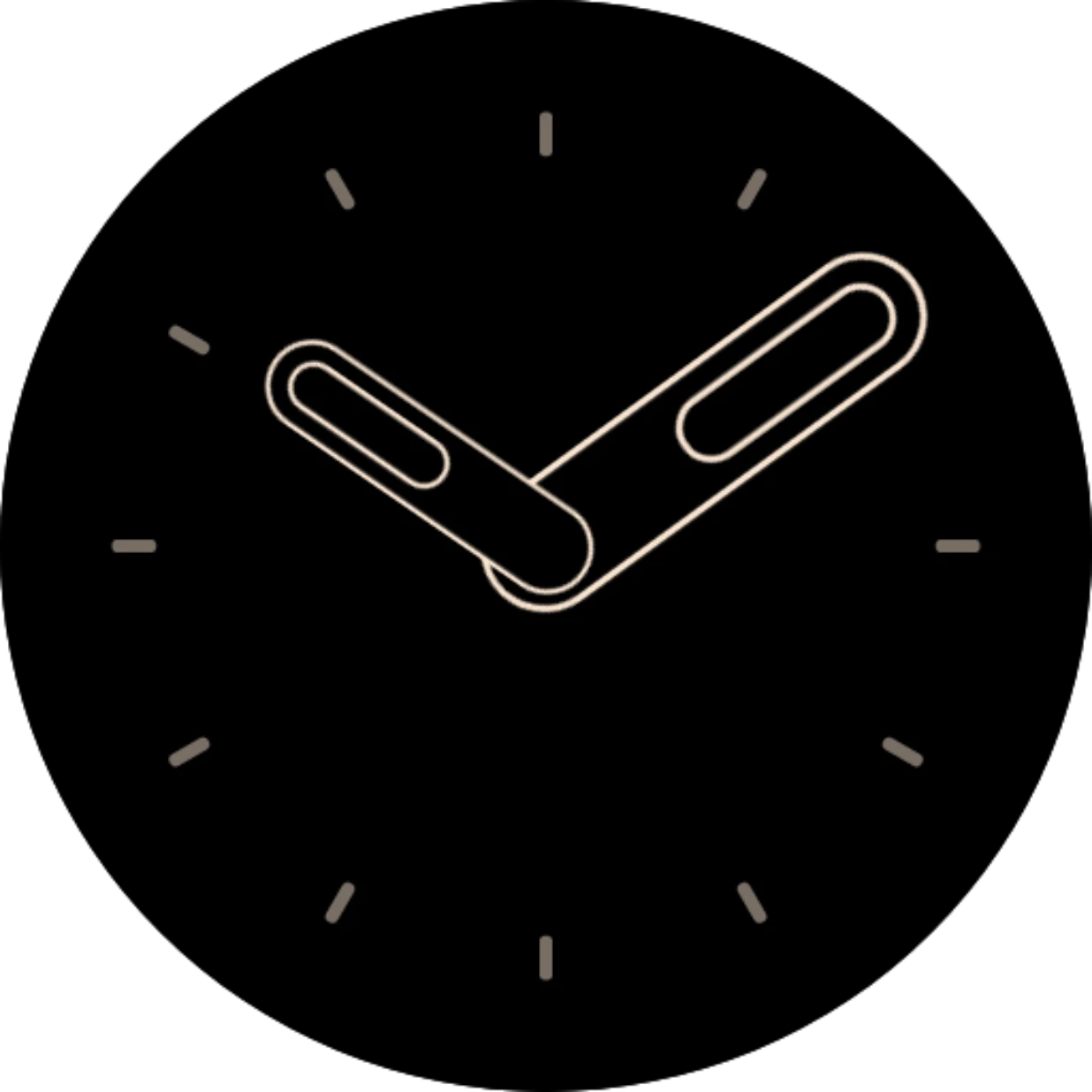
This is the Default analog watch face going from its interactive look to its always-on look. Its hands are matched to the always-on hands, so they turn from filled into outlines; the numbers have no target and simply fade away.
Picking a target
Section titled “Picking a target”In an element’s settings, under Interactive to ambient animation, the Animation target row has three choices:
- None: no movement; the element just fades.
- Ambient element (on the always-on tab: Interactive element): move to an element of the other face. This opens the sheet below.
- Custom: move to a place and size of your own. See Custom animation target.
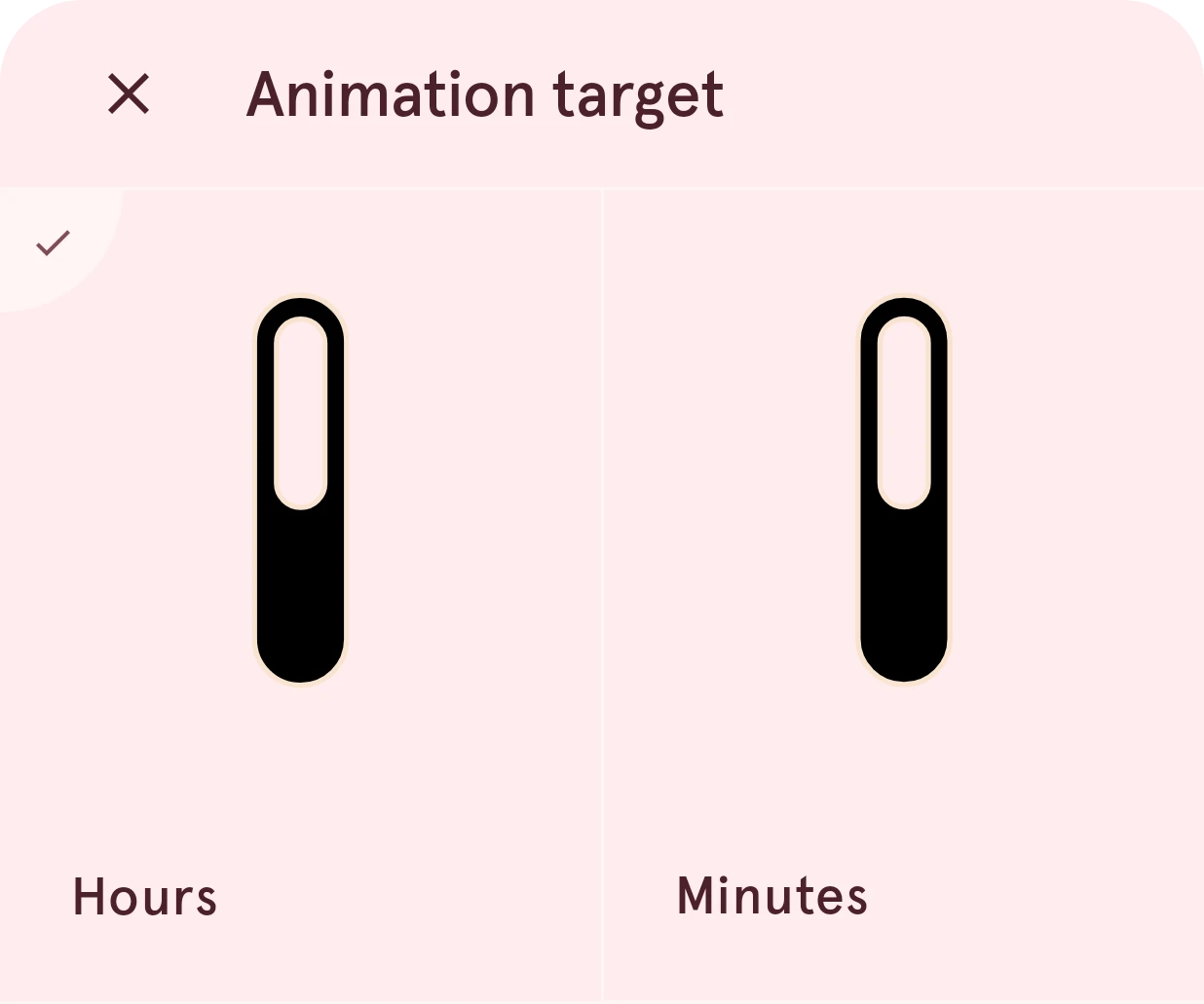
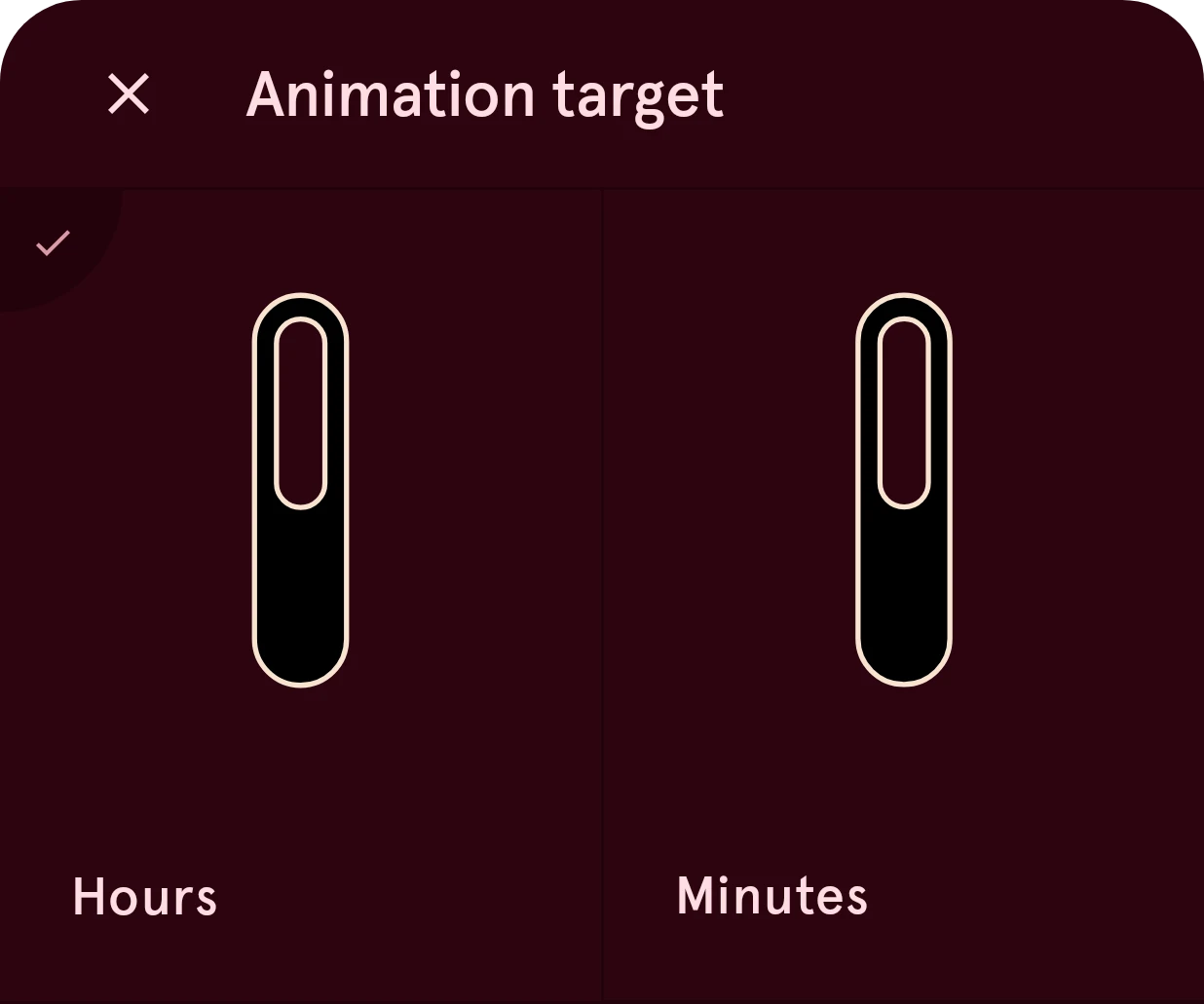
The sheet lists the elements of the same type on the other face, each with its preview.
Close
Closes the sheet and keeps the target as it was.
Animation target
An element of the other face. Tap it to make it the target; the sheet closes.
Selected
The check marks the current target.
If the other face has no element of that type, there’s nothing to match: add one to the always-on face first (the elements menu can copy all elements to ambient).
When the two elements use different easing, the app offers to copy the easing over: animations look best when both sides move the same way.
Good to know
Section titled “Good to know”- Animate transparency decides whether the element fades while it moves, or stays fully visible until the switch.
- Matching a target clears a custom target, and the other way round: an element has one or the other.
- See it in the designer: the eye button on the preview plays the change. See Interactive and ambient.