
Design your first watch face
Start a new watch face, add hands, a date and marks around the dial, make its always-on version, and save it.
1. Start a new watch face
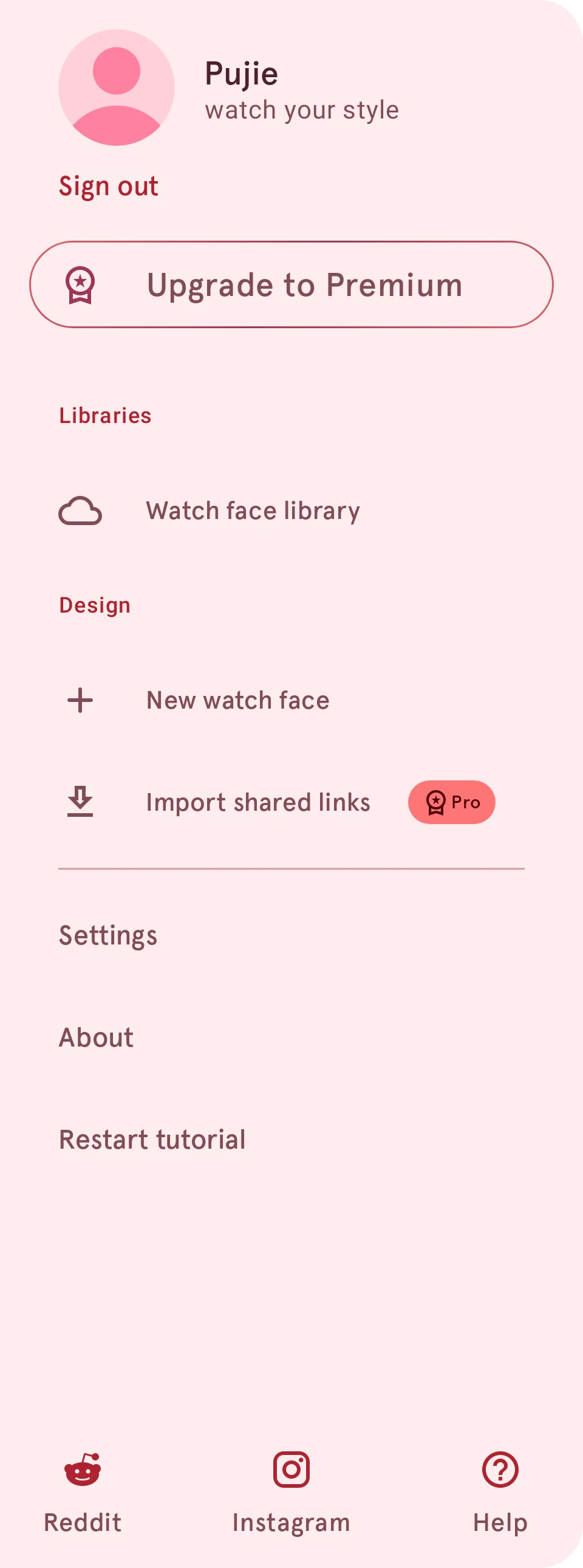
Section titled “1. Start a new watch face”Open the app’s menu (swipe in from the left, or tap the menu button at the top left) and tap New watch face. Start empty, or from one of the starter faces.
The watch face opens in the watch face designer: the watch face at the top, the list of its elements below.
2. Add the hands
Section titled “2. Add the hands”Tap the add button above the element list:


The sheet lists every kind of element. For an analog watch, start with a watch hand:
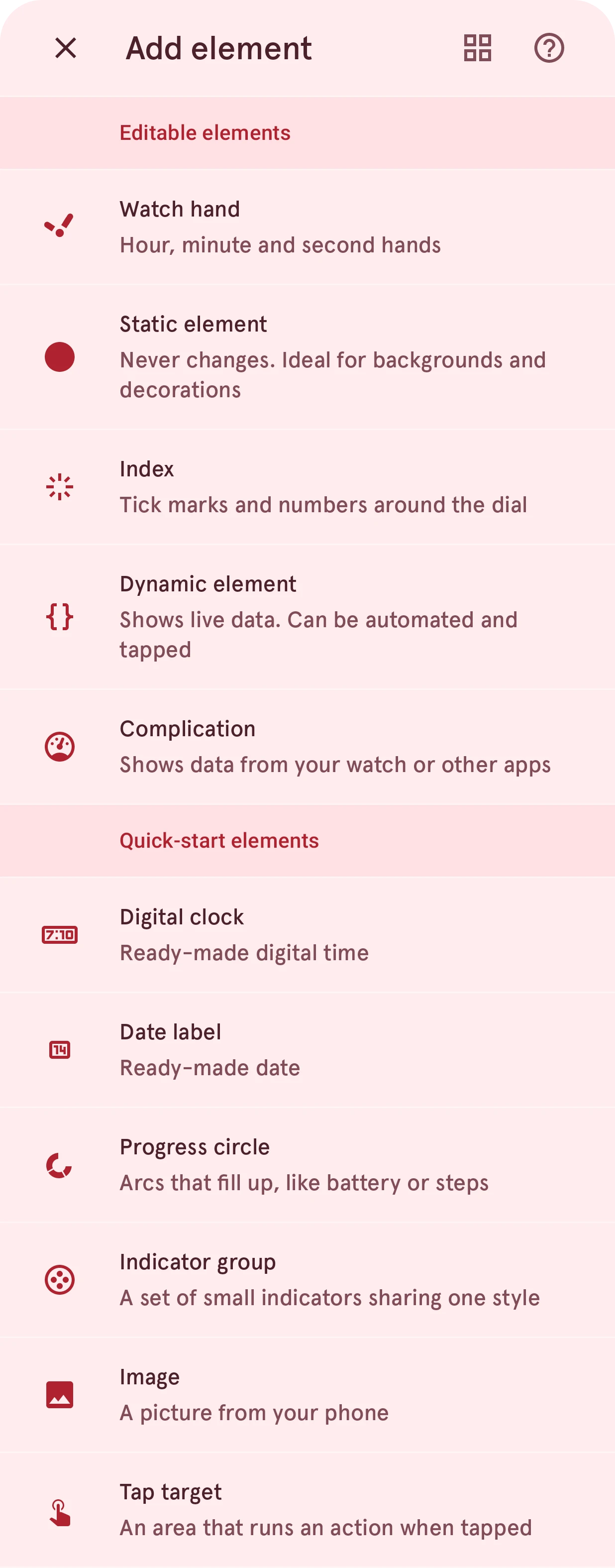
Pick where it comes from: make a new one, or take one from the Library. Add three: the hours, the minutes and the seconds. For a digital watch, add a digital clock instead.
3. Add a date and marks around the dial
Section titled “3. Add a date and marks around the dial”Add a date label from the same sheet for the date, and an index for the marks or numbers around the dial. Not sure what an element does? Element types explains each one.
4. Make it yours
Section titled “4. Make it yours”Each element has a row in the list. Tap it to select the element on the watch face; the buttons on the row change its colors, open its settings or the element designer:


Drag a row by its handle to put that element in front of or behind the others. See Elements.
5. Make the always-on version
Section titled “5. Make the always-on version”Your watch shows a dimmer version of the watch face while you’re not looking at it: the ambient (always-on) version. Switch to it with the Ambient tab:


Keep it simple and dark: hide what you don’t need there, on a black background. That saves battery. See Interactive and ambient.
6. Save it
Section titled “6. Save it”On the free version, the app asks you to name your design and pick one of your three saved slots. After that, every change saves by itself.
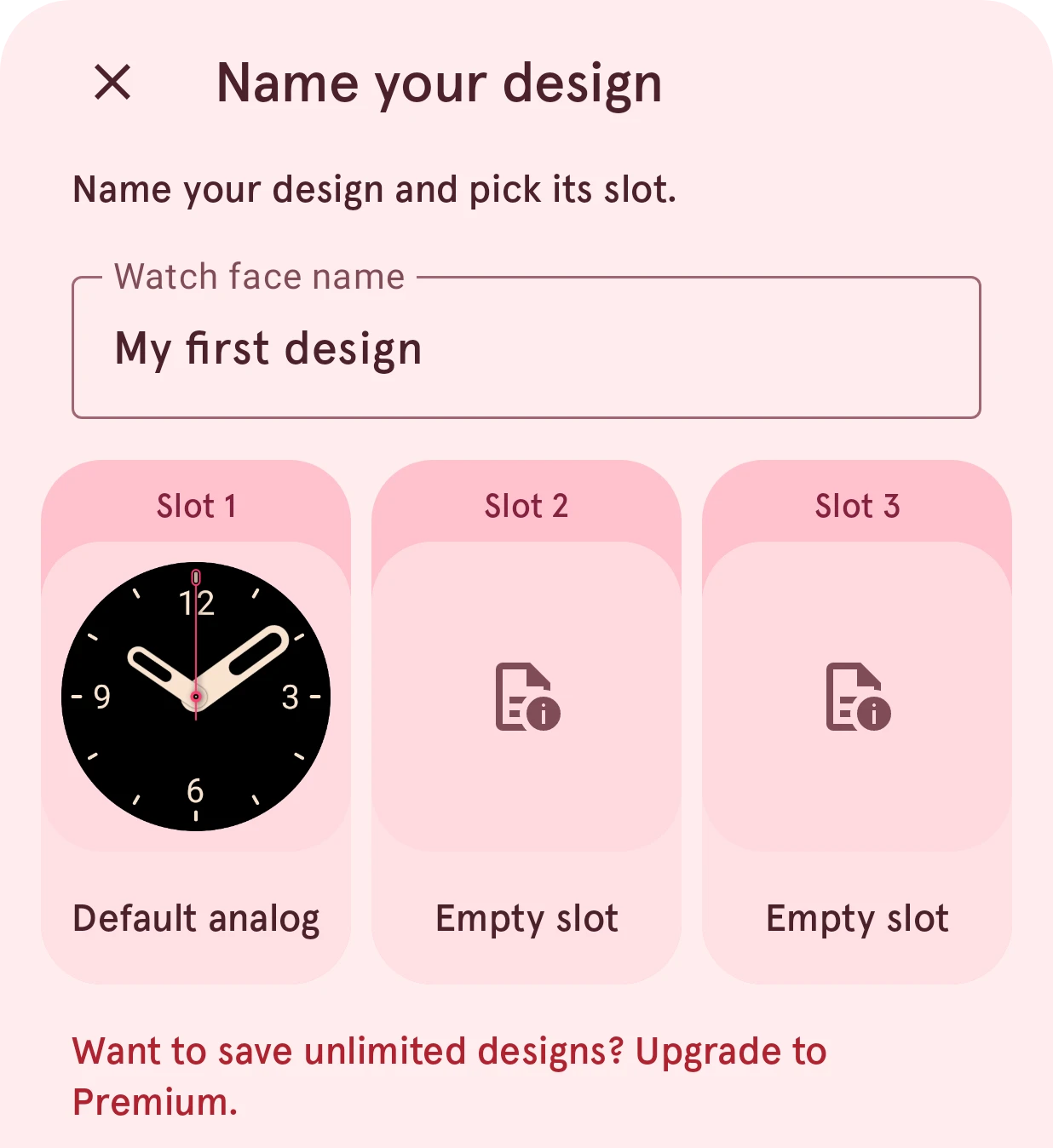
With Premium your designs save to your own library instead, as many as you like.
Next: send it to your watch.