
Grid
Set up the canvas of the watch element designer: its background color, grid lines that points snap to, and the angle steps that rotations snap to.
Opened from
- Grid, in the app bar
Sets up the grid behind your drawing. The canvas updates while you change it, and the changes are kept when you close the sheet. Each element keeps its own grid.
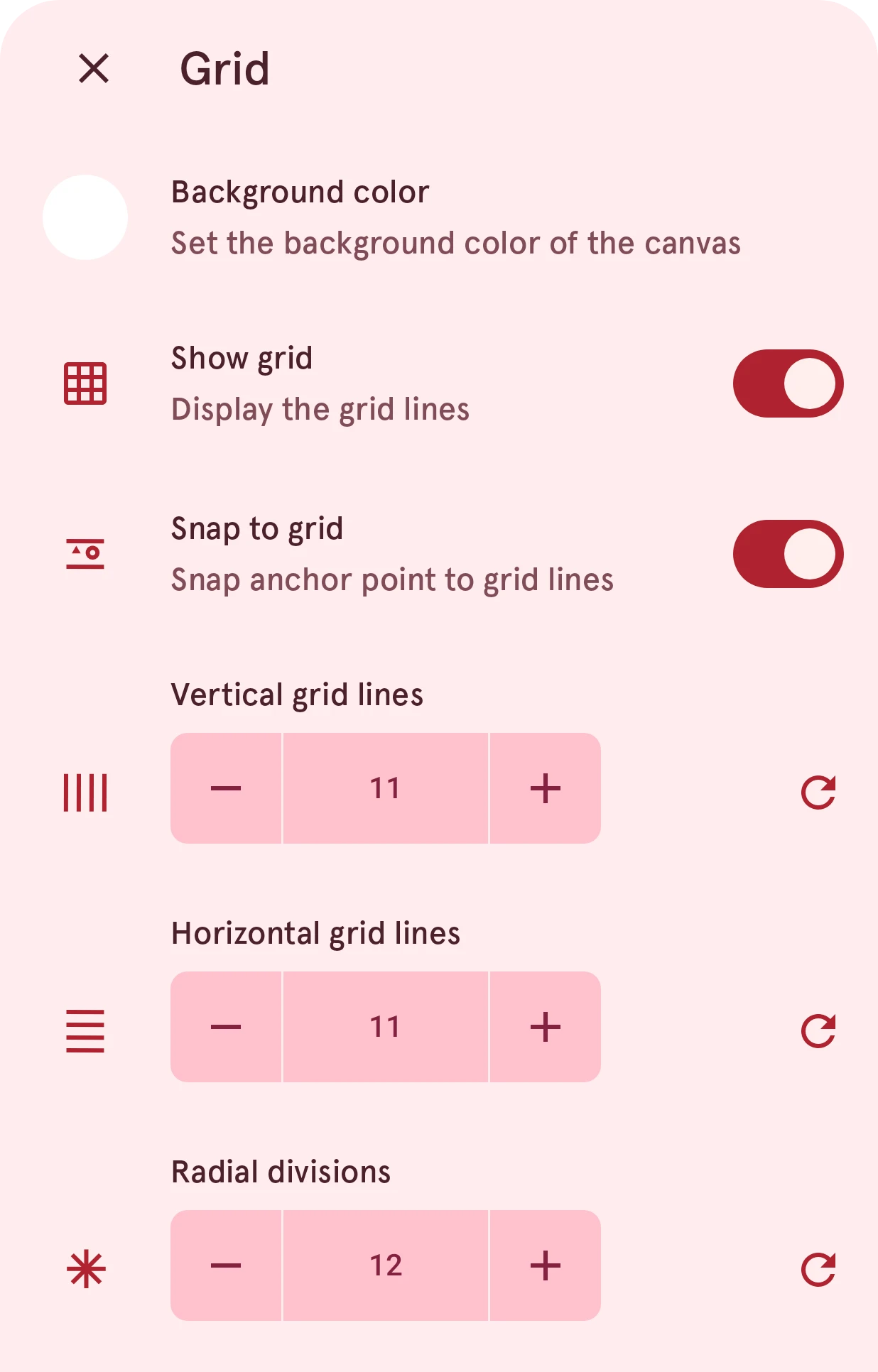
Background color
ColorSet the background color of the canvas
The color of the canvas behind the element. Pick one close to the face the element goes on, so you see the element as it will look: a dark one for a dark face.
Show grid
SwitchDisplay the grid lines
Draws the grid lines. Snapping still works with the grid hidden.
Snap to grid
SwitchSnap anchor point to grid lines
Anchor points jump to the nearest grid line as you move them, so lines come out straight and shapes line up.
Vertical grid lines
NumberHow many vertical lines divide the canvas. More lines give finer steps to snap to.
0 to 640, steps of 1
Horizontal grid lines
NumberHow many horizontal lines divide the canvas.
0 to 640, steps of 1
Radial divisions
NumberHow many steps a full turn has when you rotate a layer, so rotations snap to a fixed grid of angles: 12 divisions snap to every 30 degrees, 60 to every minute mark.
0 to 360, steps of 1