
Adjust palette
Change the colors of one element, with a live preview: every part with the color you change follows it. To recolor the whole watch face, use the palette.
The colors of one element. It opens from the color button on the element’s row in the element list. To change a color on the whole watch face at once, use the palette tab instead.
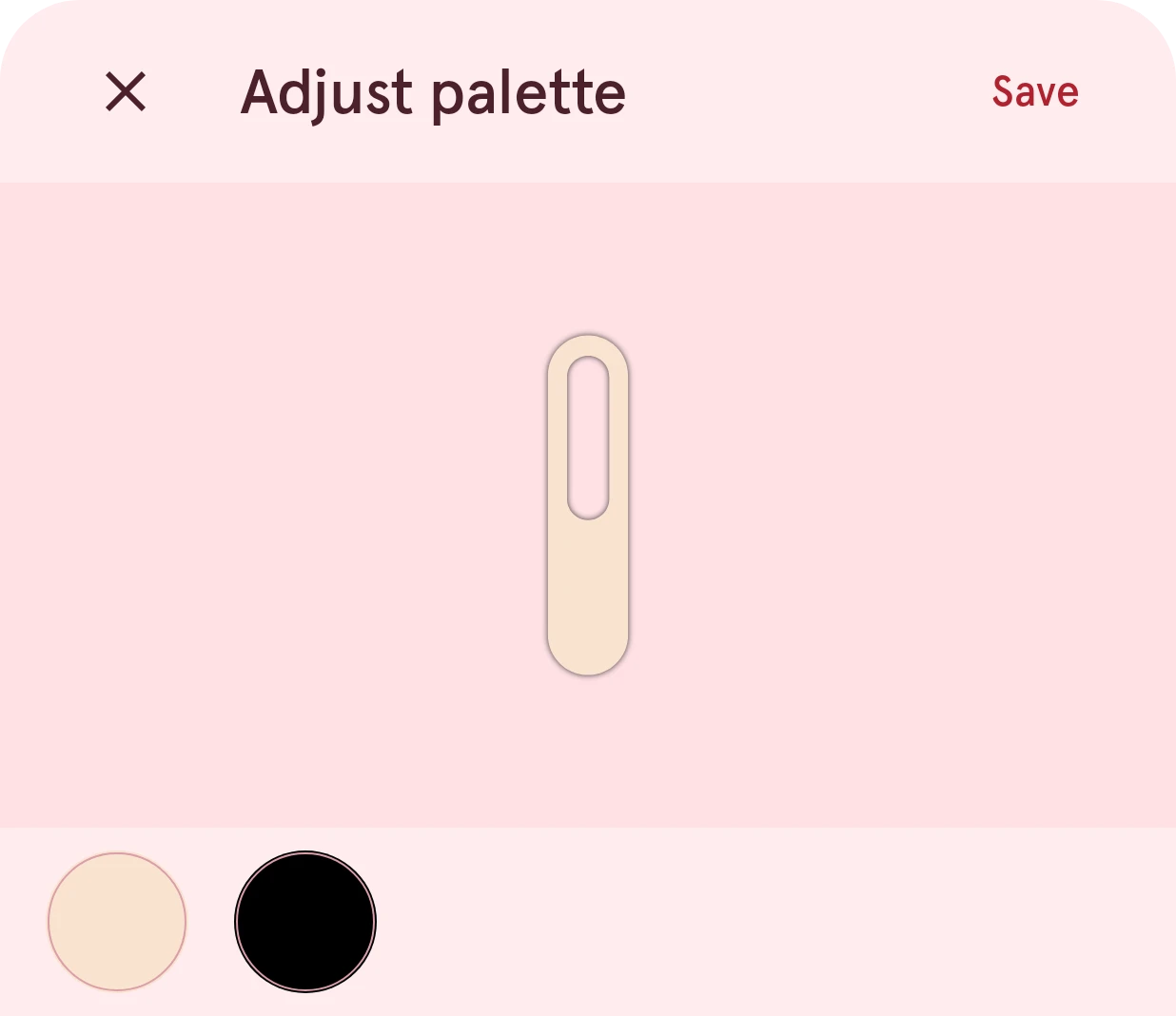
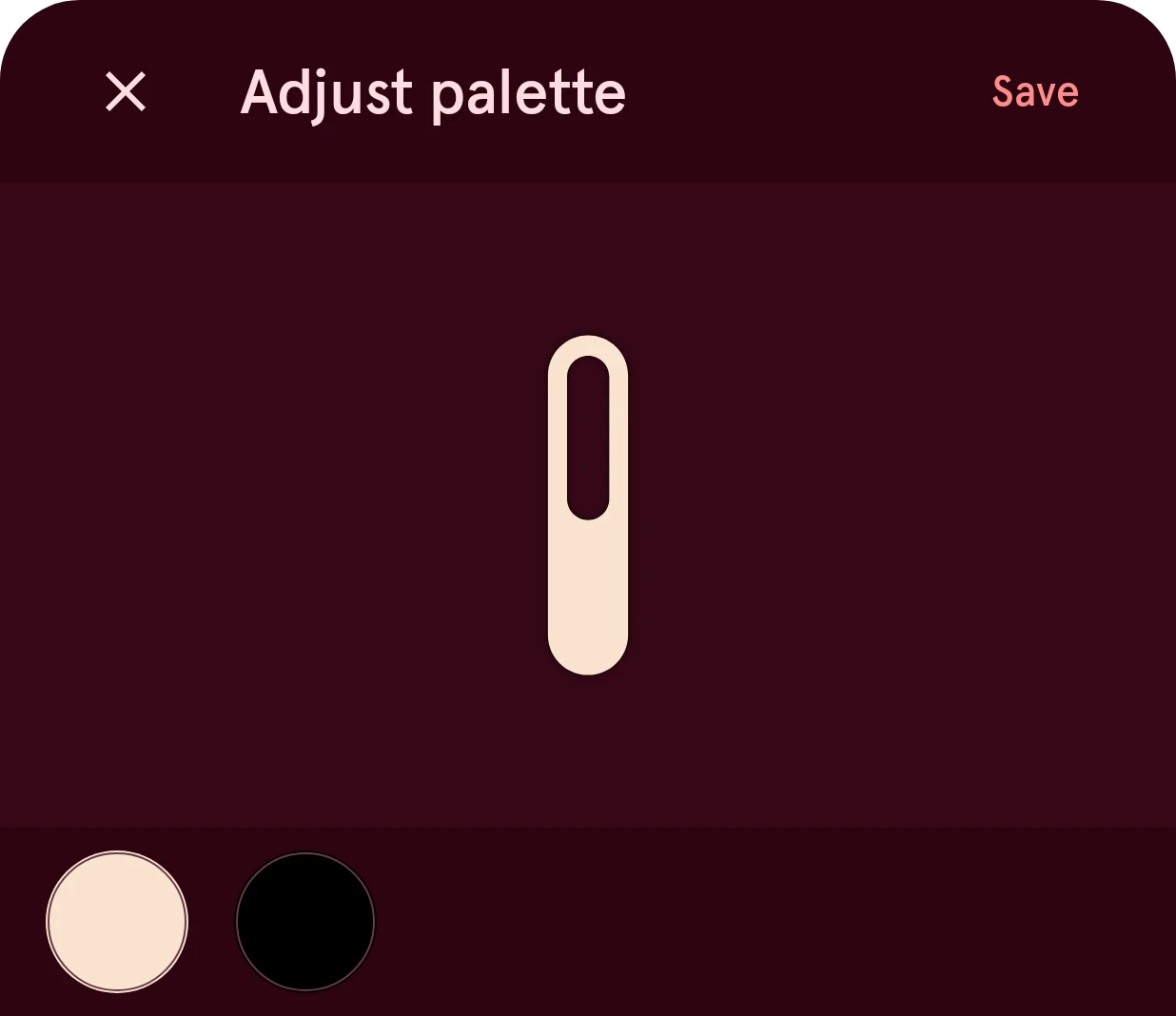
Close
Closes the sheet and leaves the element’s colors as they were.
Save
Applies the new colors. They can be undone like any other change.
Preview
The element, redrawn with every color you pick.
Color
One of the element’s colors. Tap a color to change it in the color picker: every part of the element that has that color changes with it.
Some elements have named colors instead: a tap target’s Icon color, the top and bottom color of a digital clock or a progress circle, or an indicator group’s bed, background, line, icon, text and value colors.
Notes the sheet can show
Section titled “Notes the sheet can show”- Images keep their own colors: the palette can’t change a picture, and an image element has no palette at all.
- Automated colors follow their automation, not the palette.