AI assistants
Design watch faces by chatting with Claude, ChatGPT, Gemini or another AI assistant, with Pujie on your phone doing the work.
Ask an AI assistant for a watch face (“a dark field watch with an orange seconds hand and the step count at six”) and it builds one in Pujie: it opens the designer on your phone, adds and styles the elements, looks at previews of the result and changes what it doesn’t like. When you’re happy, it can save the face to your Library or send it to your watch.
All the work happens in Pujie on your phone. The assistant only talks to it, through a connector you add once, and Pujie decides what it may do.
It isn’t limited to one app. Claude, ChatGPT and Gemini have their own guides here, and other AI assistants can connect the same way.
What you can do with it
Section titled “What you can do with it”It works like a conversation. You say what you want in your own words, the assistant builds it in Pujie on your phone, and then you tell it what to change, as often as you like. One request can be enough, but the best results come from fine-tuning over a few rounds:
You: “A minimal face with big numbers and the date, in greens.”
The assistant builds it and checks the result.
You: “Nice. Make the numbers a bit thinner and move the date up.”
It changes just that.
You: “Better. Try a darker green, and add the battery.”
With the designer open you can see the changes land, and you can edit things yourself in between and then carry on talking. It’s useful when you know what you want but not which controls get you there, and for the repetitive part of a design, like restyling every element at once.
A few things to ask for, at the start or at any point along the way:
Design a watch face
- “A minimal face with big numbers and the date, in greens.” The assistant builds it element by element and checks its own previews.
- “Use this SVG as the background shape.”
- “Add a complication at three o’clock.”
Change what you have open
- “Make the hands thinner.”
- “Try this in a warmer palette.”
- “Line up these three elements and make them the same size.”
- “Undo that, I liked it better before.”
Make it come alive
- “Show the battery as an arc around the edge.”
- “Dim the seconds hand at night.”
- “Check it at 3% battery and at midnight.” The assistant can simulate other values, so you can see how the face looks without waiting for it.
Get help with your scripts
Open the automation editor on any automated property and ask for help with what’s in it. The assistant reads the script you’re working on.
- “Make this rotate once an hour.”
- “Why does this show the wrong value after noon?”
- “Rewrite this so it counts down instead of up.”
It puts its suggestion in the editor’s field, after checking it the same way the editor does. Nothing changes on your face until you tap save yourself.
Get a second opinion
- “Is the text readable on this background?”
- “What did you change compared with what I started with?”
- “How does this face work out the moon phase?”
Work with what you’ve saved
- “Add the weather element from my library.”
- “Make a battery gauge element I can reuse.”
- “Which of my faces still need a Wear OS 6 version?”
- “Save this to my library.”
- “Send it to my watch.”
What you need
Section titled “What you need”- Pujie on your phone, logged in to your Library account. An AI assistant works with that account and the phones logged in to it.
- Pujie Premium. Without it, Pujie refuses the assistant’s requests; the assistant can open Pujie’s Premium page on your phone if you ask it to.
- An AI assistant that can add a custom connector. Claude, ChatGPT and Gemini can, each with its own conditions: see Claude, ChatGPT and Gemini. Other assistants work too, if they can add a remote MCP server with sign-in.
- Your phone online, with Pujie available to AI assistants (Connect AI assistants).
What it costs
Section titled “What it costs”Pujie doesn’t include an AI: you bring your own assistant, with your own account. What it does for you in Pujie counts toward your plan with that AI service, like your other chats. Some assistants need a paid plan to add a connector at all: the guide for yours has the details.
What the assistant reads from Pujie, such as your design, its previews and any Library items you let it open, goes to that AI service and falls under its terms.
Get started
Section titled “Get started”Open Settings › AI assistants and turn on Allow AI assistants. It’s off until you turn it on, and while it’s off Pujie refuses every request from every AI assistant.
Then connect an AI assistant: you add Pujie’s address to the assistant once, and approve it in Pujie with a code.
You stay in control
Section titled “You stay in control”An assistant can design freely from the start. Pujie asks you on your phone before anything that throws work away, reaches into your Library or leaves the phone, and you can change that per kind of action. The AI assistants settings explain every option, including what happens when Pujie asks.
Watching it work
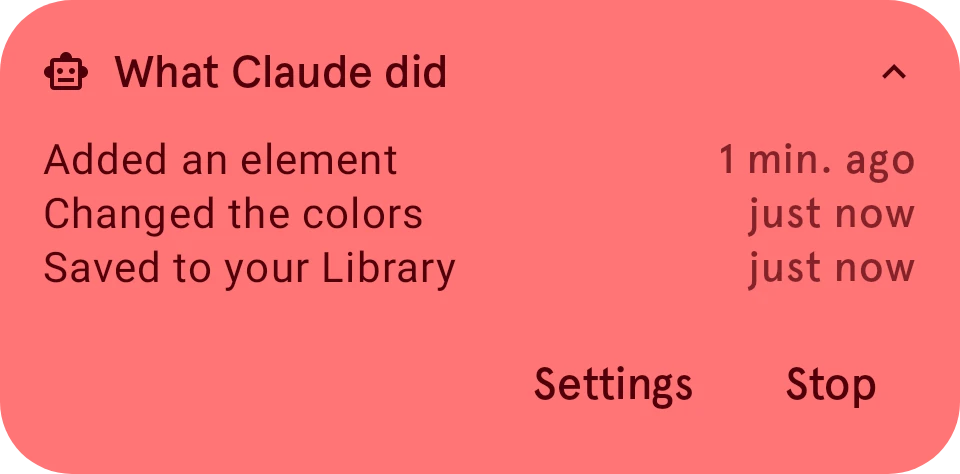
Section titled “Watching it work”While an assistant is working, a small pill floats over Pujie: Claude is working (with the assistant’s name). Tap it to see what it did, such as “Added an element”, “Changed the colors” or “Saved to your Library”. You can drag the pill out of the way. When Pujie isn’t on screen, a notification shows the same.
Stop turns AI assistants off at once: Pujie refuses every request until you tap Turn back on (or turn on Allow AI assistants again in Settings).